
STEP 1: Log into your Bizfox account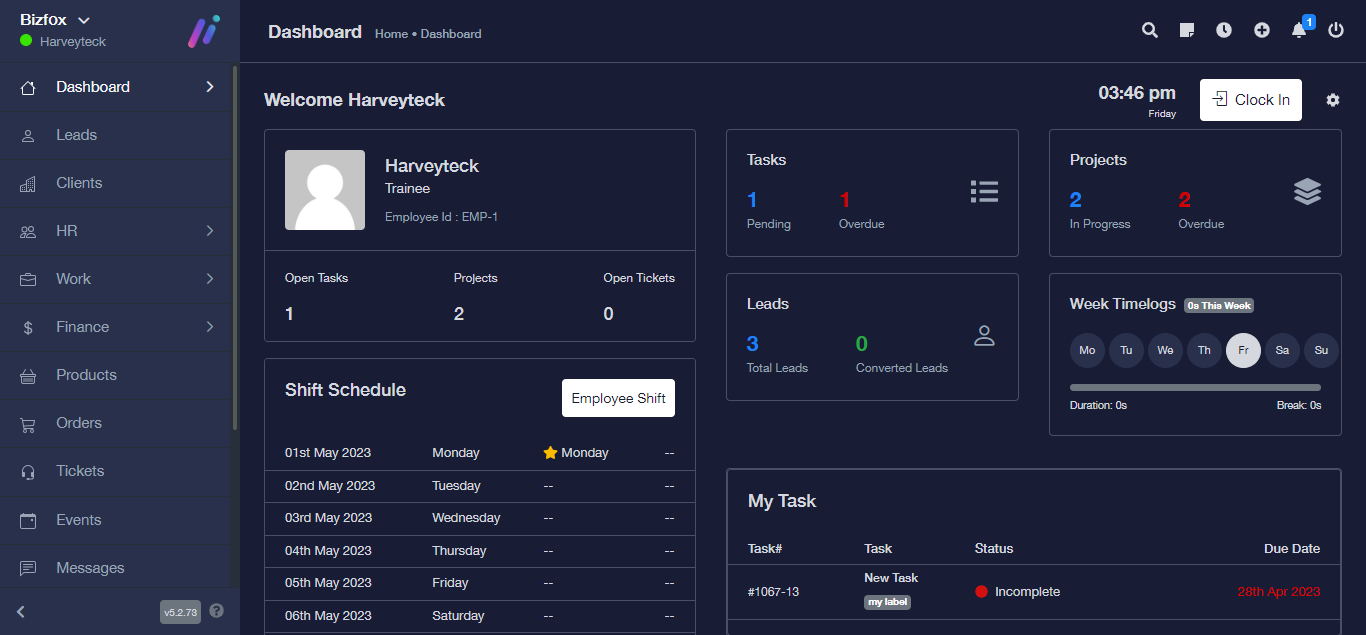
STEP 2: At the right side of your dashboard, click on “Leads”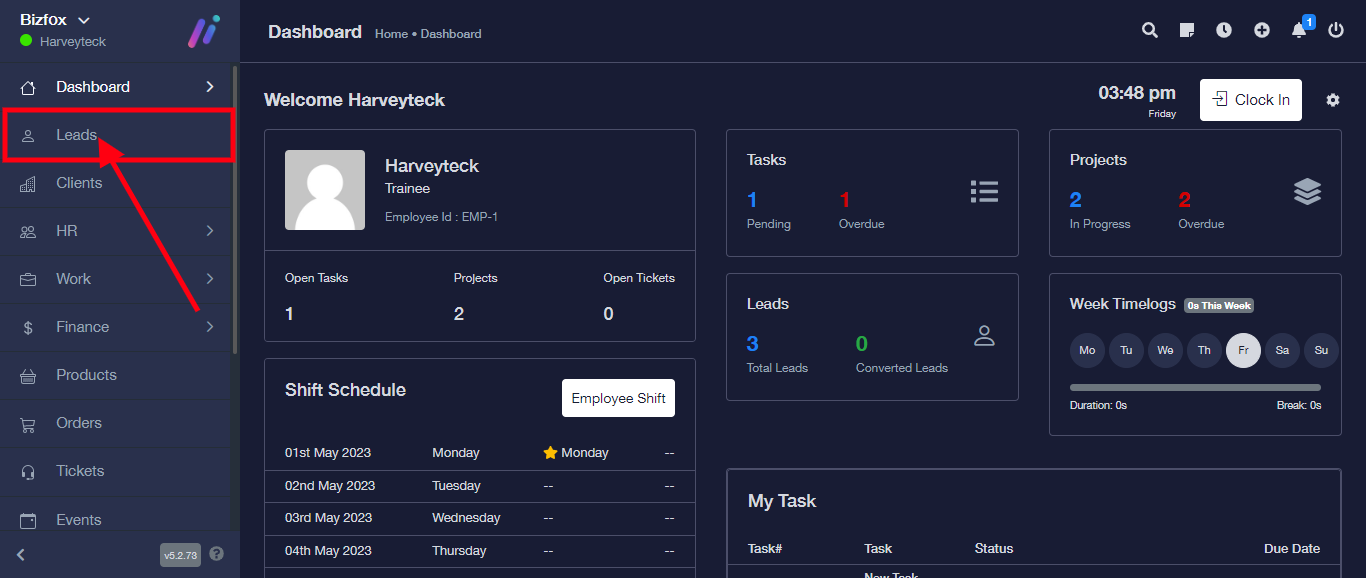
STEP 3: Click on the lead you want to add a file to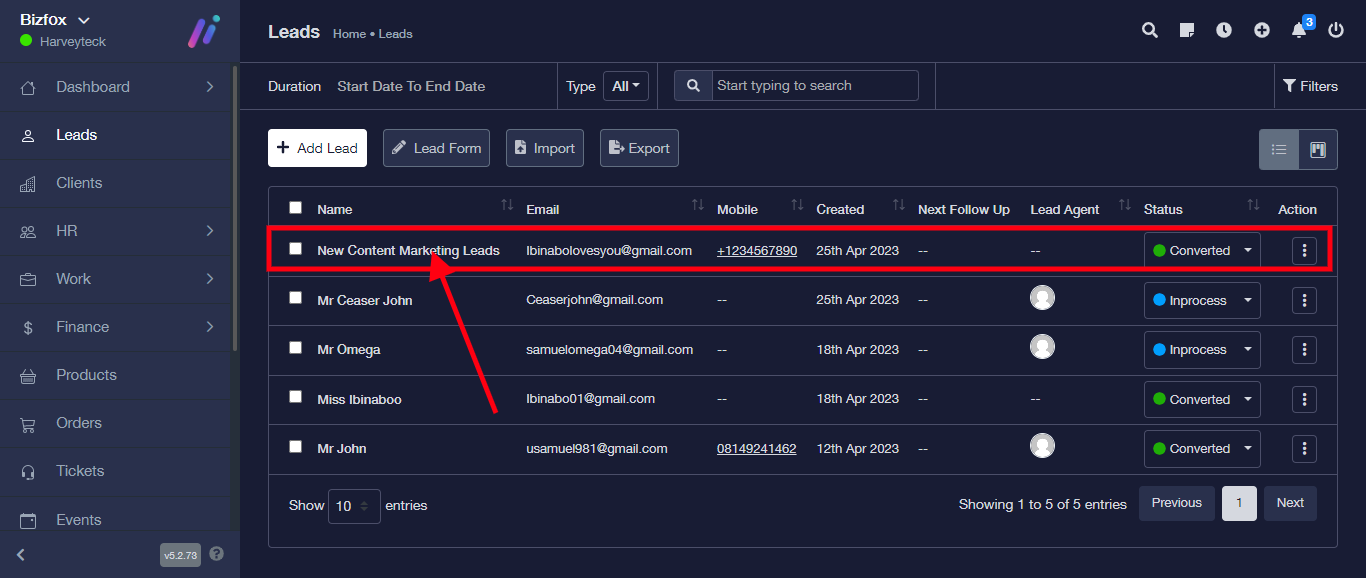
STEP 4: From the top menu, click on “Files”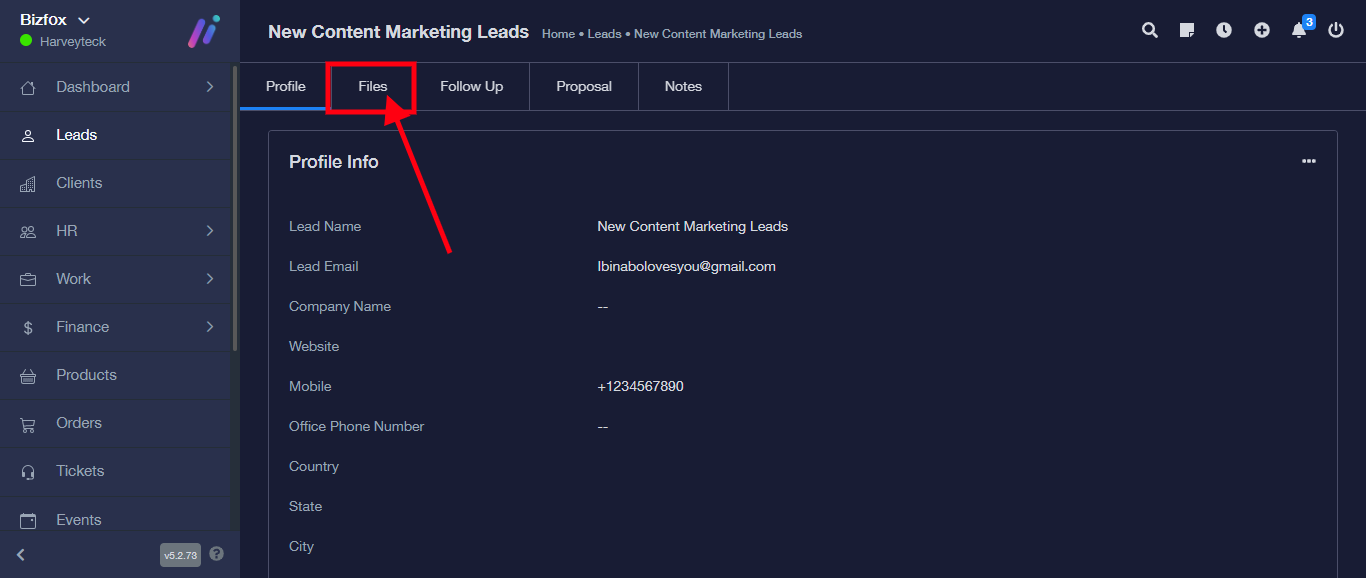
STEP 5: Click on “Add Files”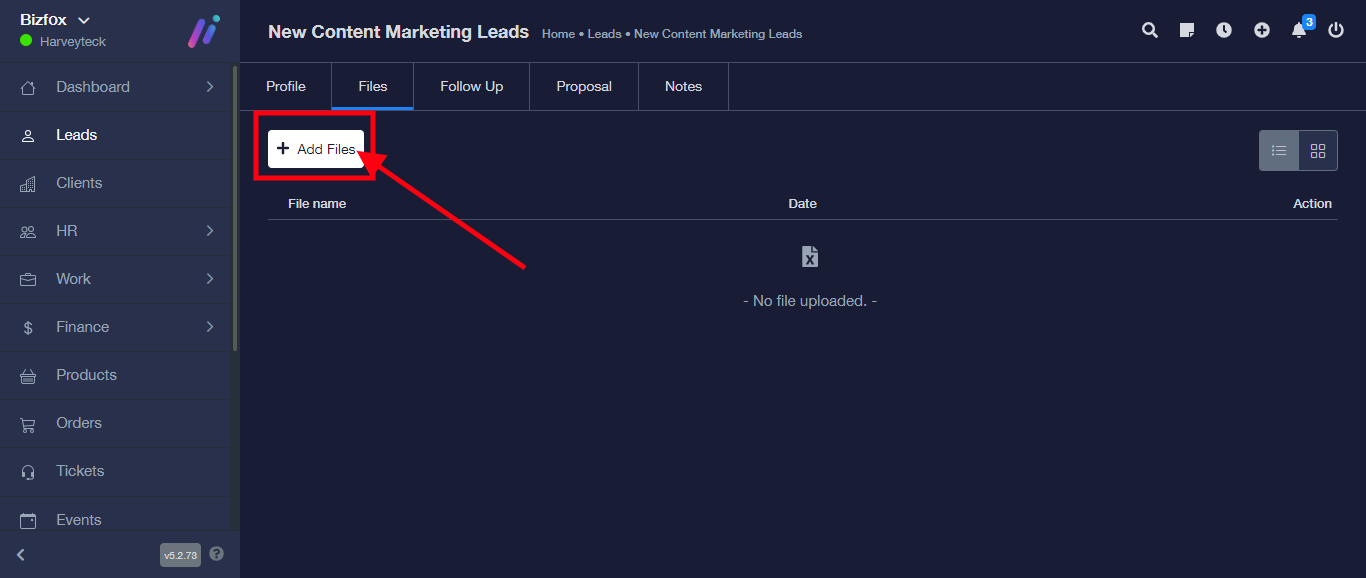
STEP 6: Click on “Choose a file” to add file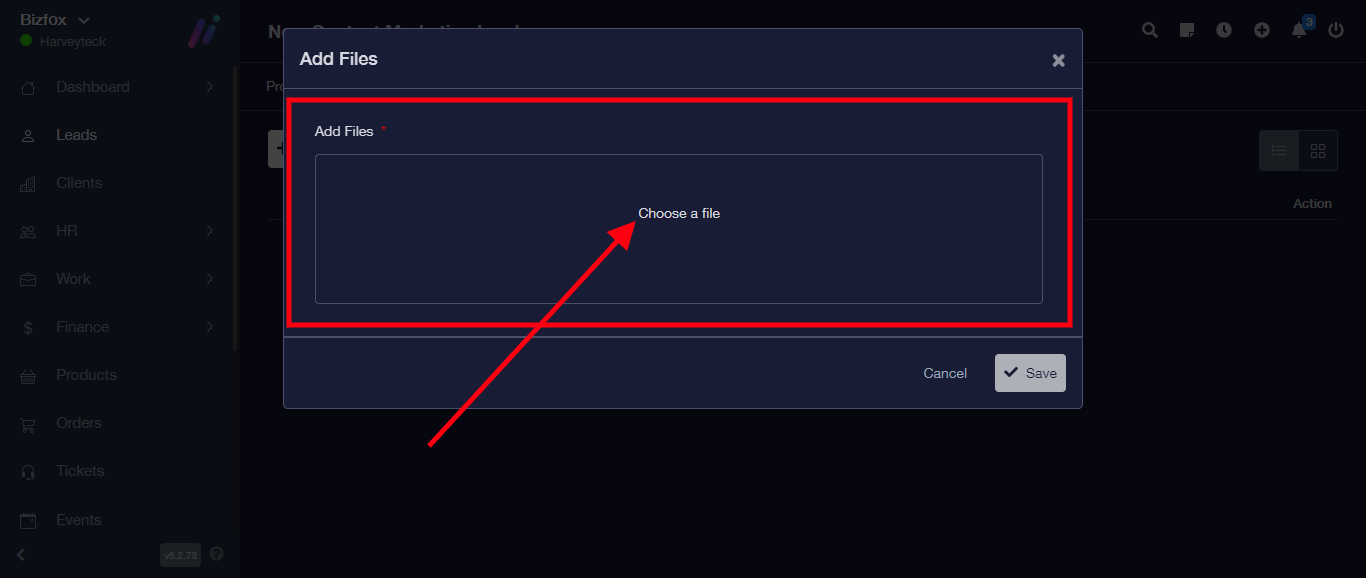
STEP 7: After choosing a file, click on “Save” 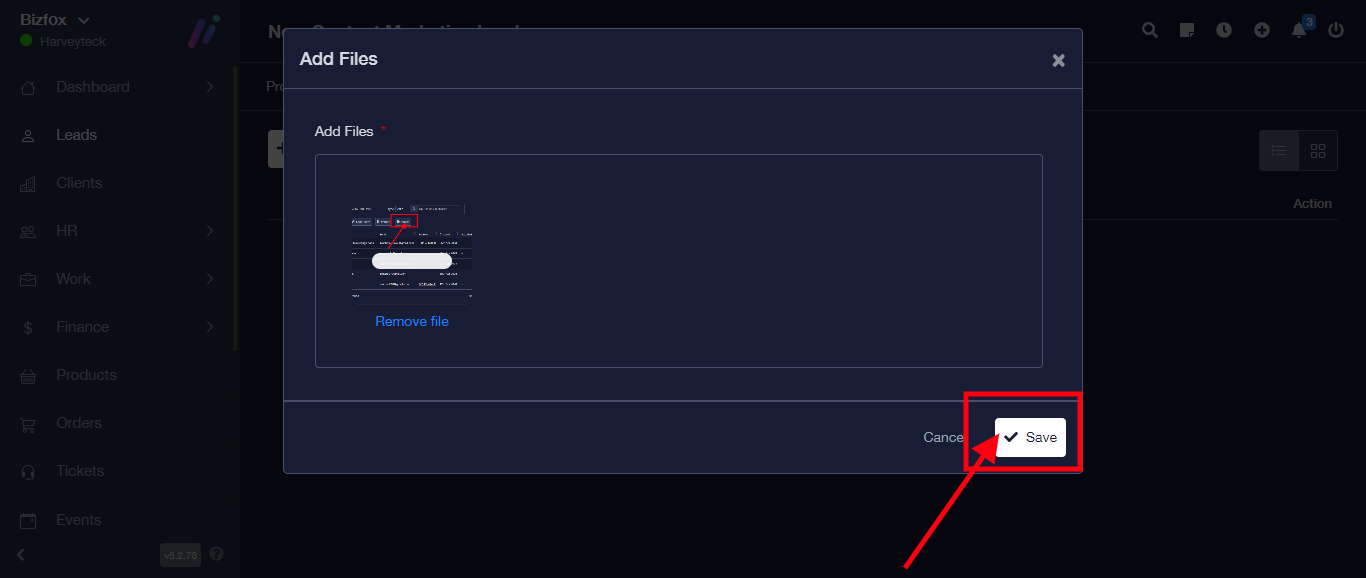
Your file has been successfully added to your lead (INSERT IMAGE)