
You can add designation on iCeleraite business manager dashboard by simply following the steps below;
Getting Started On Adding Designation
Log in to your iCeleraite Business Manager account.
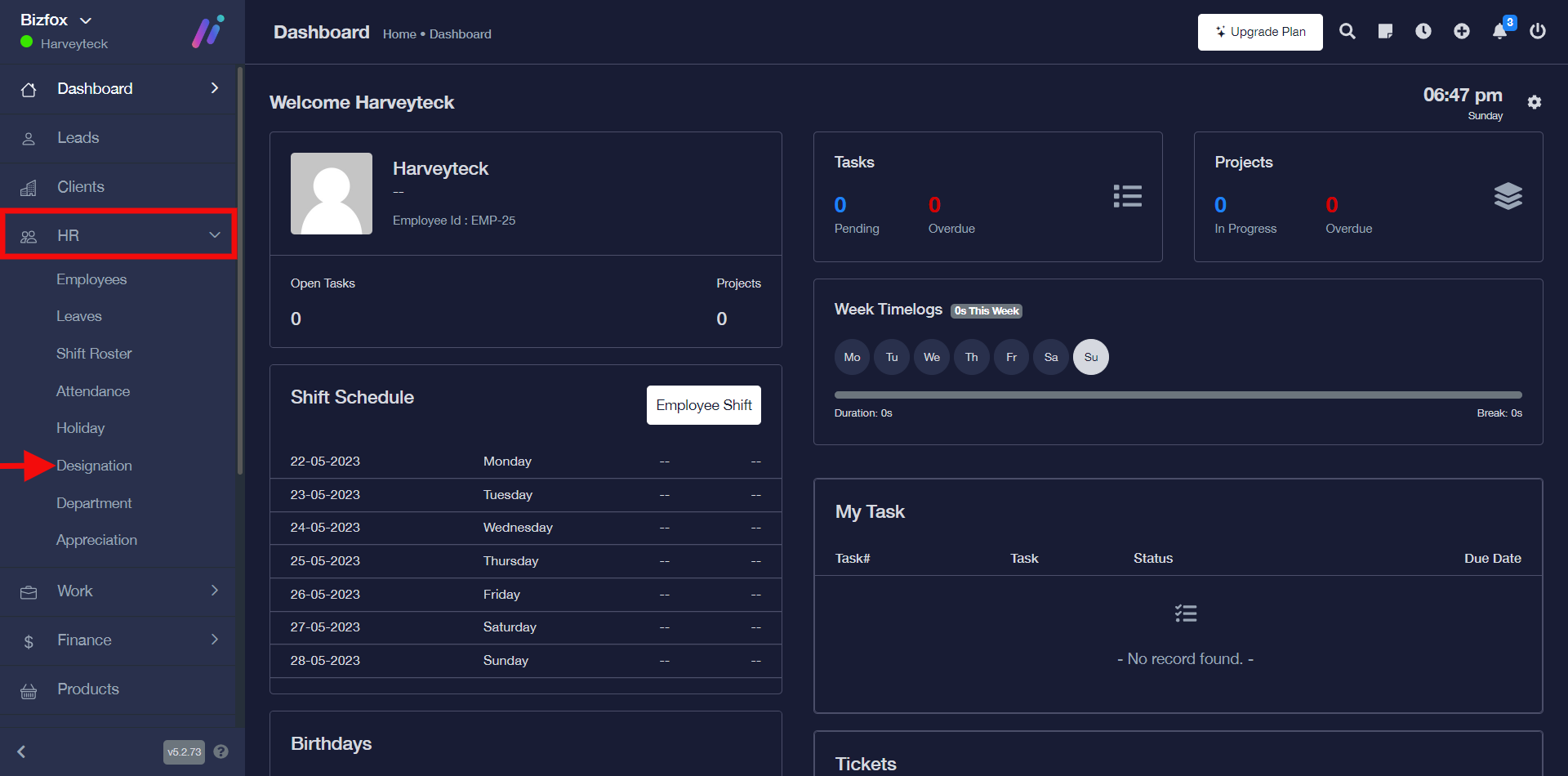
STEP 1: In the left-hand menu, click on “HR” and in the dropdown go ahead to click on “Designation” as shown in the screenshot below;
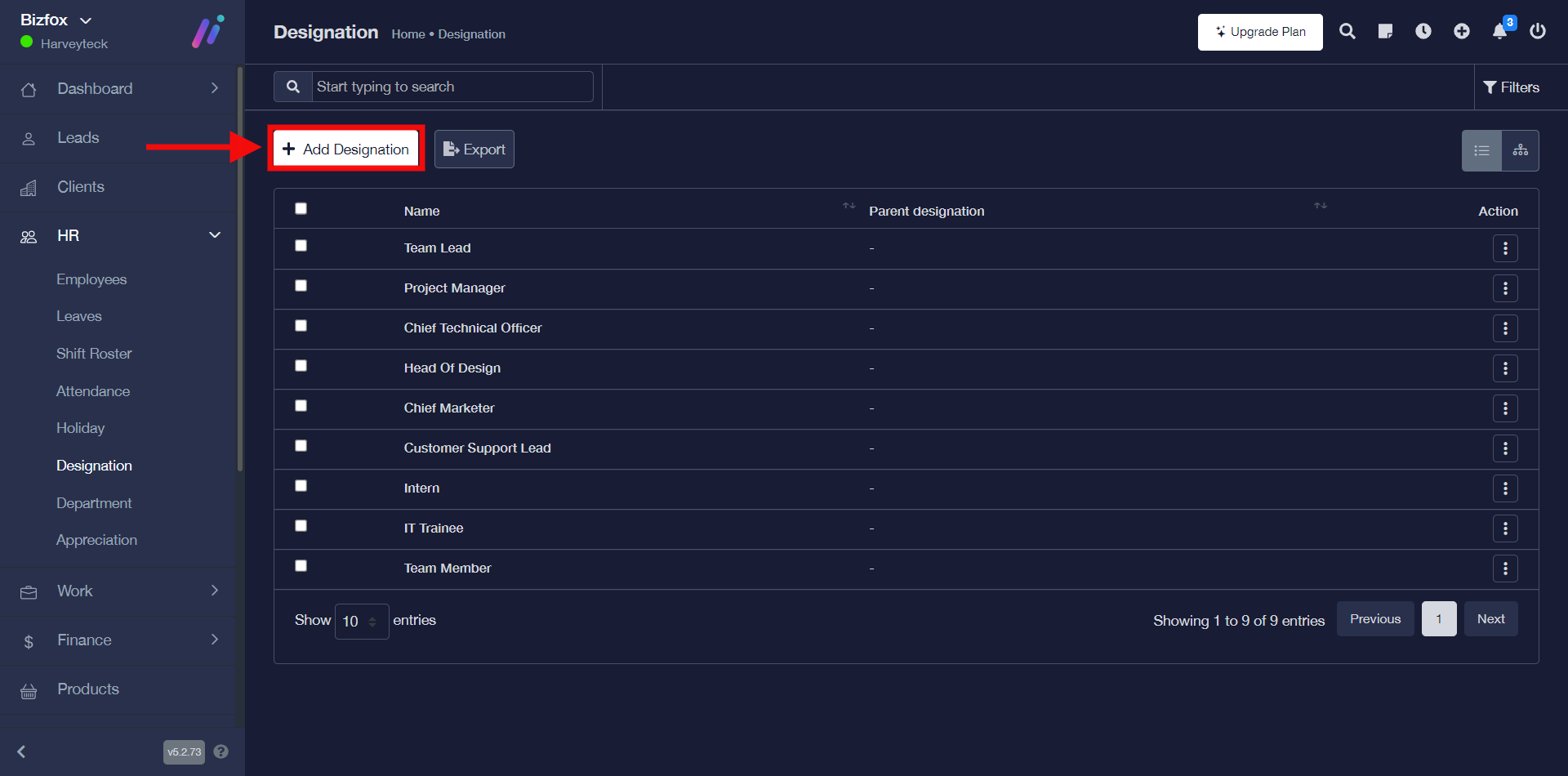
STEP 2: Click on the “Add Designation” button
STEP 3: Enter the name of your designation and go ahead to select any of the parent designations from the drop-down after which you can click the save button.

Note: It is optional to select a Parent designation, you can skip it if you want your Designation to be a Parent designation.

STEP 4: You will see a pop-up stating that the record has been saved successfully and it will also appear in the list of available designations.

