
You can create appreciation on iCeleraite business manager dashboard by simply following the steps below;
Getting Started On Creating Appreciation
Log in to your iCeleraite Business Manager account.
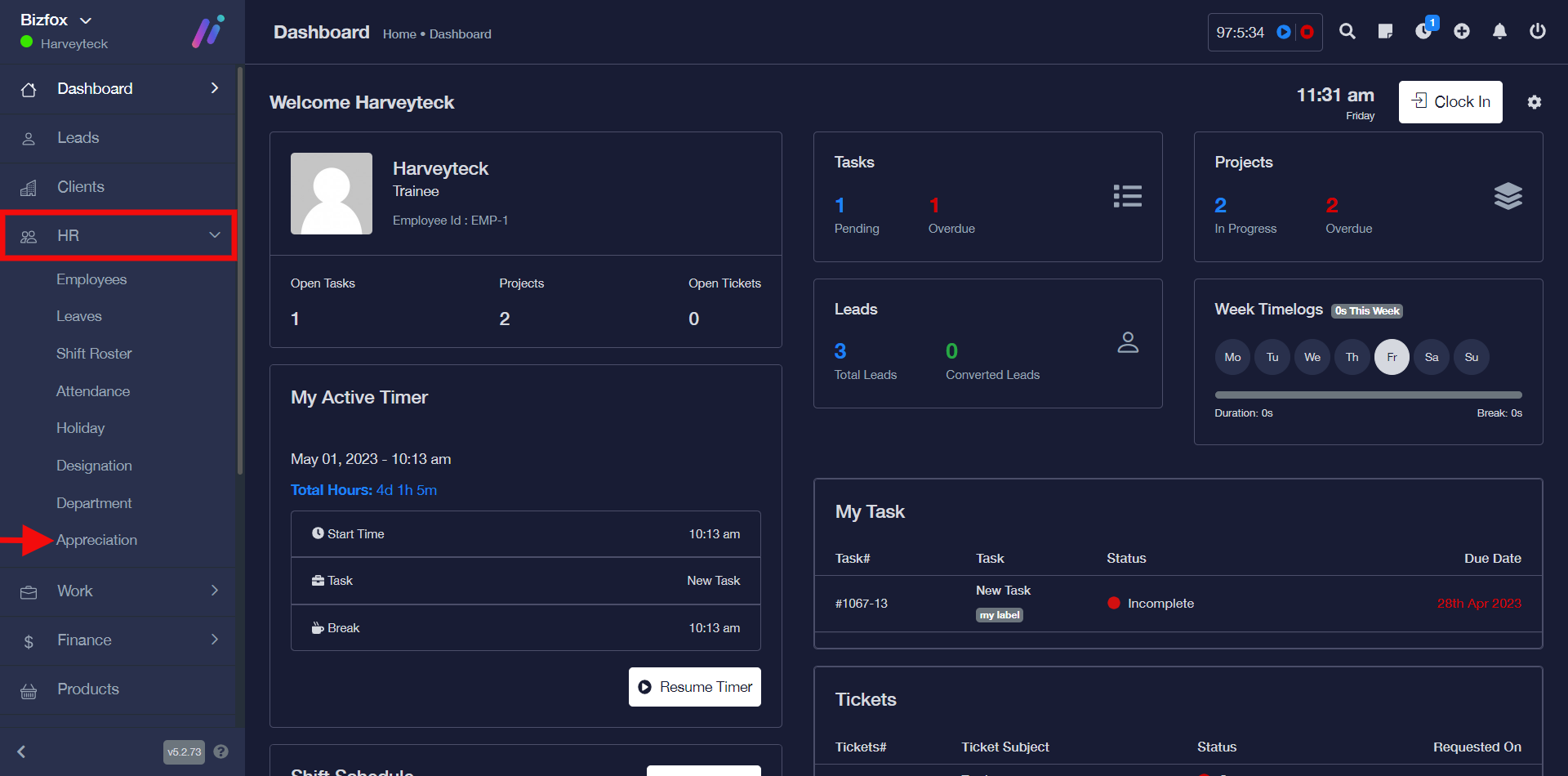
STEP 1: In the left-hand menu, click on “HR” and in the dropdown go ahead to click on “Appreciation” as shown in the screenshot below;
STEP 2: Click on the “Add Appreciation” button

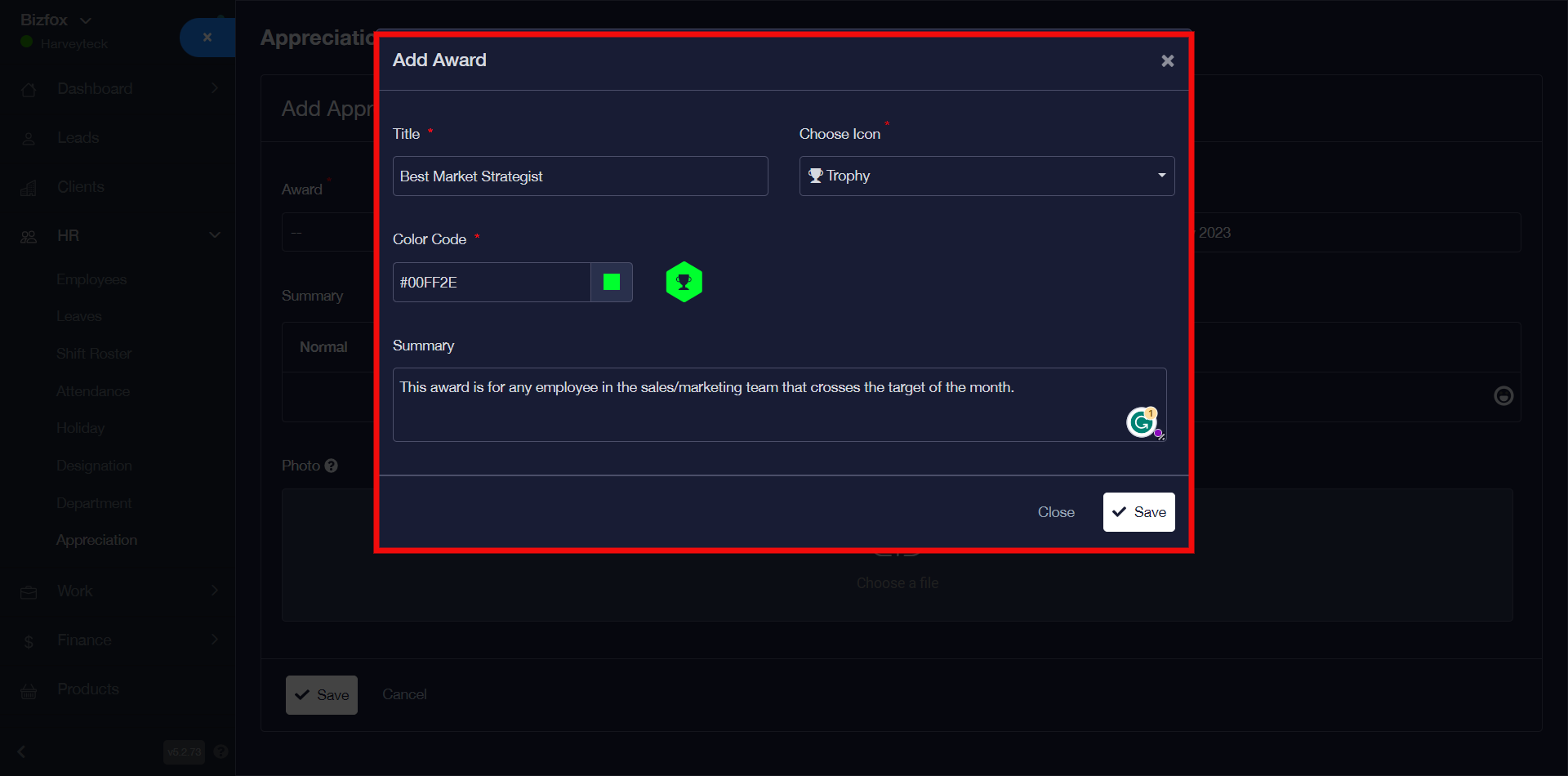
STEP 3: You can either select from already existing awards or click the “add” button to add a new award. If you go ahead to click the “add” button you will see a pop-up.

As shown below, this is the pop-up you will see after clicking the “add” button. You can go ahead to enter the title, choose icon and your preferred color code then enter the summary before clicking the “save button”

After clicking on the ” save button” you will say a pop-up notification stating that the record has been saved successfully.
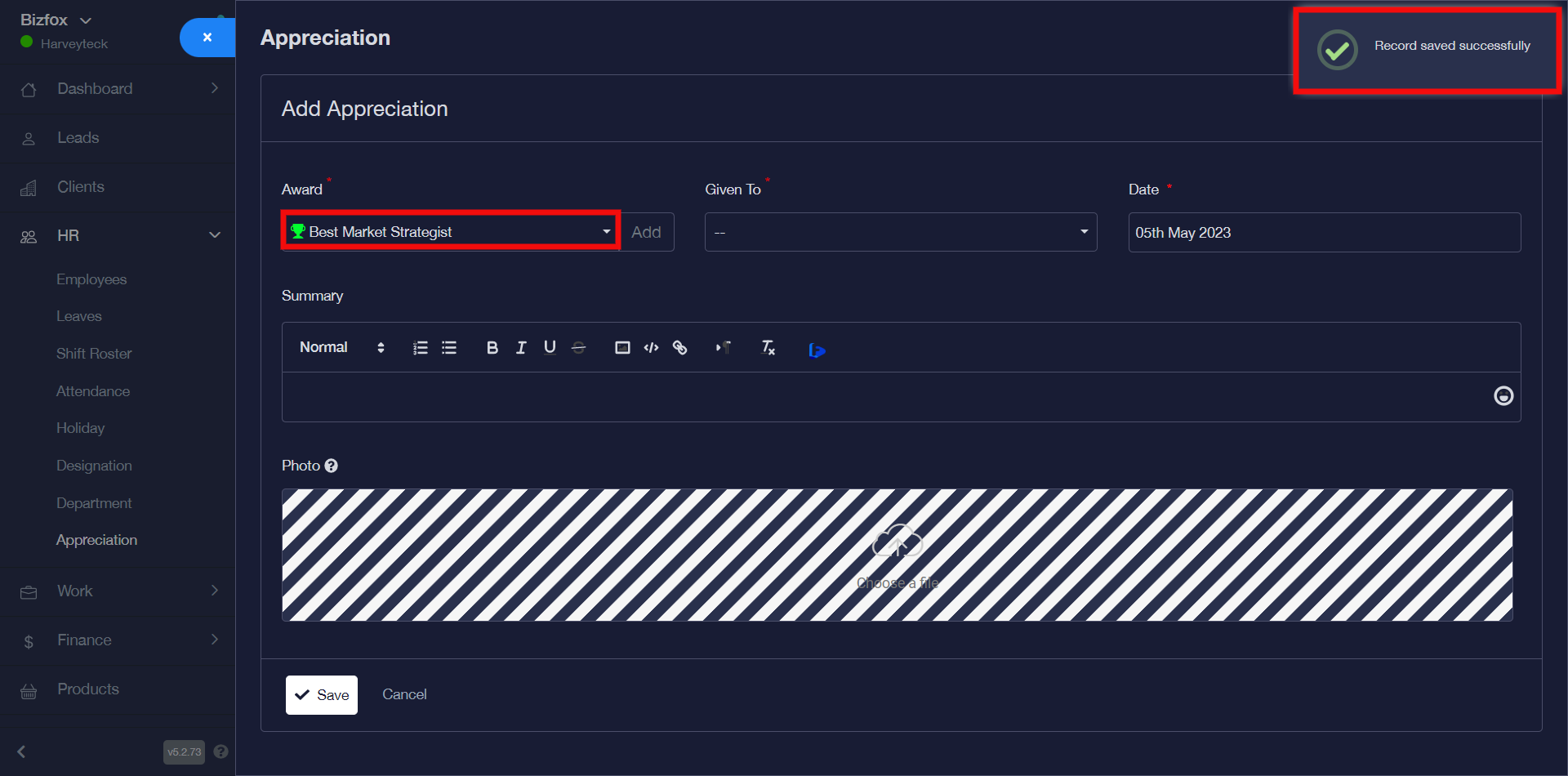
STEP 4: After creating or selecting your award, you can go ahead to select the employee it will be given to, enter the date, summary, and photo after which you can click the save button.
Upon clicking the “save” button you will see a pop-up stating that the record has been saved successfully after entering all the details correctly for your appreciation.
