You can add, export, mark days as default holidays, view calendar for holidays and sort holidays by month & year on iCeleraite business manager dashboard by simply following the steps below;
Getting Started On Adding Holiday
Log in to your iCeleraite Business Manager account.
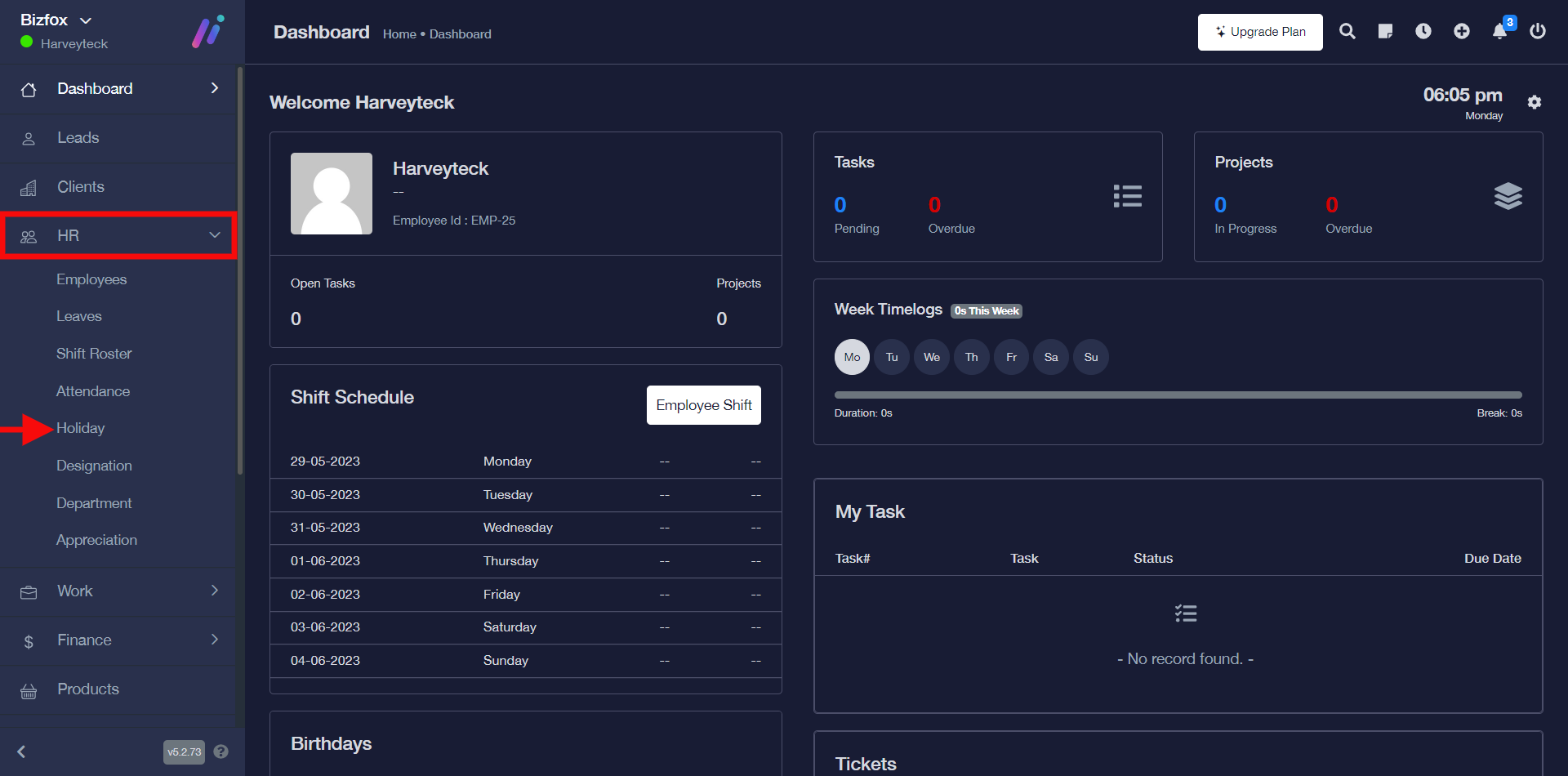
STEP 1: In the left-hand menu, click on “HR” and in the dropdown go ahead to click on “Holiday” as shown in the screenshot below;
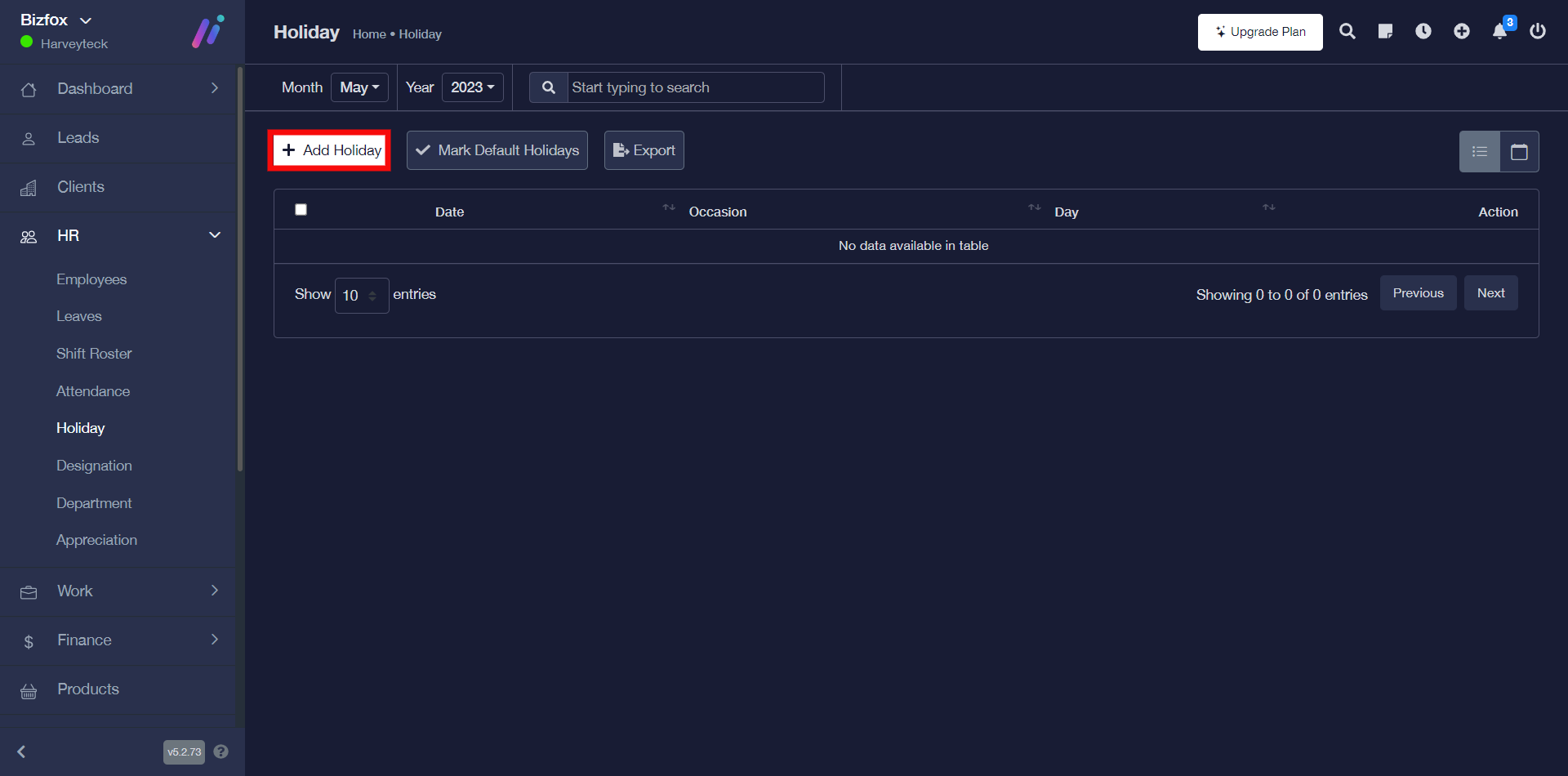
STEP 2: Go ahead to click the “add holiday” button, after which you will see a window where you can enter holiday details.
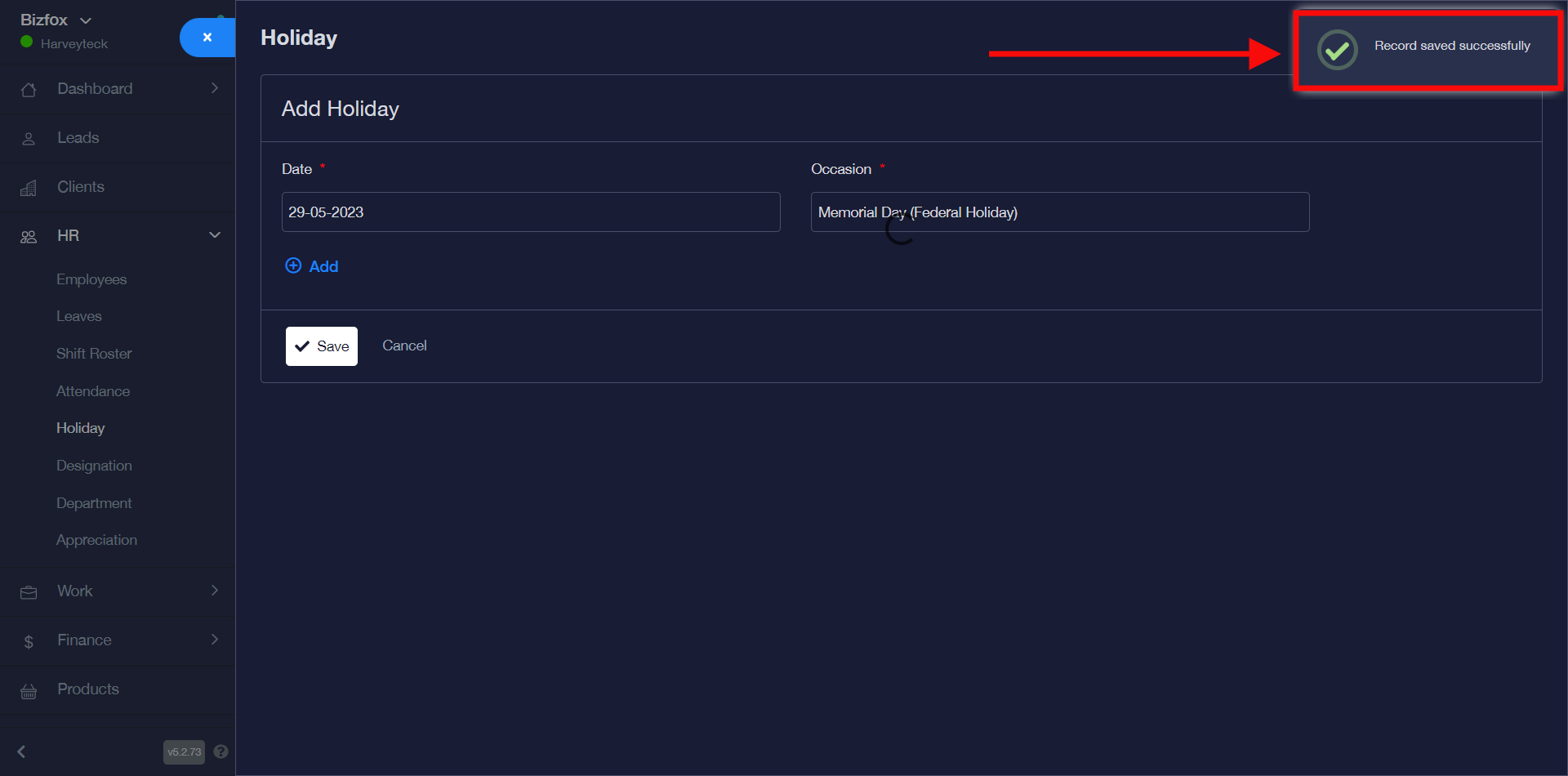
STEP 3: You can go ahead to enter the “date” and “occasion” name if you would like to create a single holiday then click the “save button” after which you would get a successful pop-up stating that the record was saved successfully.
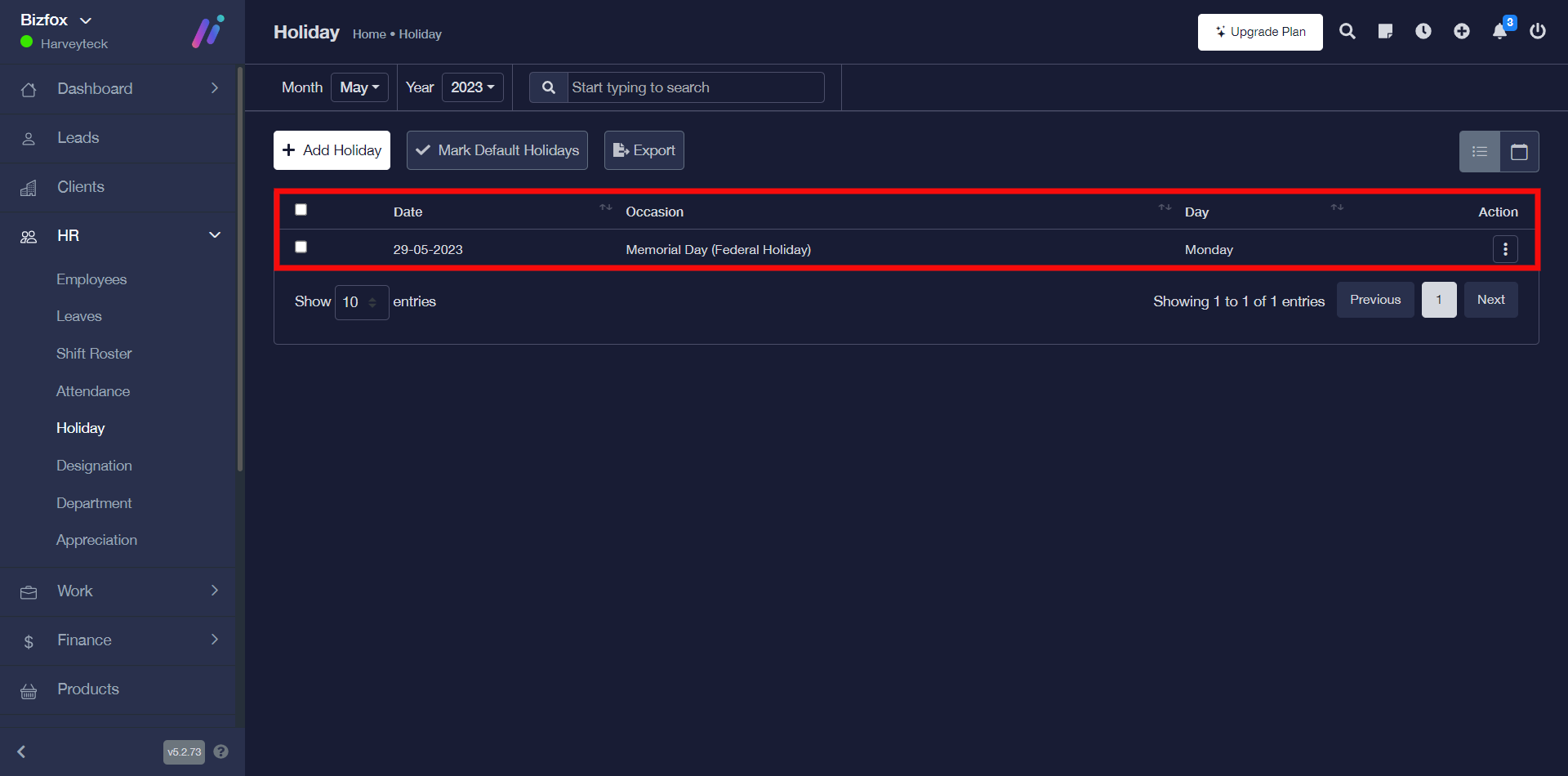
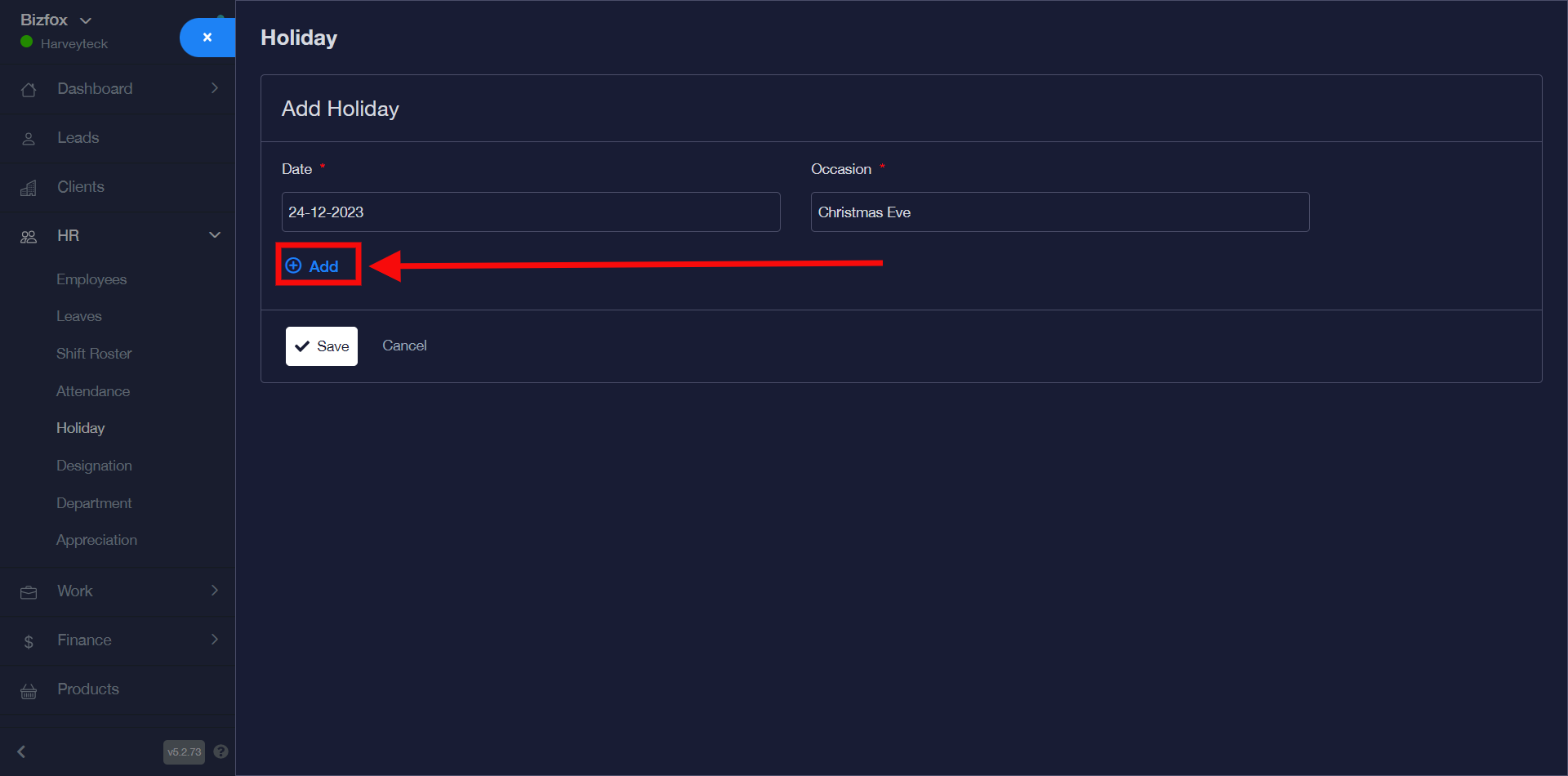
However, if you will like to create multiple holidays (i.e holidays that last longer than a day.) after entering the date and occasion name of the first holiday you can go ahead to click the “add button” to create another holiday after which you can click the “save button”
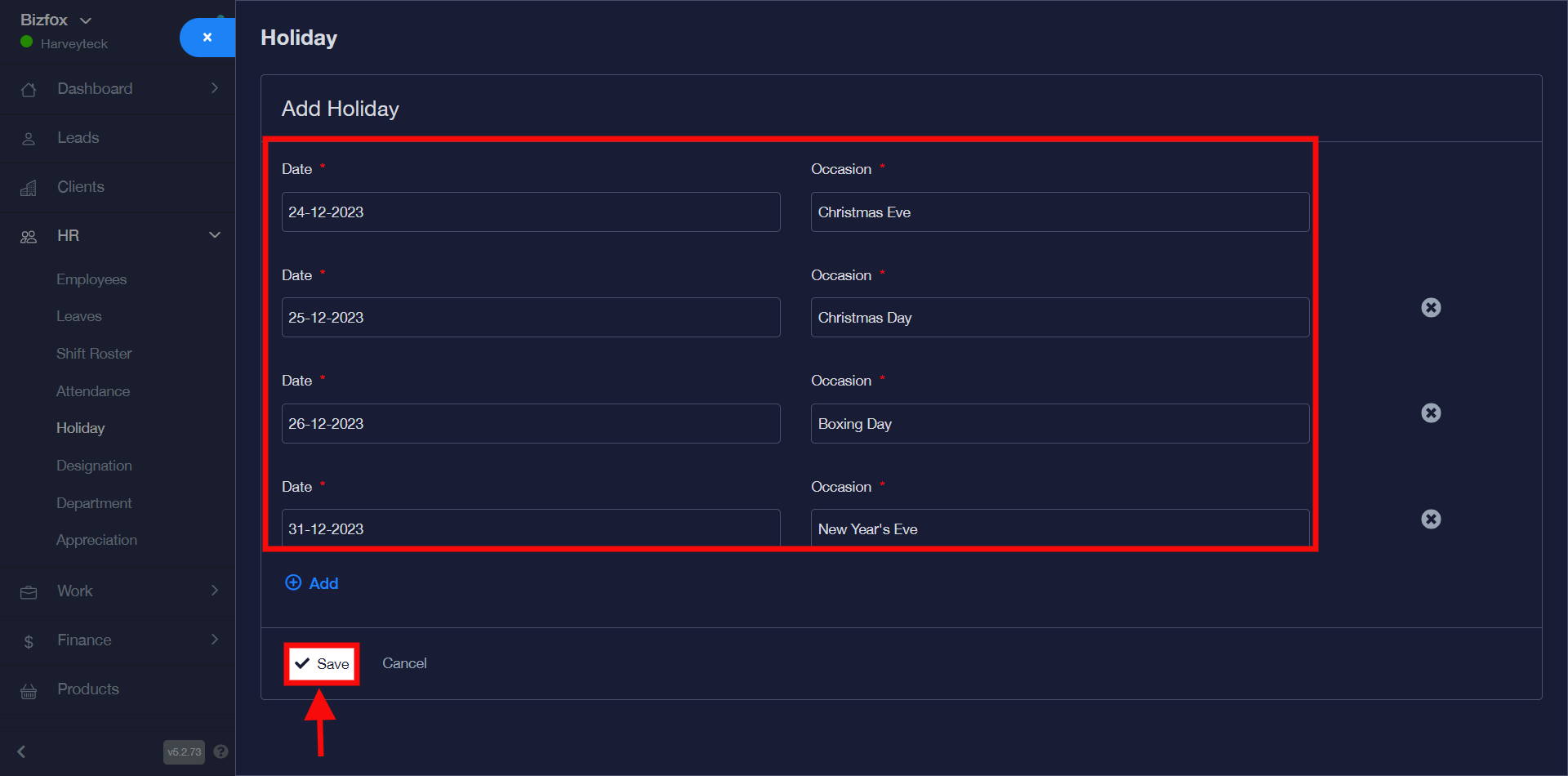
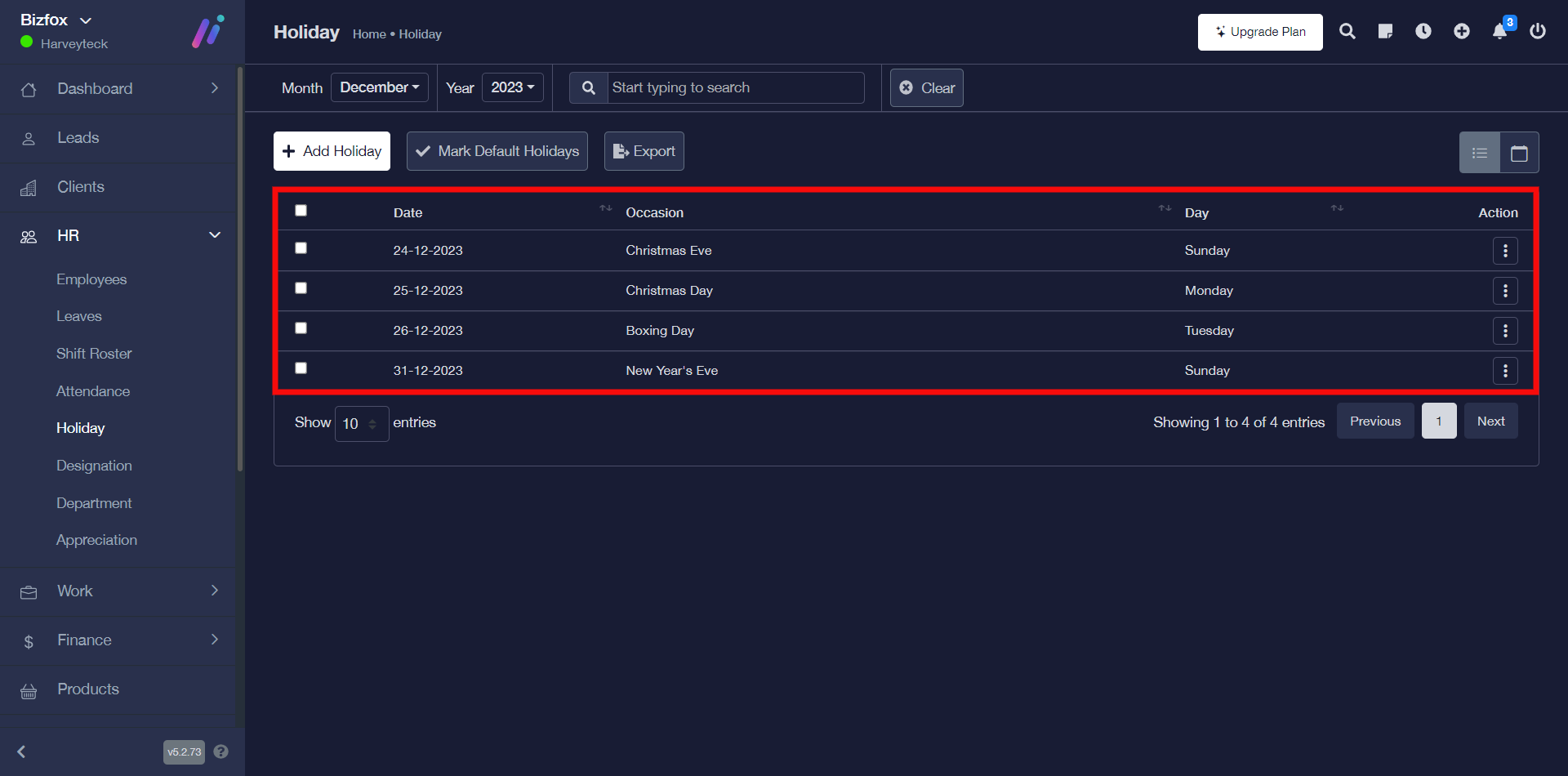
In the example below as shown in the screenshot I created multiple holidays which has to do with the occasion of Christmas and new year.
How To Export Holiday In Excel Format (xlsx)
You can export holiday by simply following the instructions below;
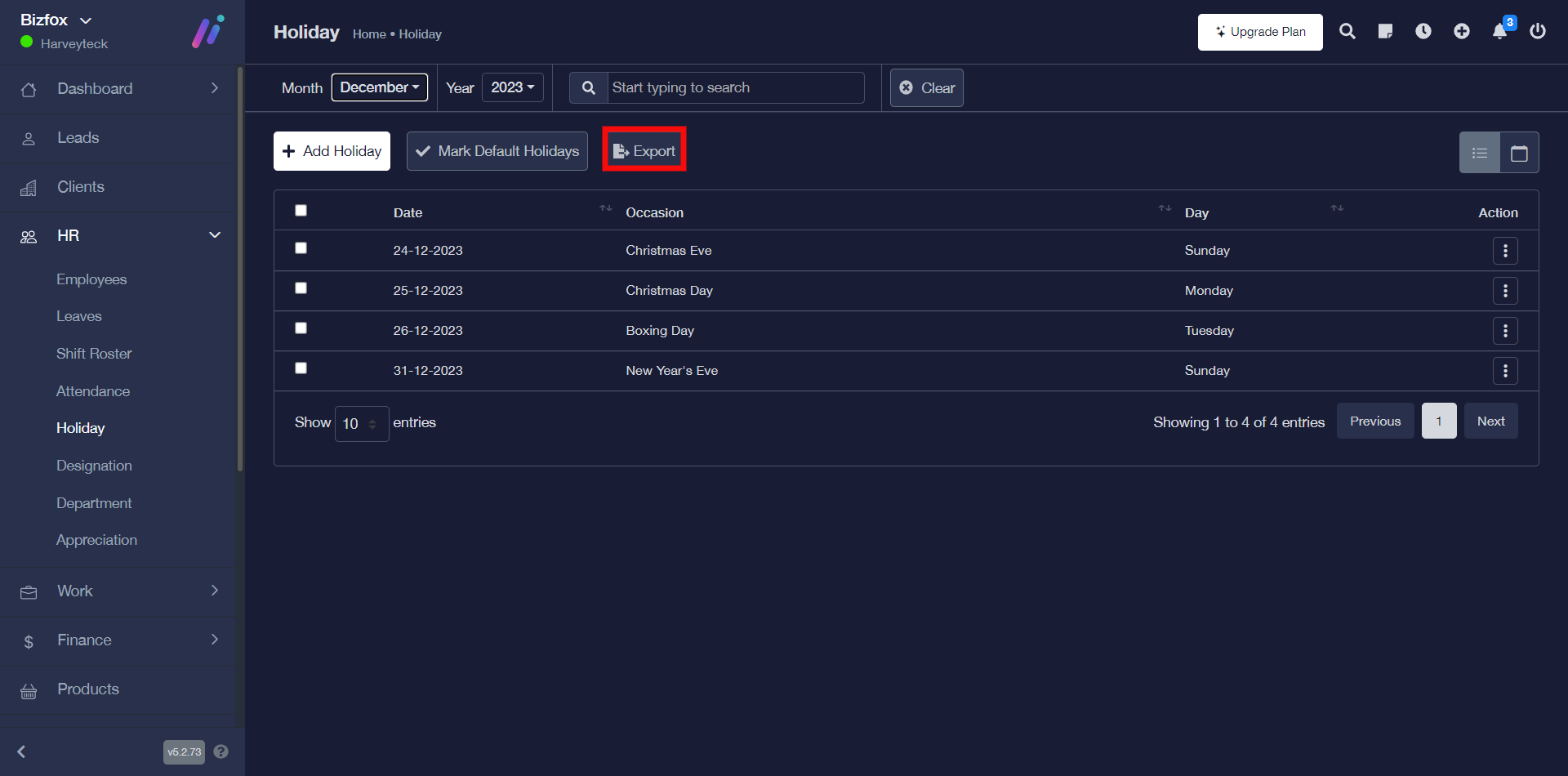
STEP 1: Click on the “export” button, after which you will get an option to save the xlsx file format on your computer.
How To Mark Days As Default Holidays
You can mark days as default holidays by simply following the instructions below;
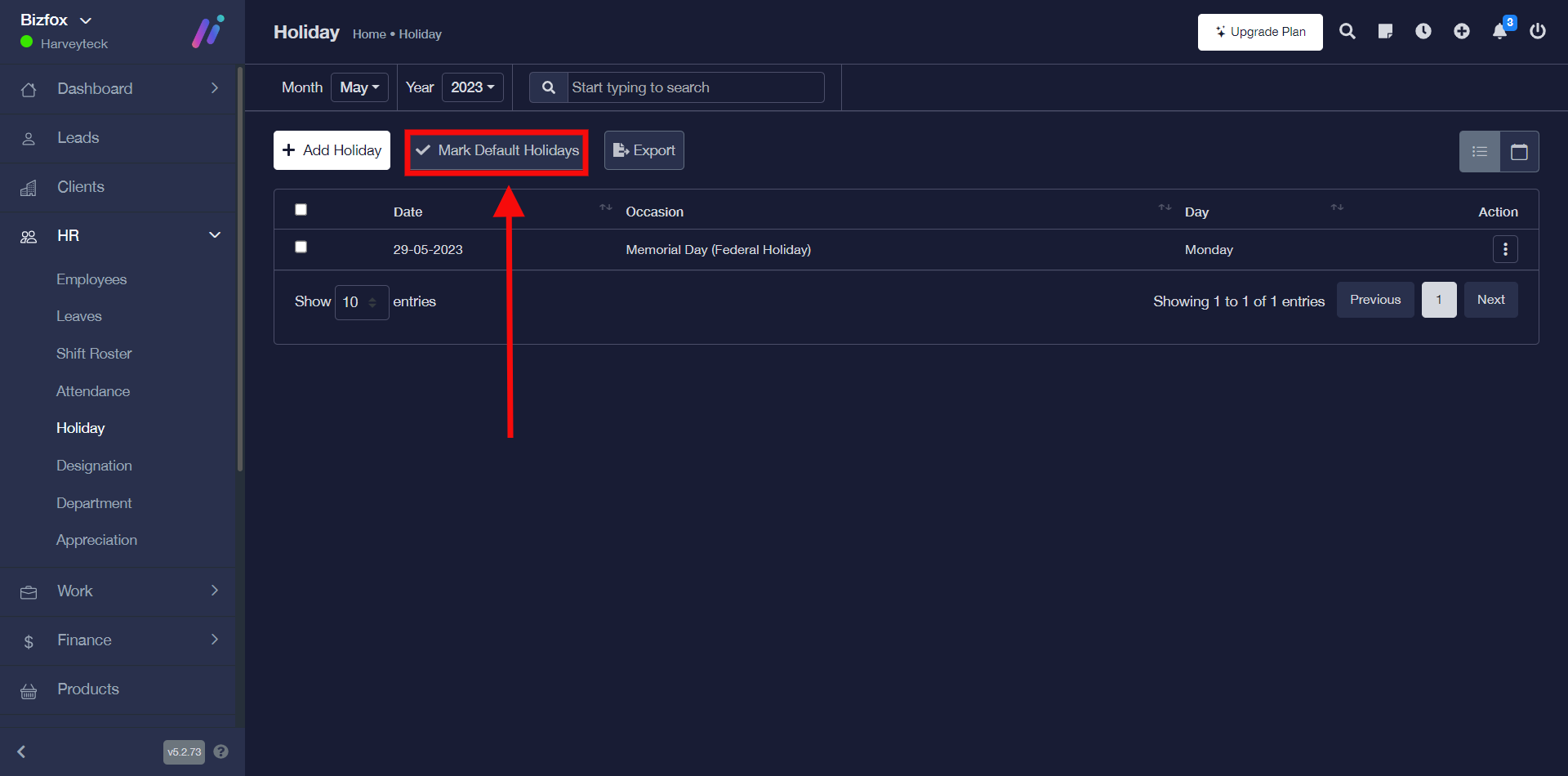
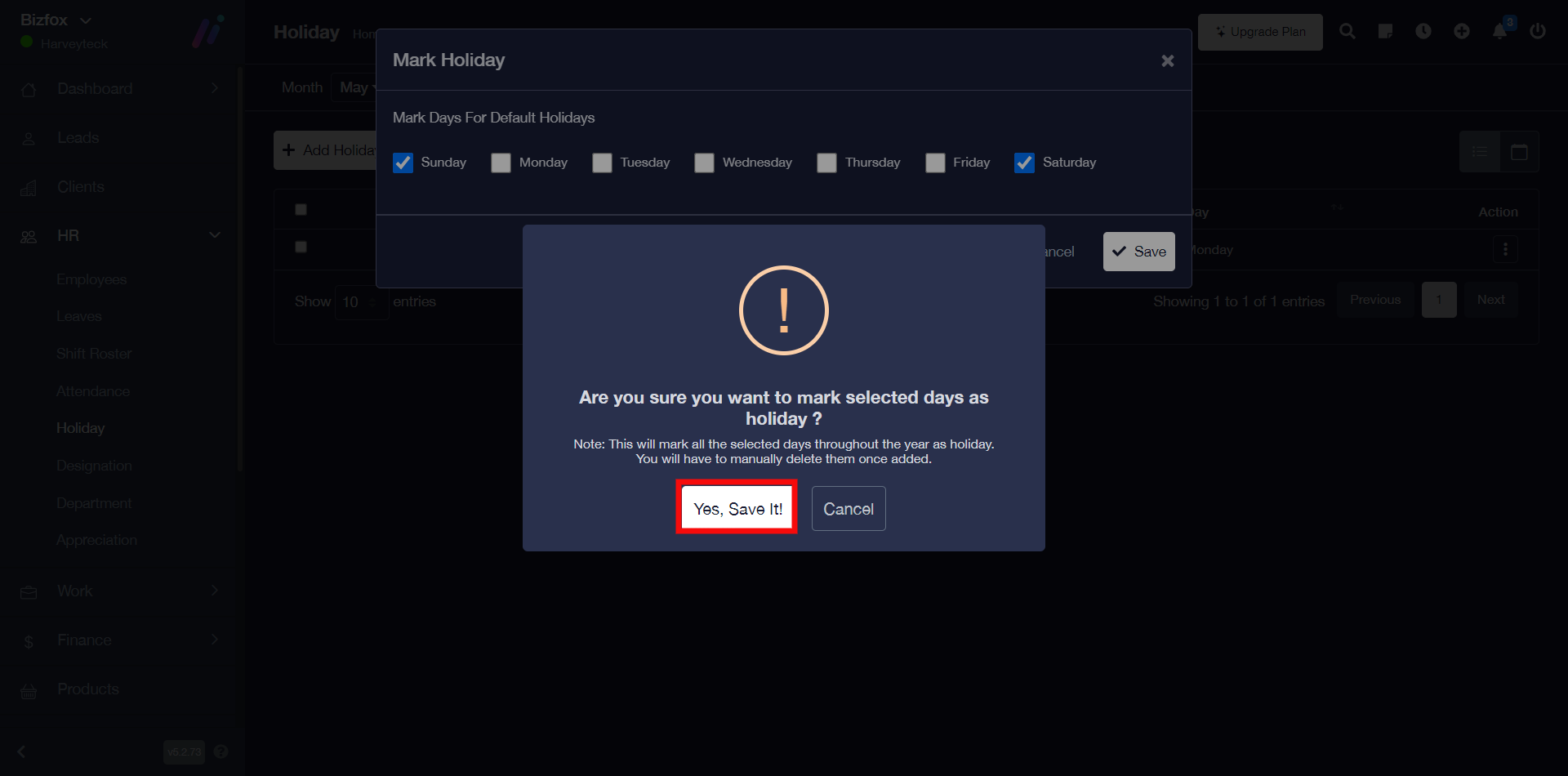
STEP 1: Go ahead to click the “mark default holidays” button, after which you will see a window where you can mark days for default holidays and click the “save” button.
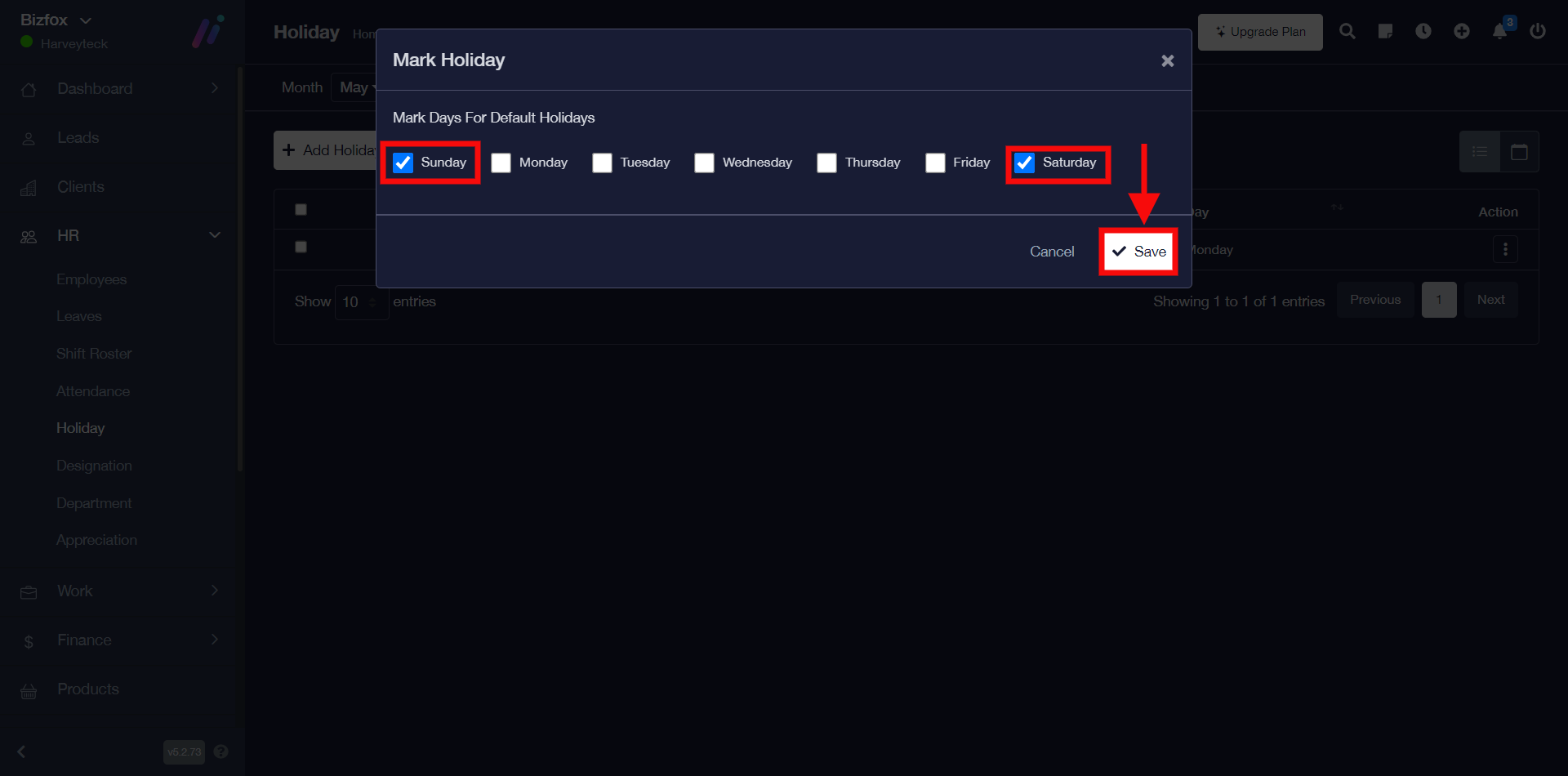
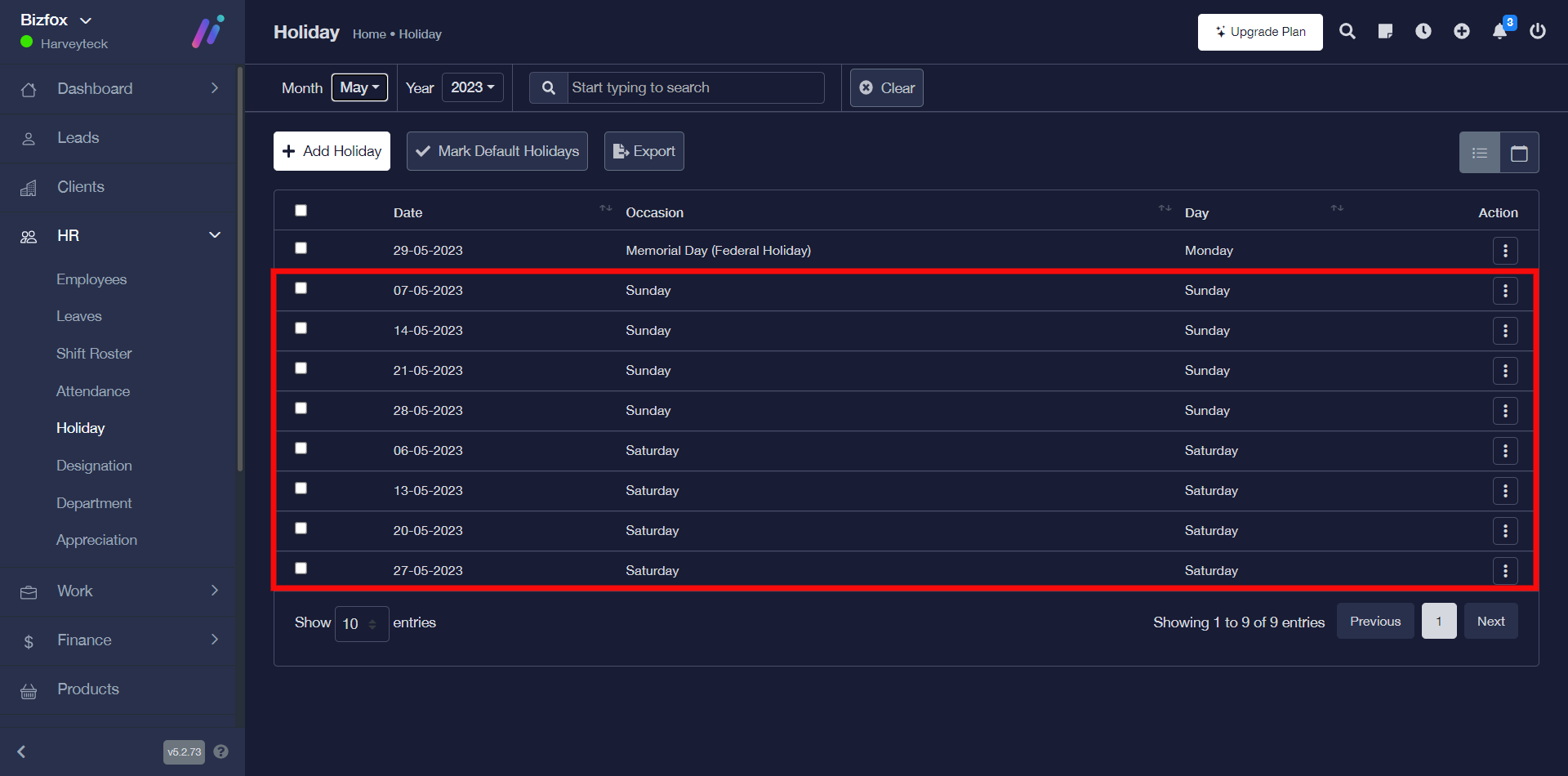
You will see a confirmation pop-up asking if you’re sure about marking the selected days as default holidays, go ahead to click the “Yes, save it” button and you will see a success pop-up notification stating that the record was saved.
How To View Calendar For Holidays
You can view calendar for holidays when you carefully follow the instructions below;
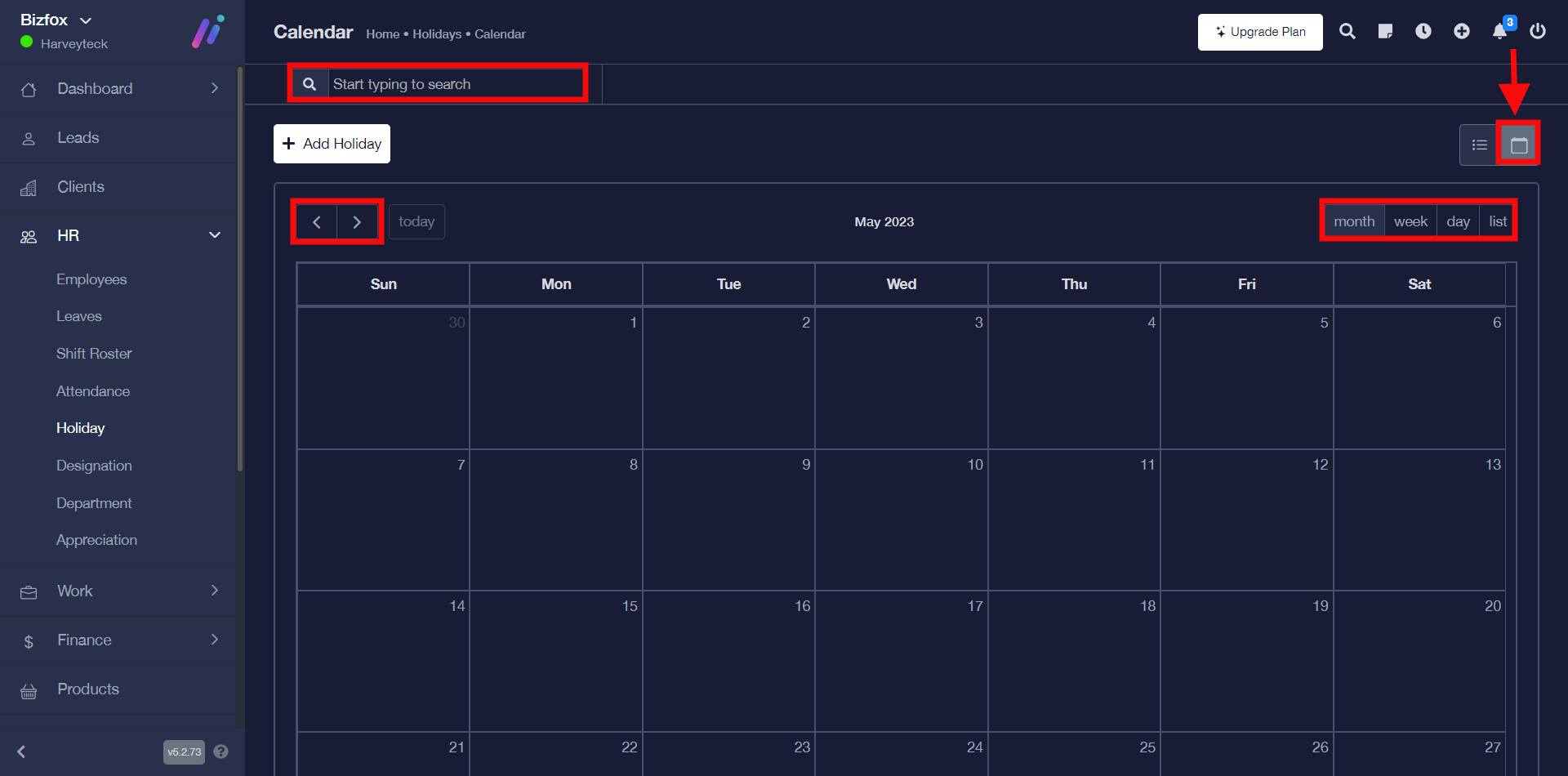
STEP 1: As shown in the screenshot below where the arrow is pointing, go ahead to click the “calendar” icon. You can also filter the result using “month, week, day, and list” view, the “backward and forward arrow” or the “search tab”.
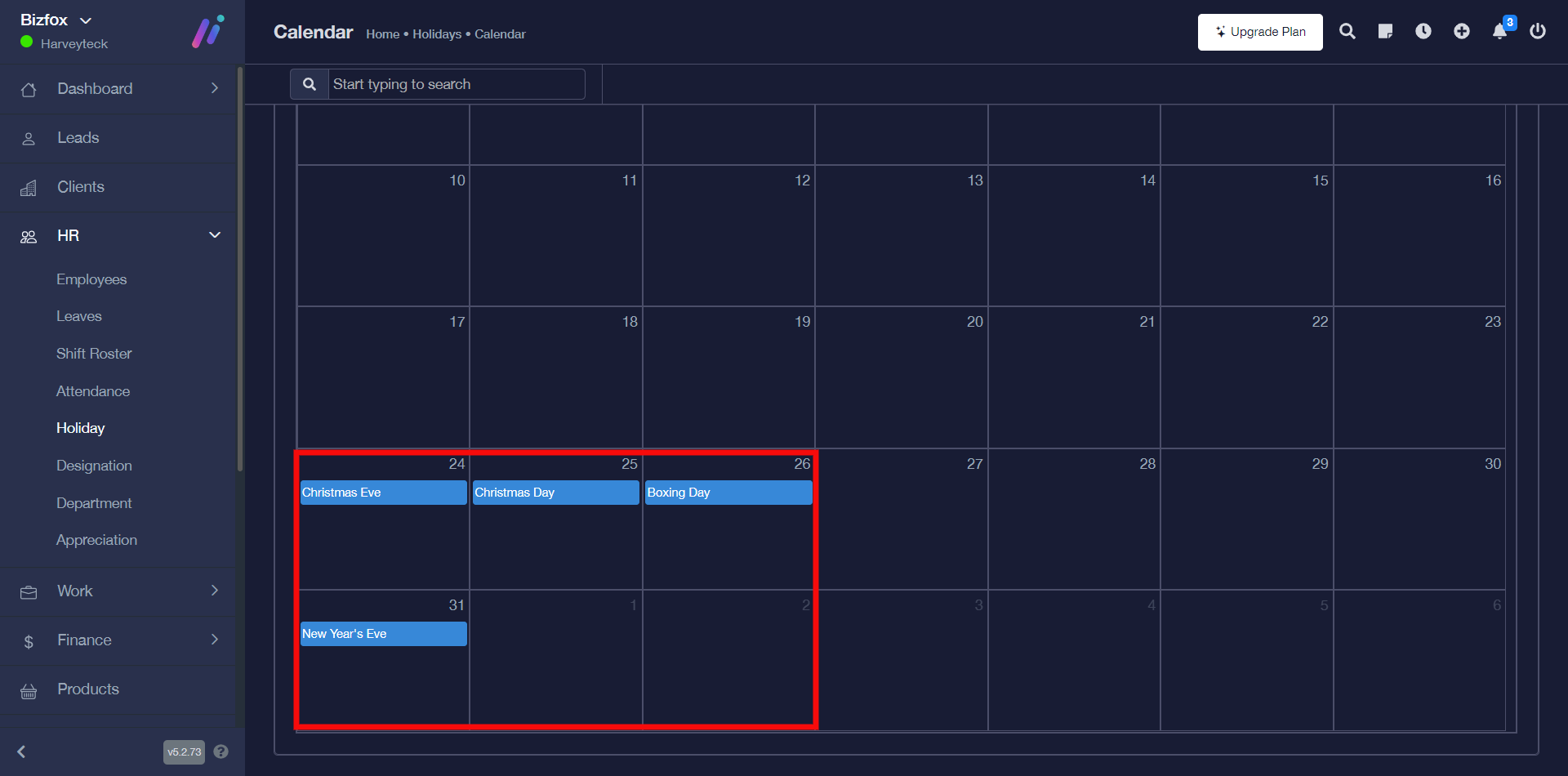
In the example below, I made a search for the month of December and used the month calendar view.
How To Sort Holidays By Month & Year
You can sort holidays by month and year when you carefully follow the instructions below;
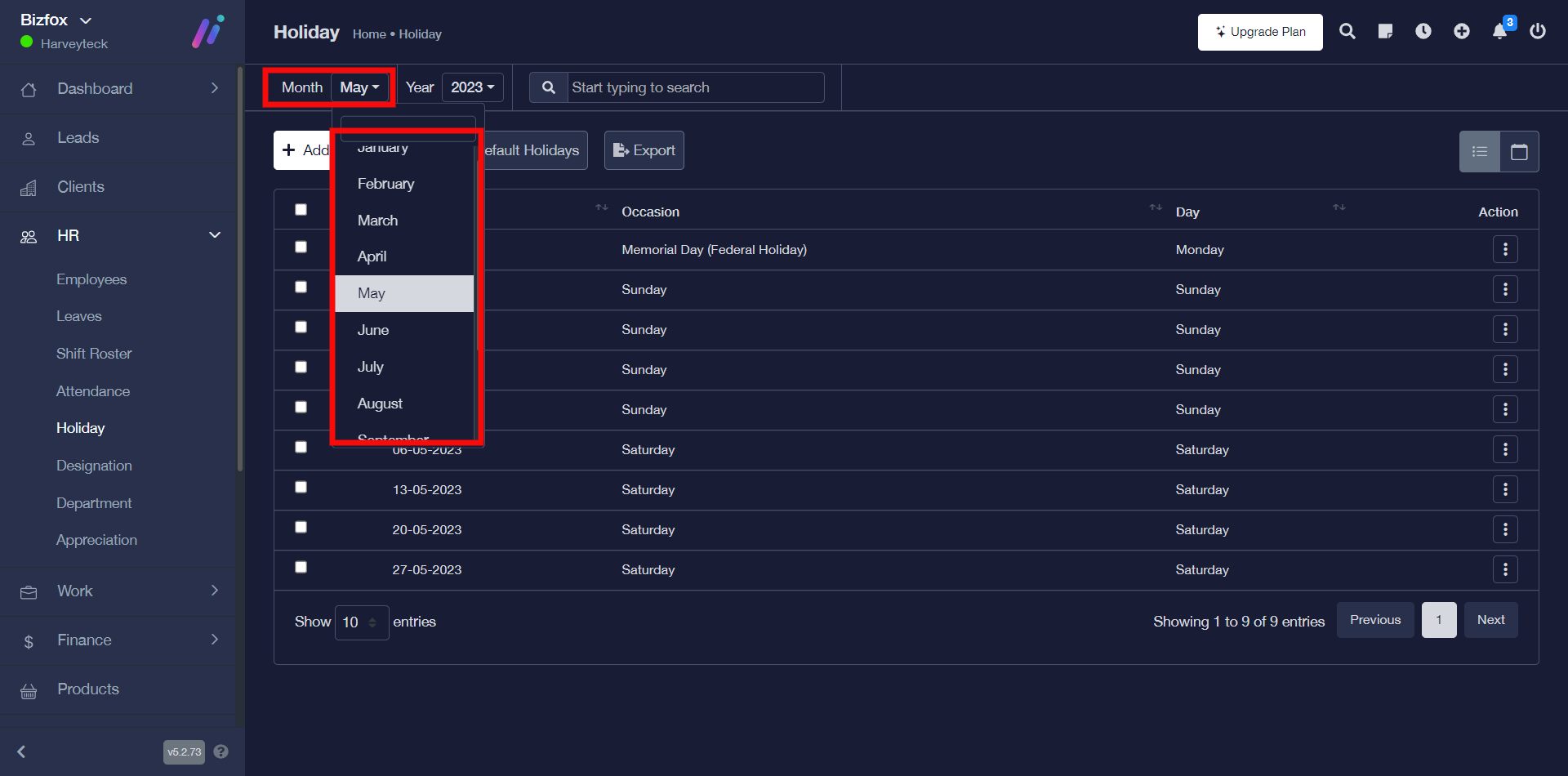
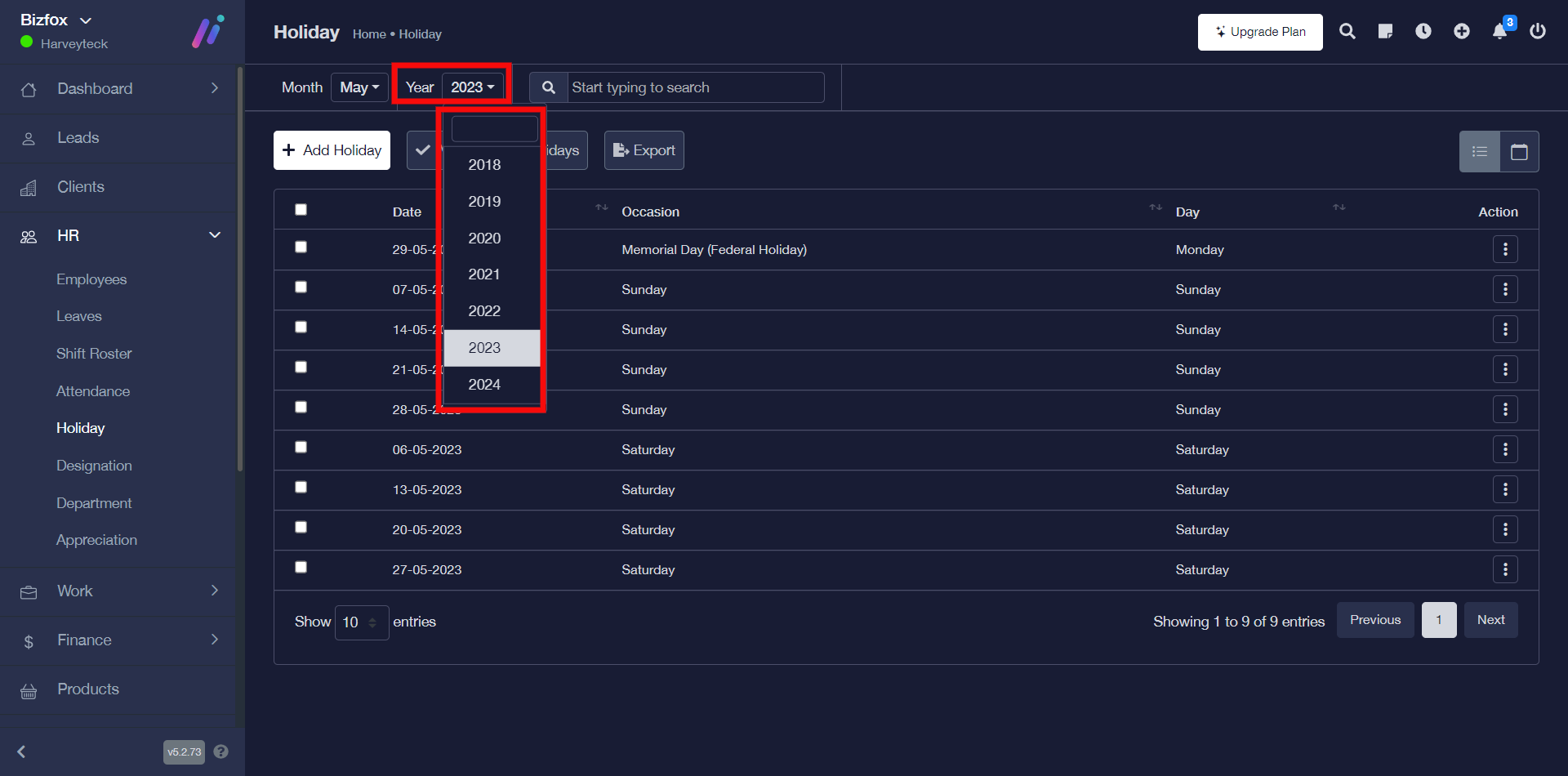
STEP 1: Go ahead to click the “dropdown” either for month & year, after which you will get results based on the selected month and year.