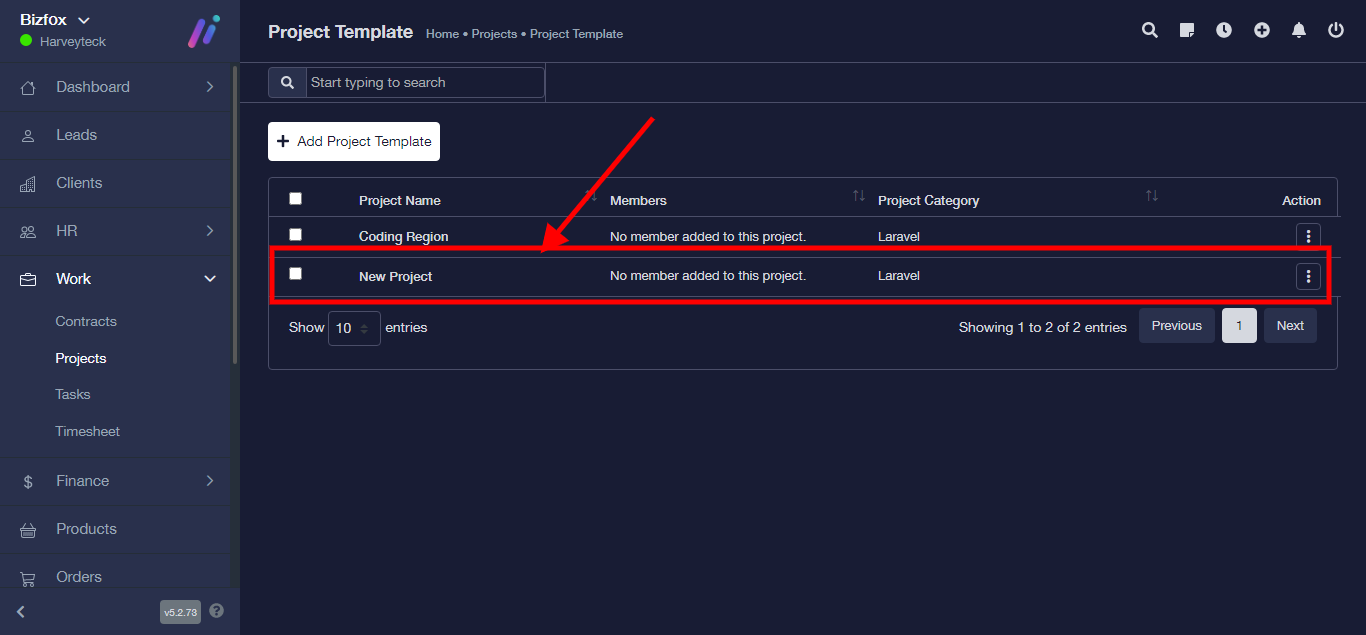
Step 1: After you’ve logged into your Business manager account, it leads you to the dashboard and there you get to see the left nav-bar and a table. On the left-nav bar click on “WORK” dropdown, It takes you to “PROJECT” Click on “PROJECT”

Step 2: Click on “Project Template”

Step 3: Click on “Add Project Template”

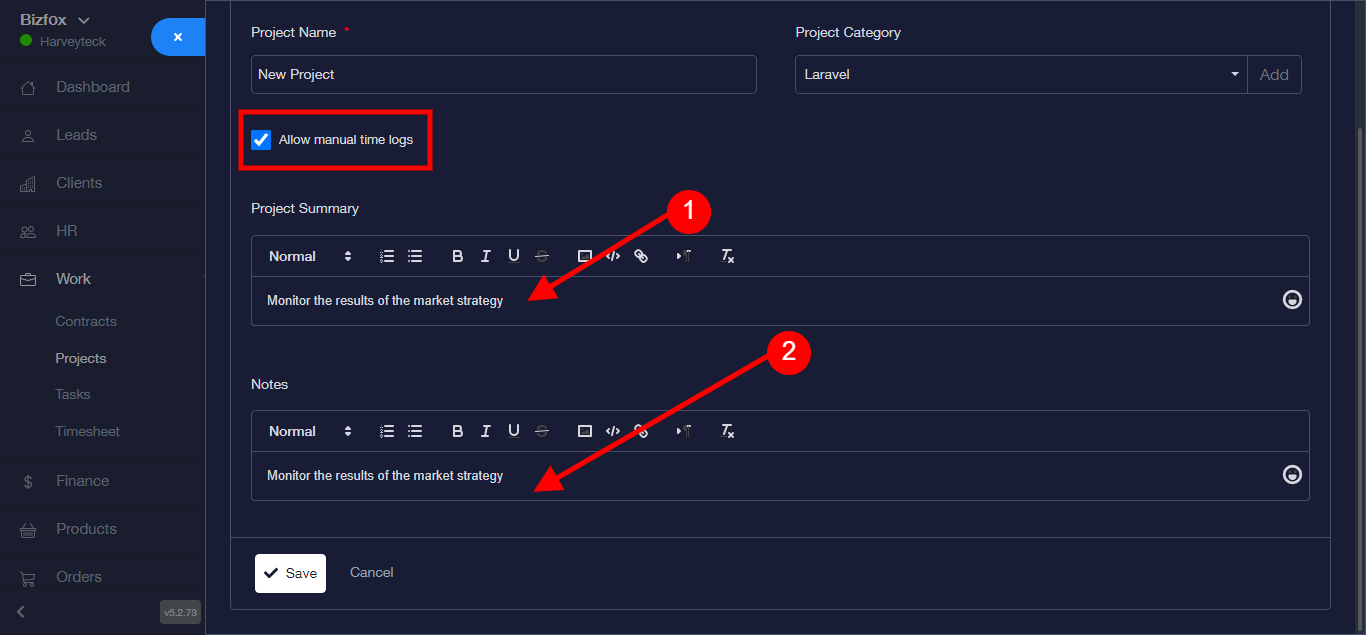
Step 4: It takes you to a new module, Enter “Project Name”

Step 5: Choose “Category”

N/B: Click on the box, if you wish to allow manual time logs.
Step 6: Enter Project Summary and Enter Note.
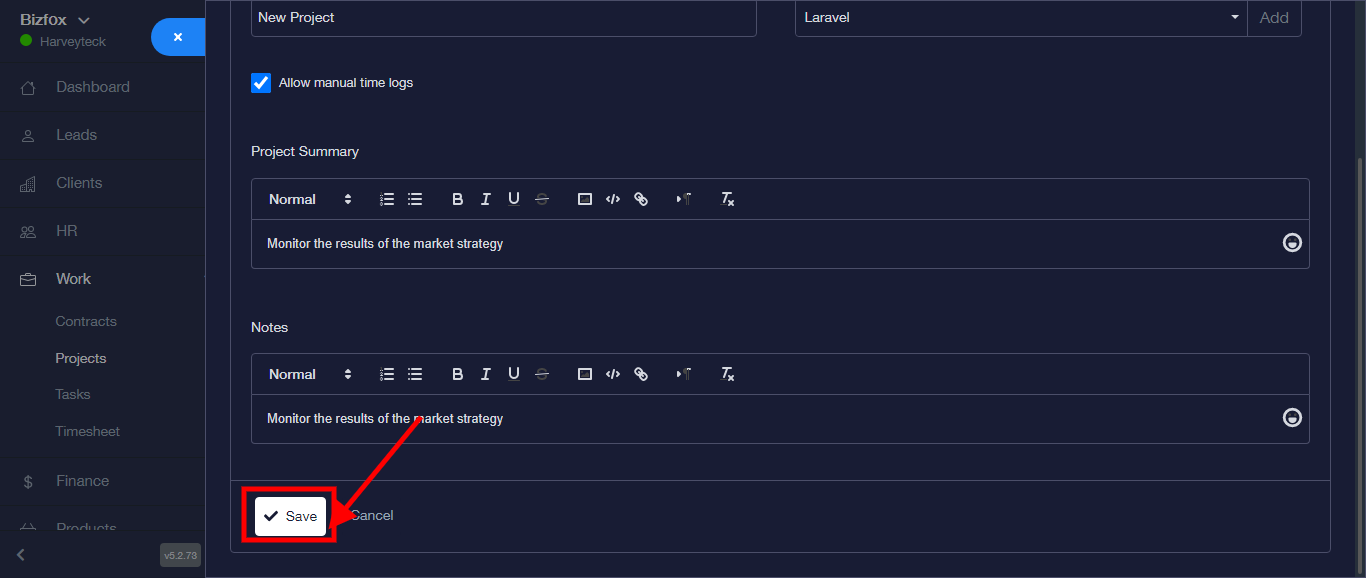
Step 7: Click the “SAVE” button
Project template is successfully saved