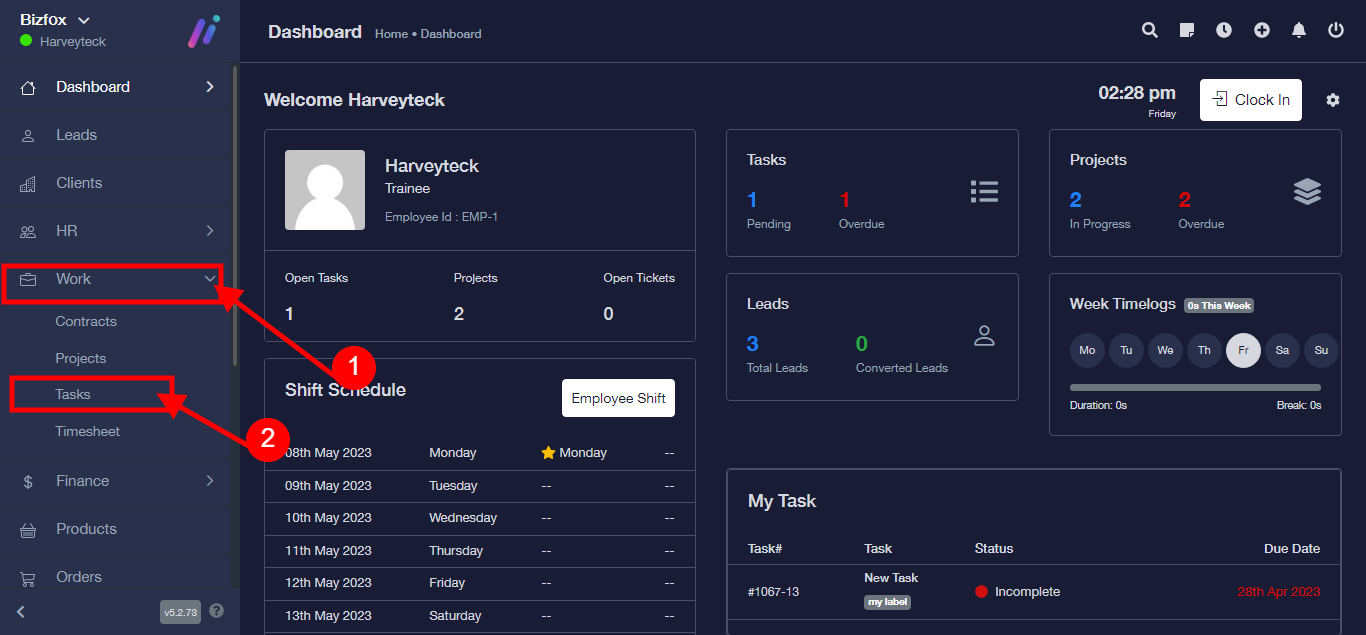
Step 1: After you’ve logged into your Business manager account, it leads you to the dashboard and there you get to see the left nav-bar and a table. On the left-nav bar click on “WORK” dropdown, It takes you to “Tasks” Click on “Tasks”
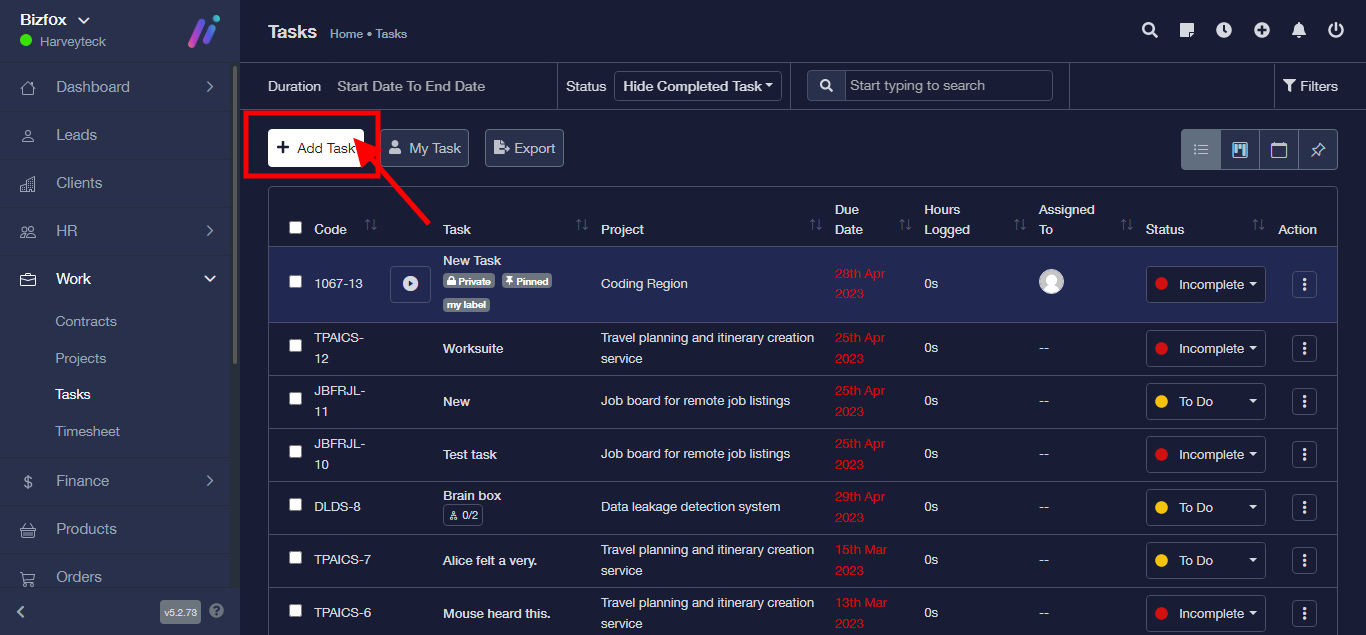
Step 2: Click on “Add Task”
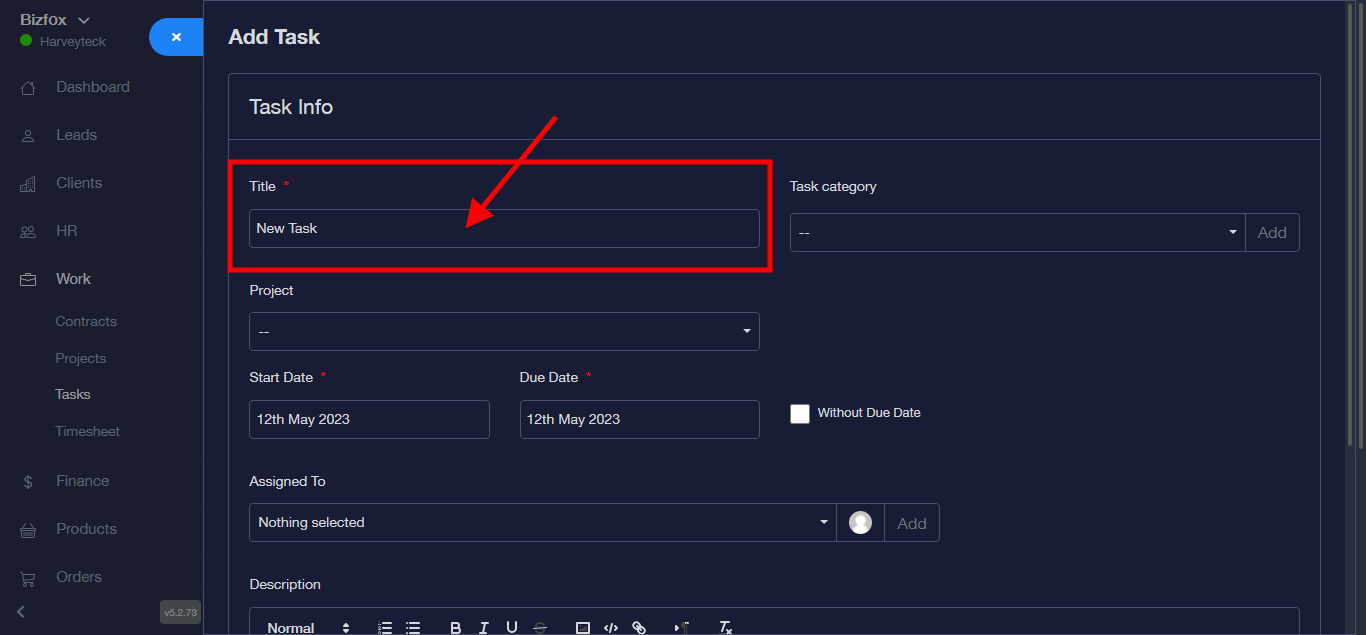
Step 3: Enter “Tittle”
Step 4: Enter “Task Category”
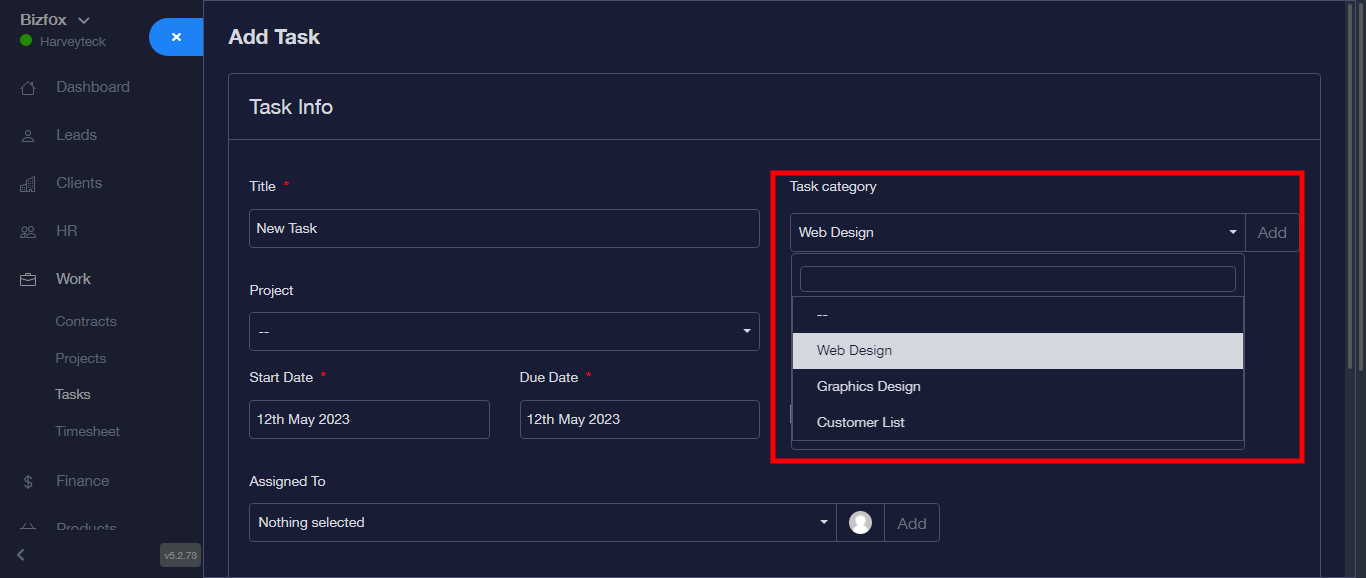
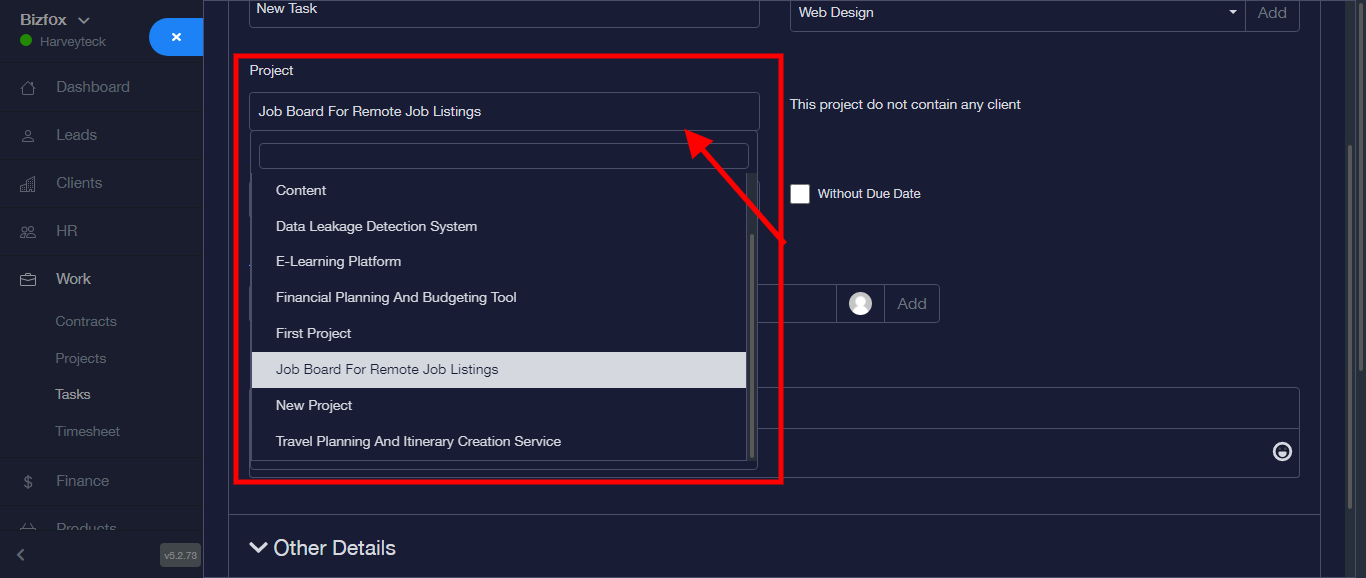
Step 5: Enter “Project” from the dropdown
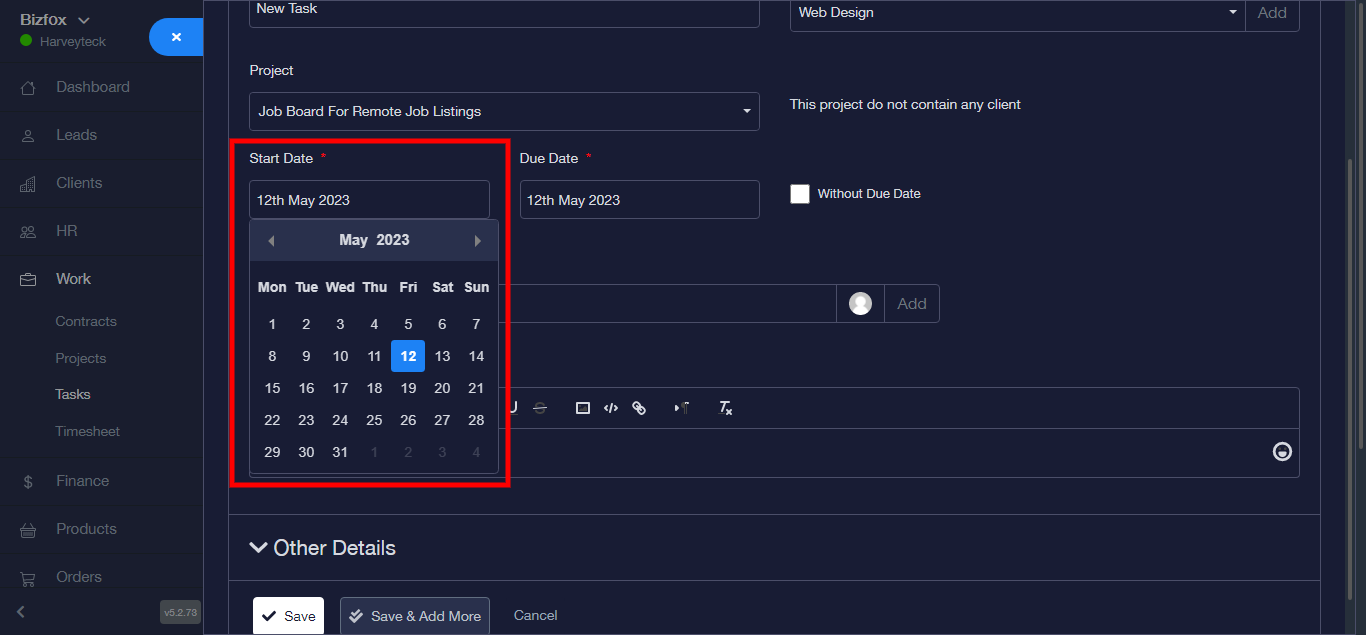
Step 6: Enter “Start Date”
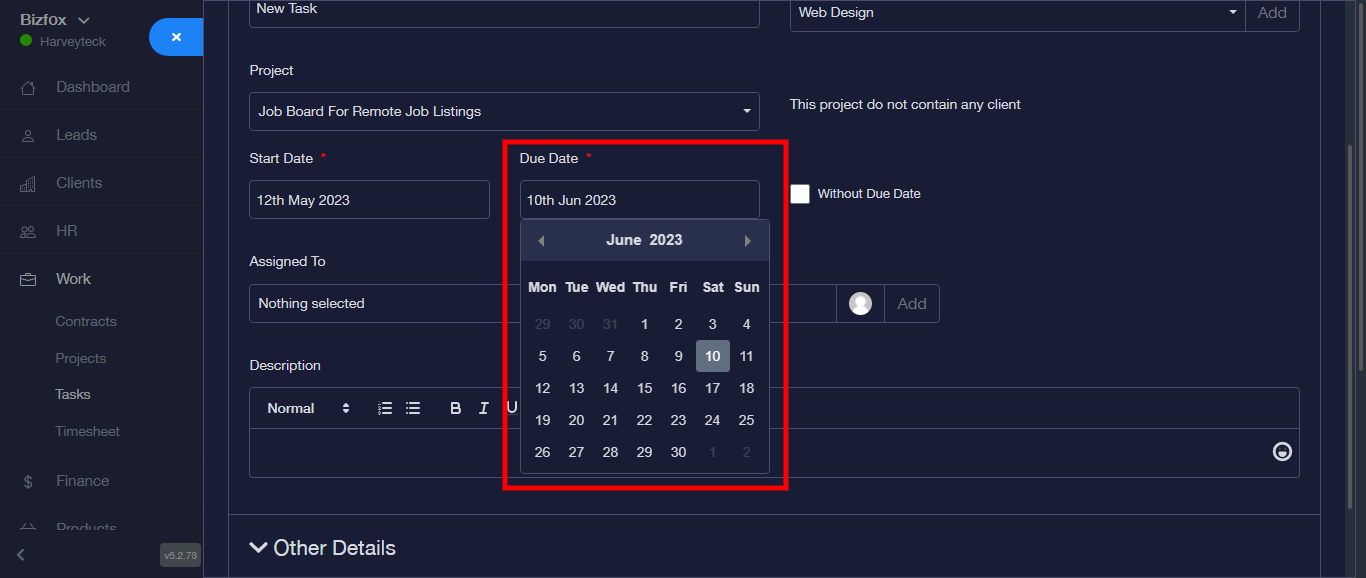
Step 7: Enter “Due Date”
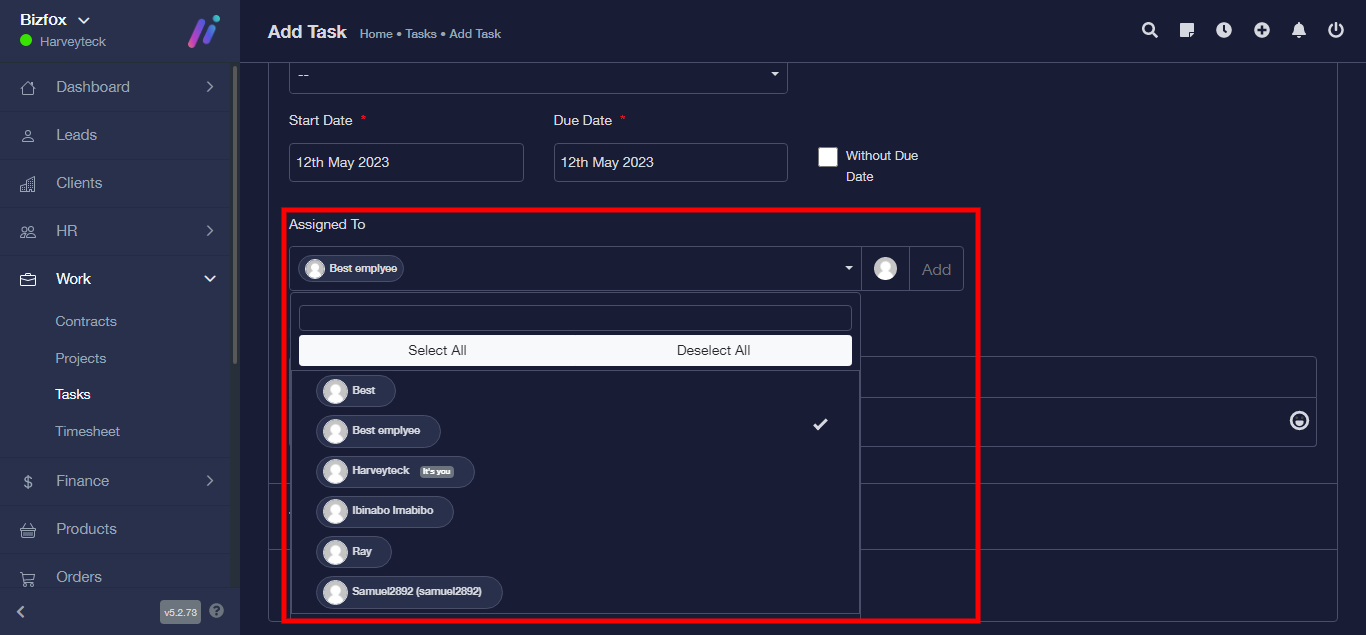
Step 8: Enter “Assigned To” from the dropdown
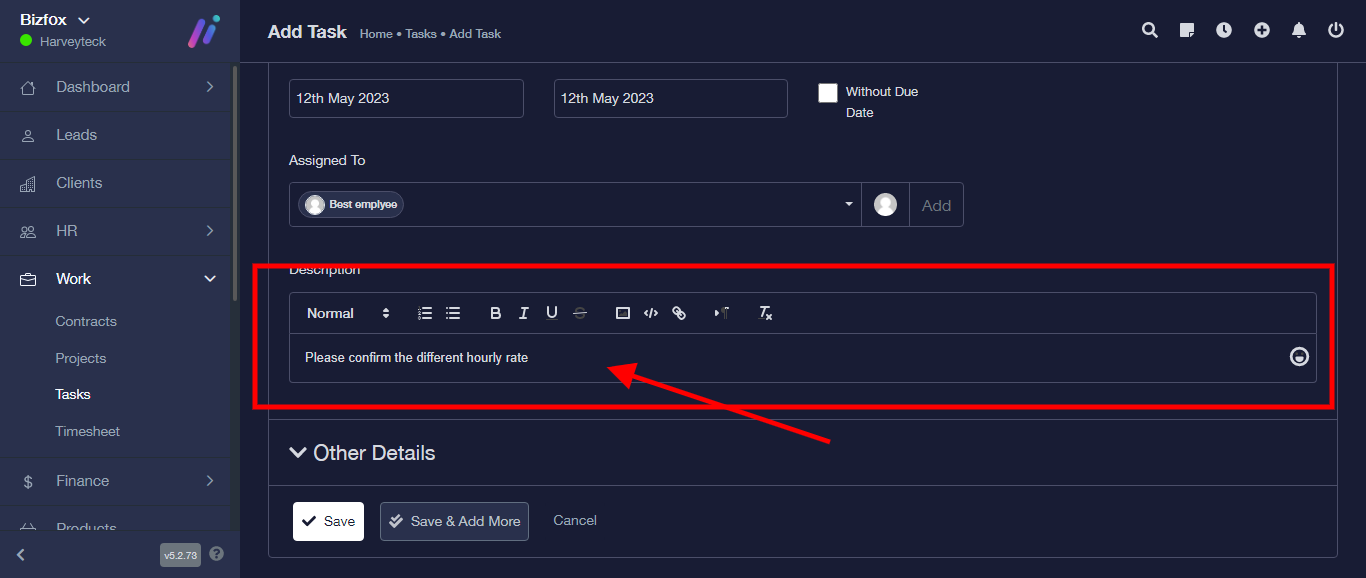
Step 9: Enter “Description”
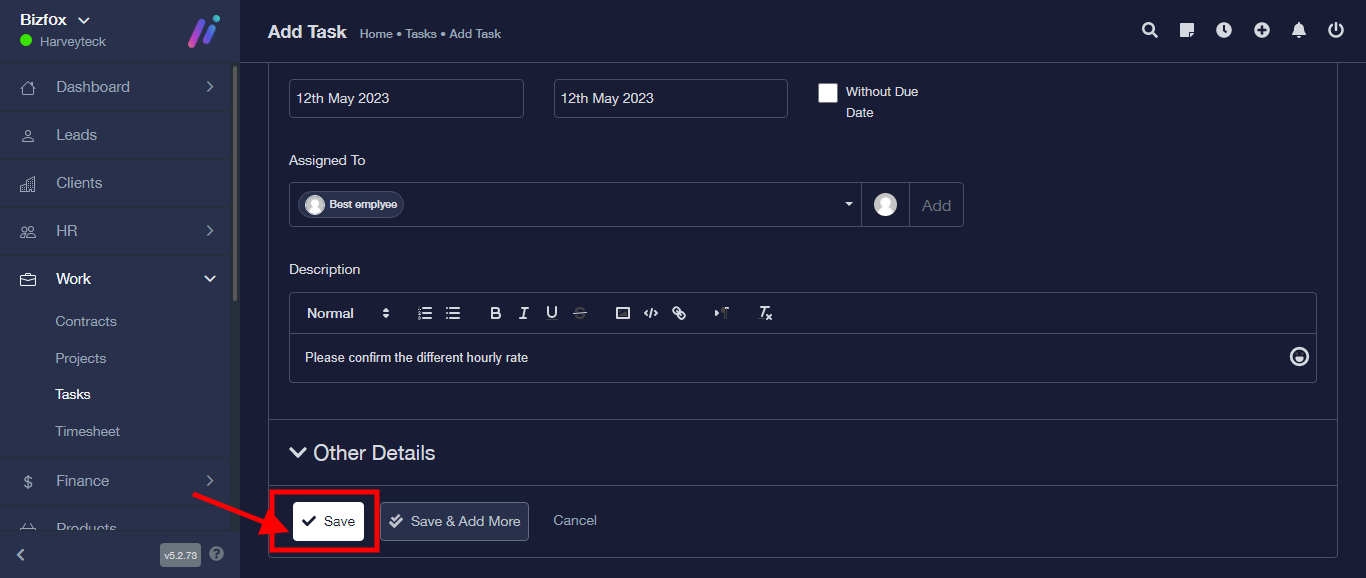
Step 10: Click “SAVE”
N/B: Click on “Other Details” to fill forms below if you wish.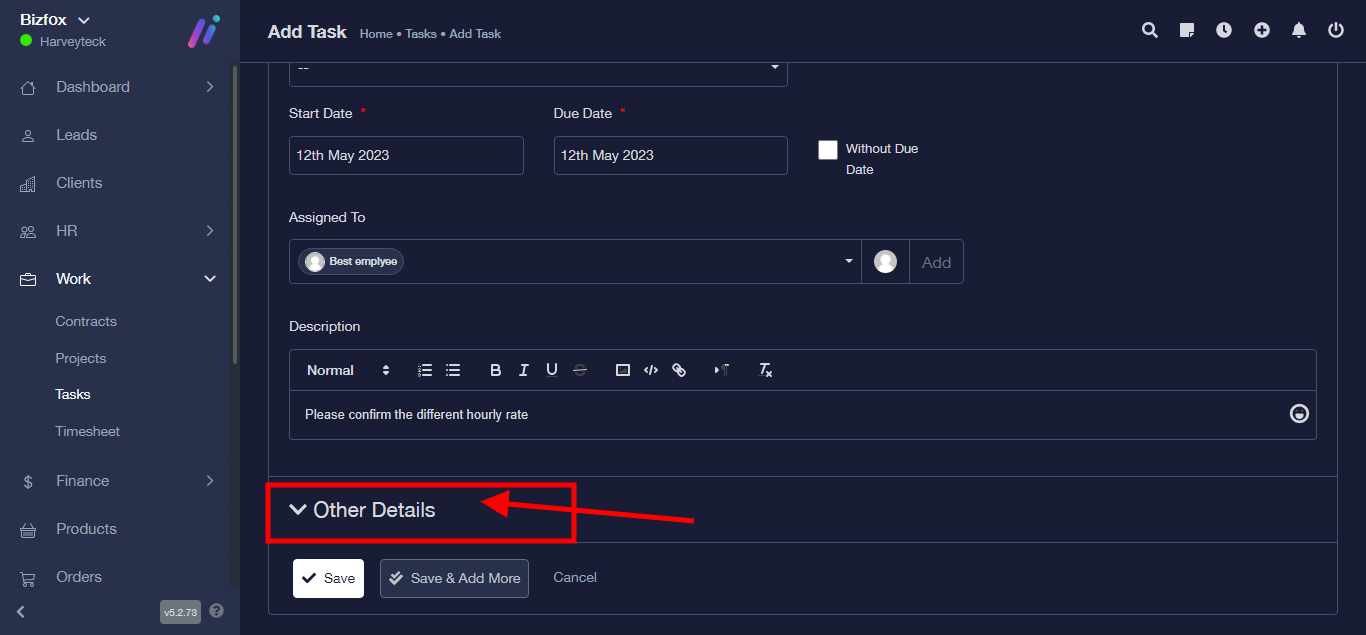
Step 11: Enter “Label” from the dropdown or click on “Add” to create a new label if there’s none already existing.
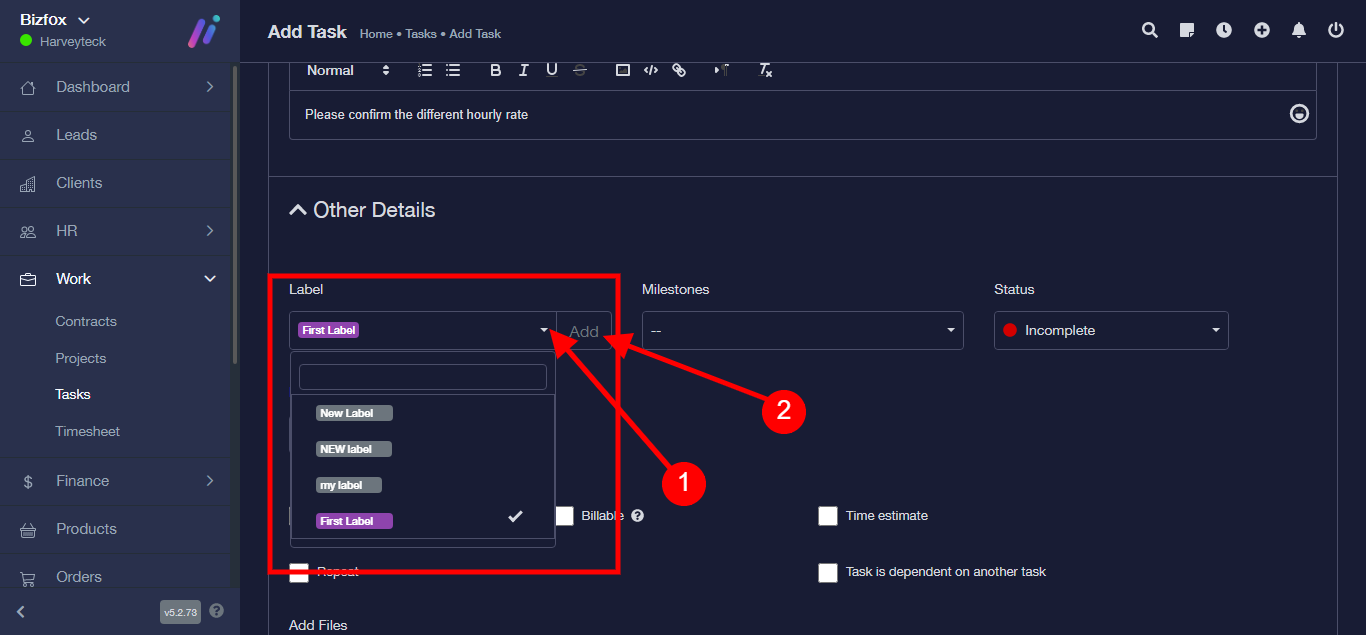
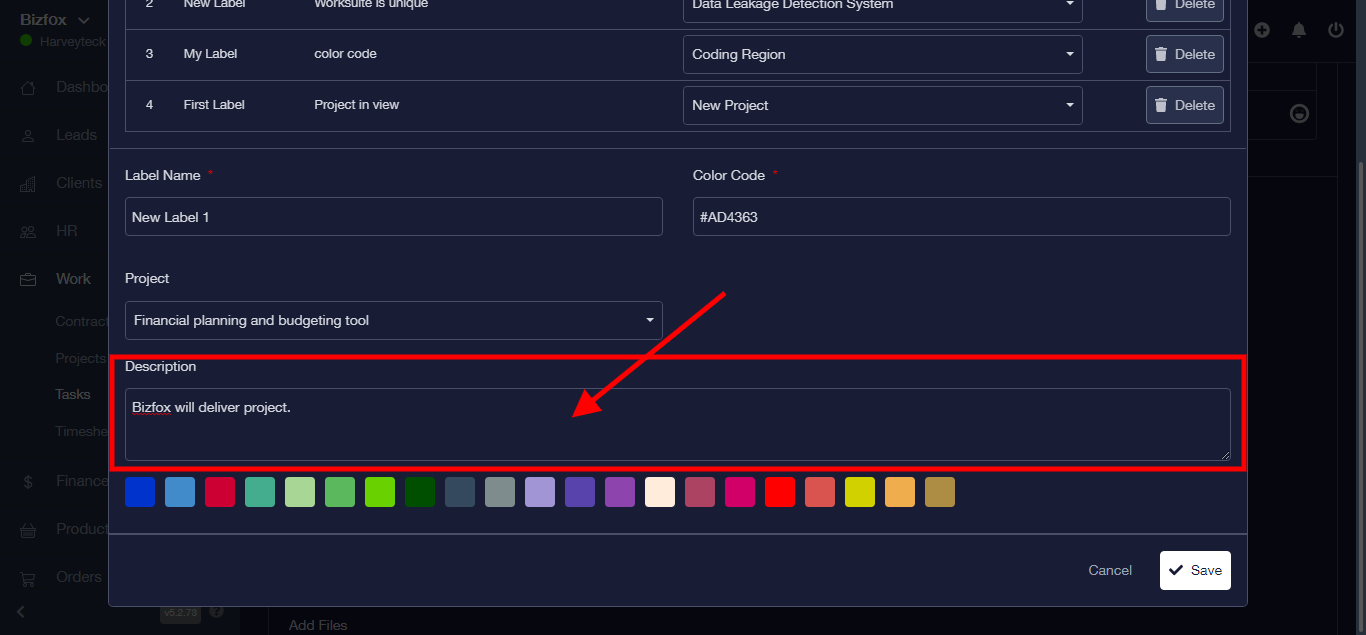
Step 12: It takes you to a new module, Enter “Label Name”
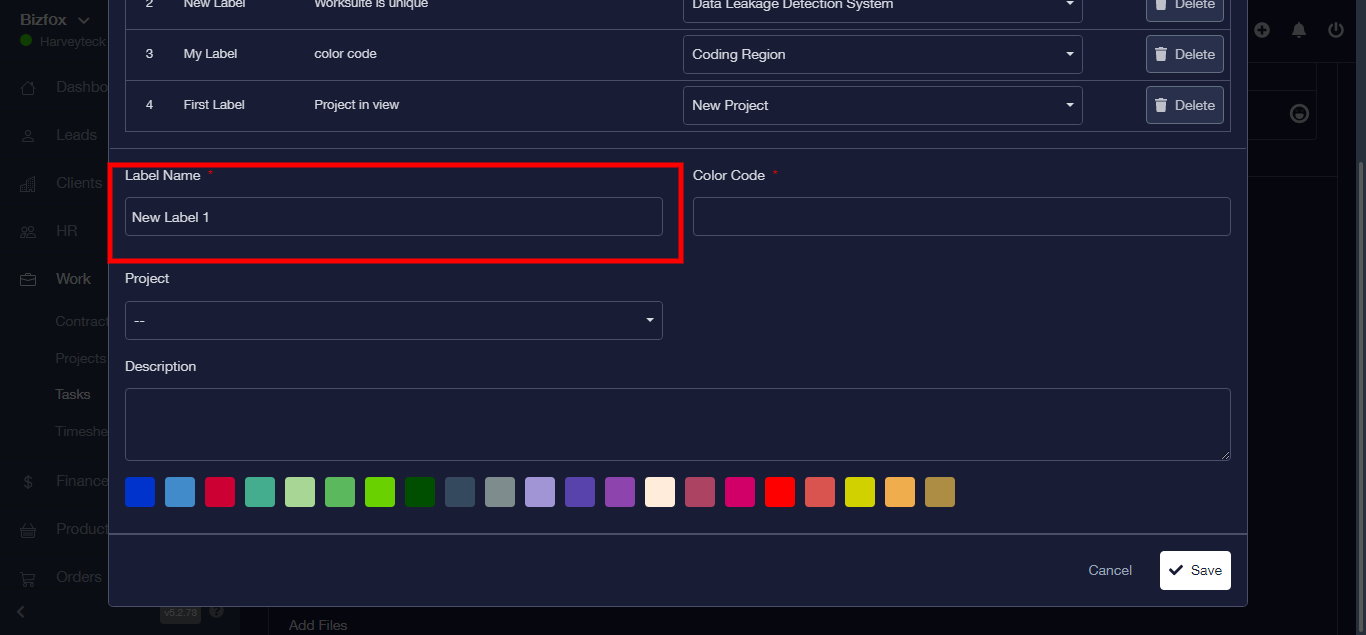
Step 13: Enter “Color Code”
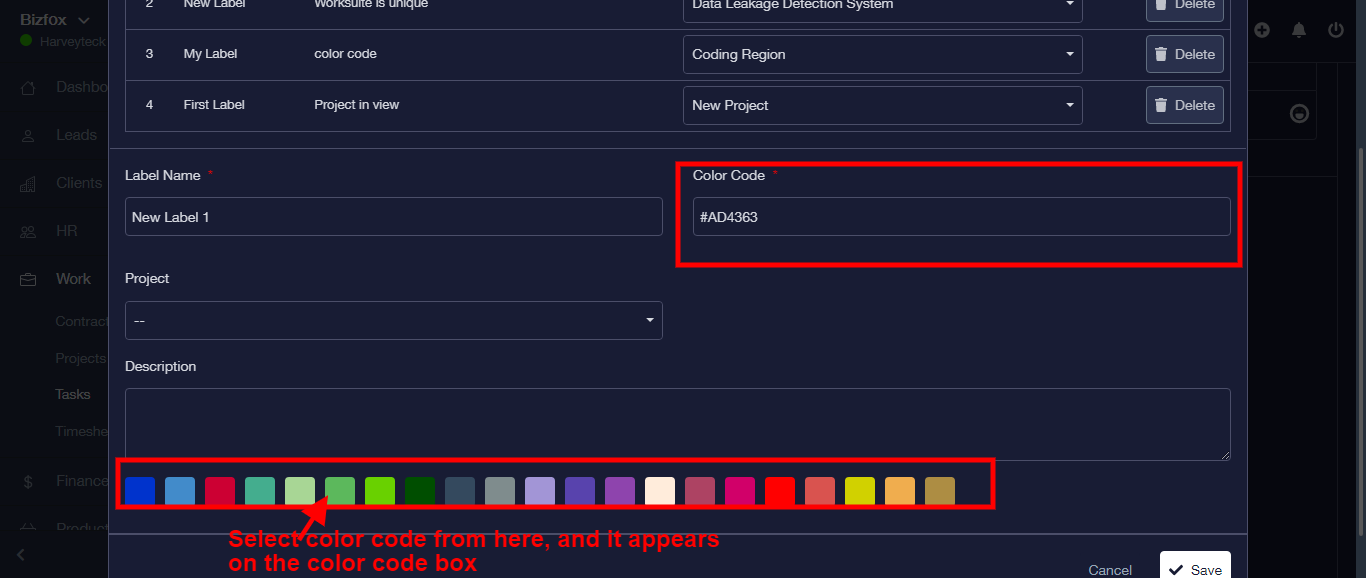
Step 14: Choose “Project” from the dropdown
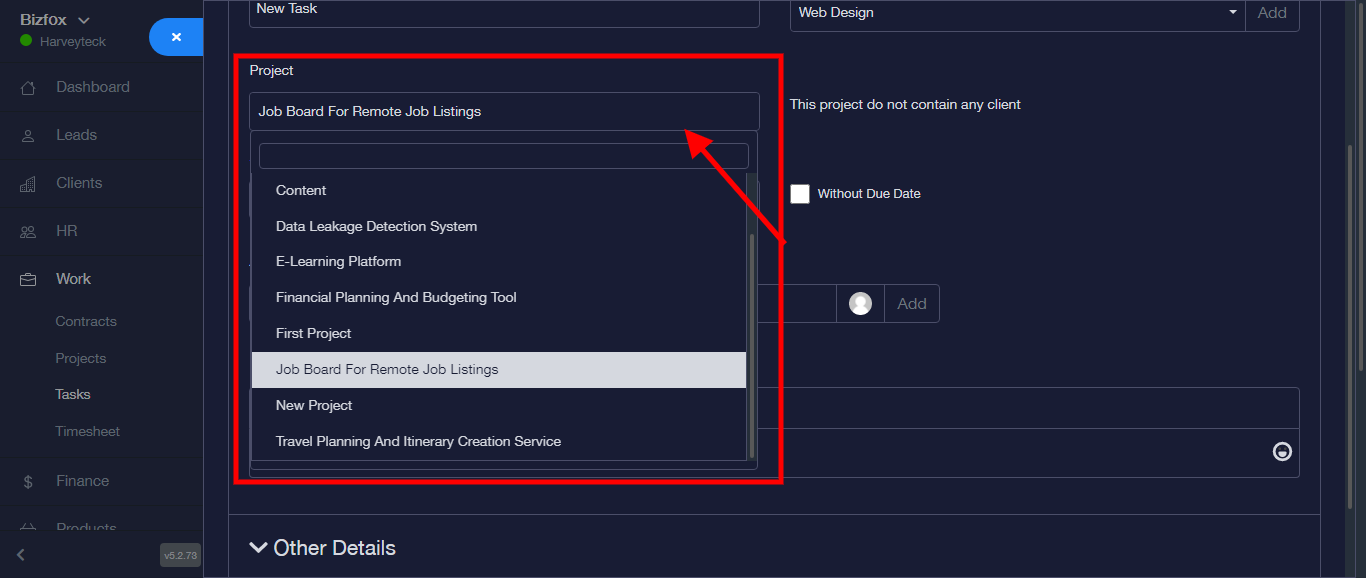
Step 15: Enter “Description”
Step 16: Click on ‘SAVE’
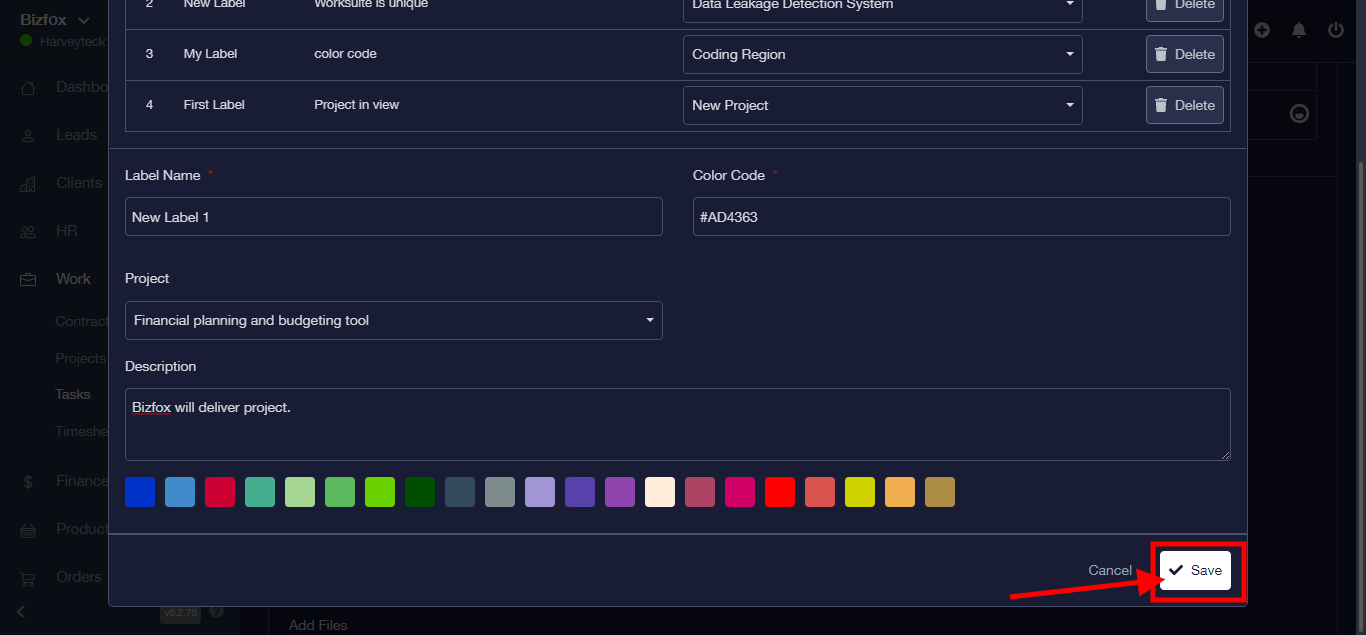
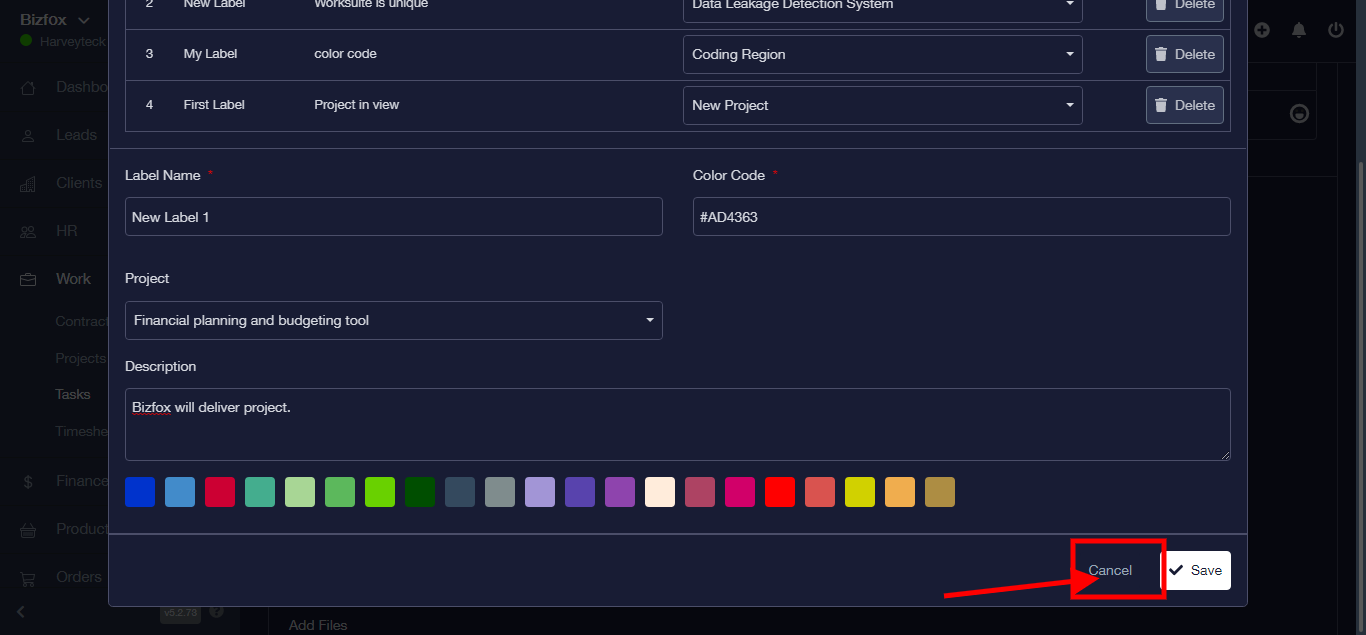
N/B: Click on ‘CANCEL’ button to cancel process