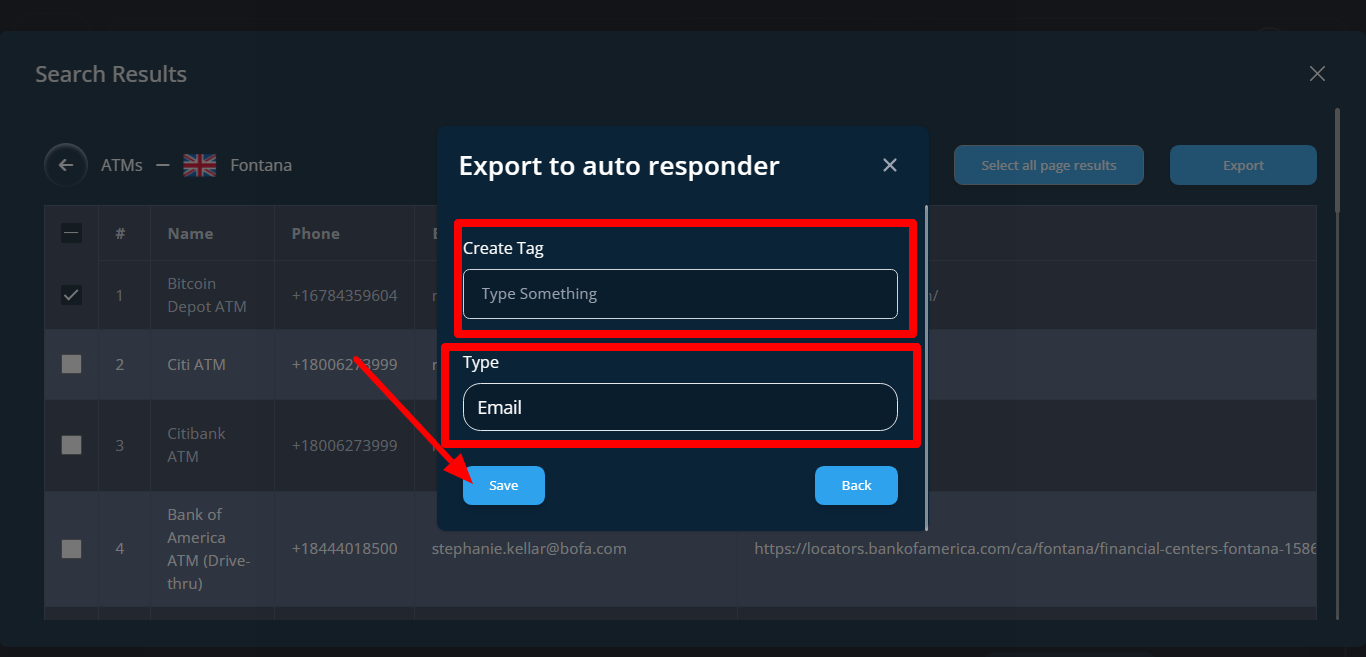
I will show you how to export client to tag on client finder.
STEP 1: To export client to tag first you go to iceleriate dashboard then click on client finder on the menu at the left-sidebar on the dashboard.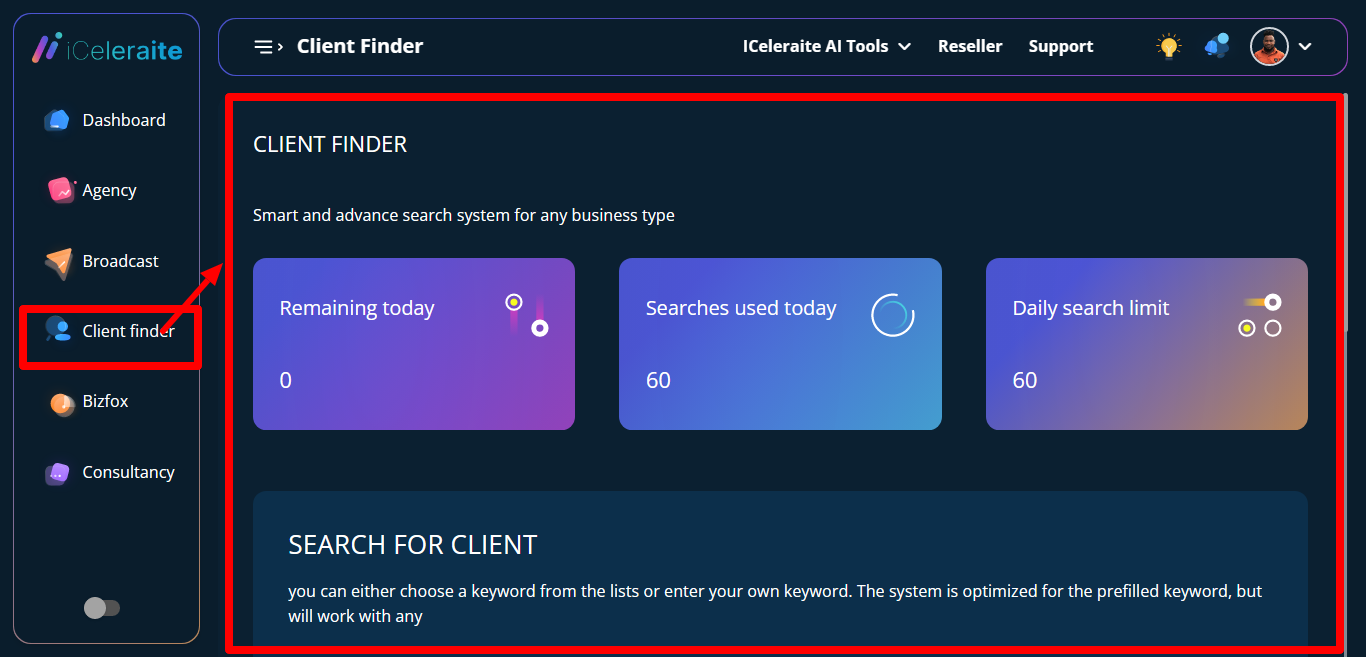
STEP 2: Scroll down to the Recent Search section.
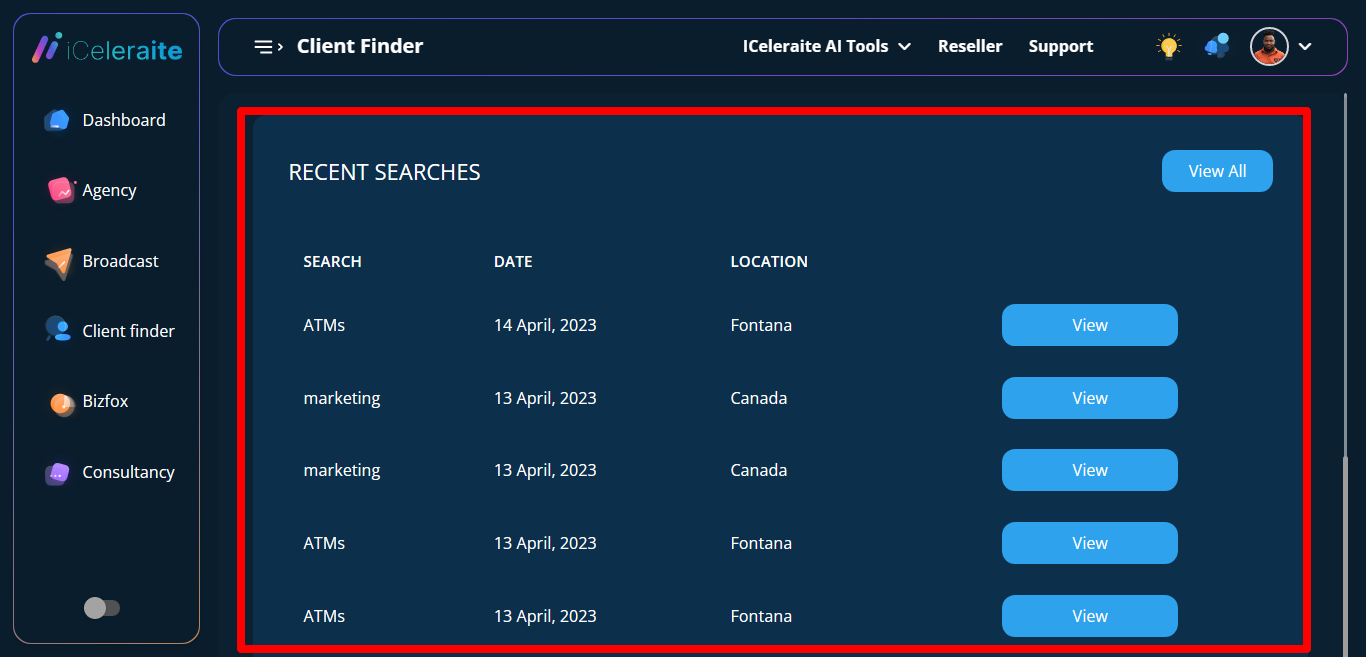
STEP 3: Click on the view button.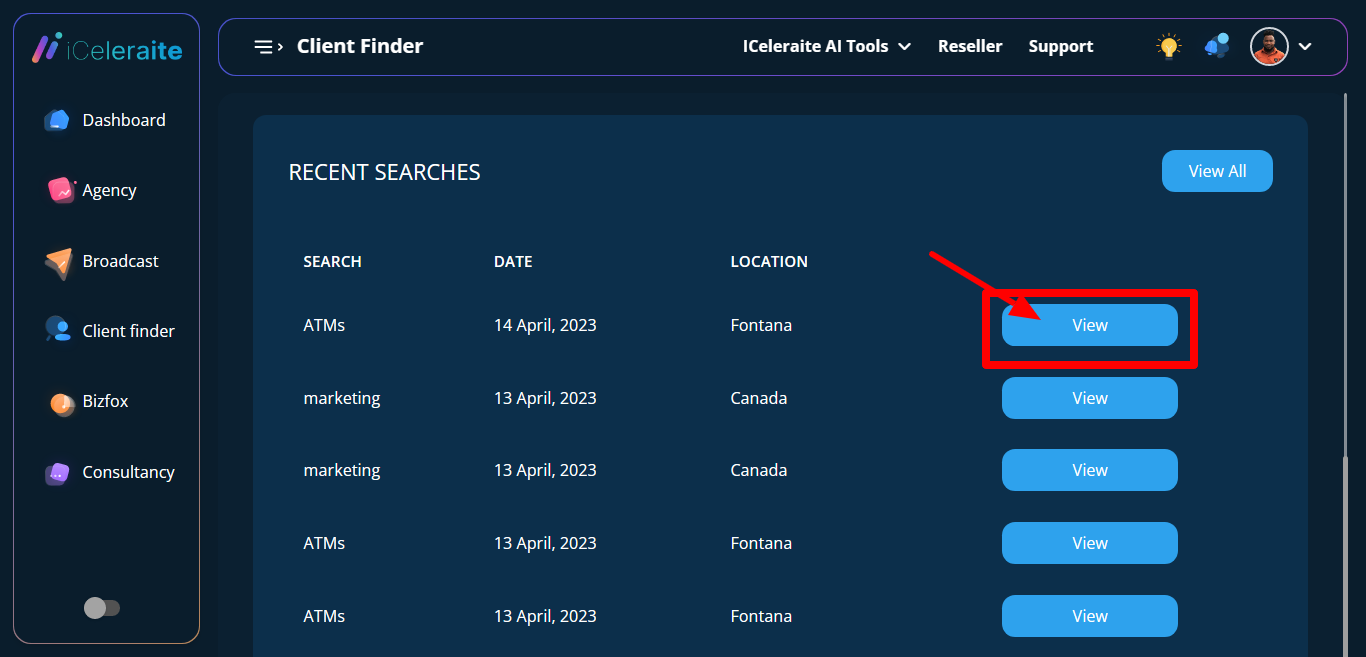
STEP 4: A page with table will appear showing the names, phone numbers, emails and websites.
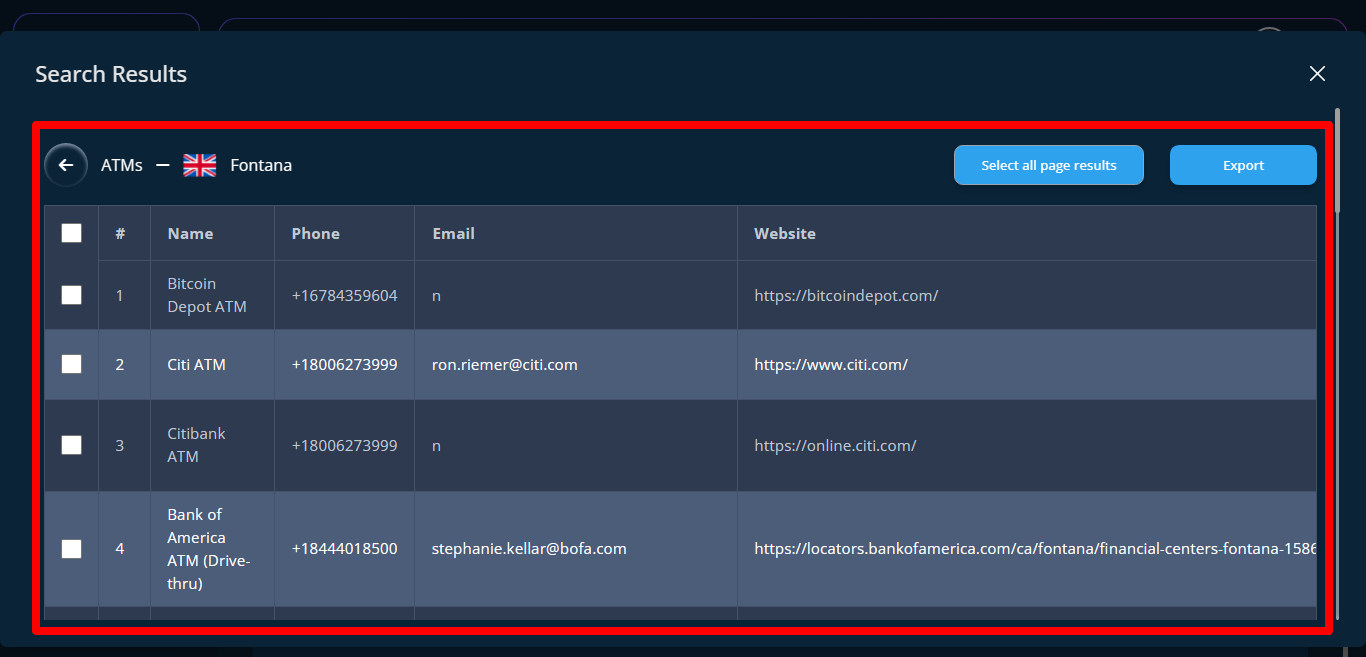
STEP 5: Click on a checkbox to select then click on the Export Button.
STEP 6: A new page will appear tittled export to auto responder.
STEP 7: Select a tag then click on the export button.

STEP 8: A success message will come up after it has successfully exported.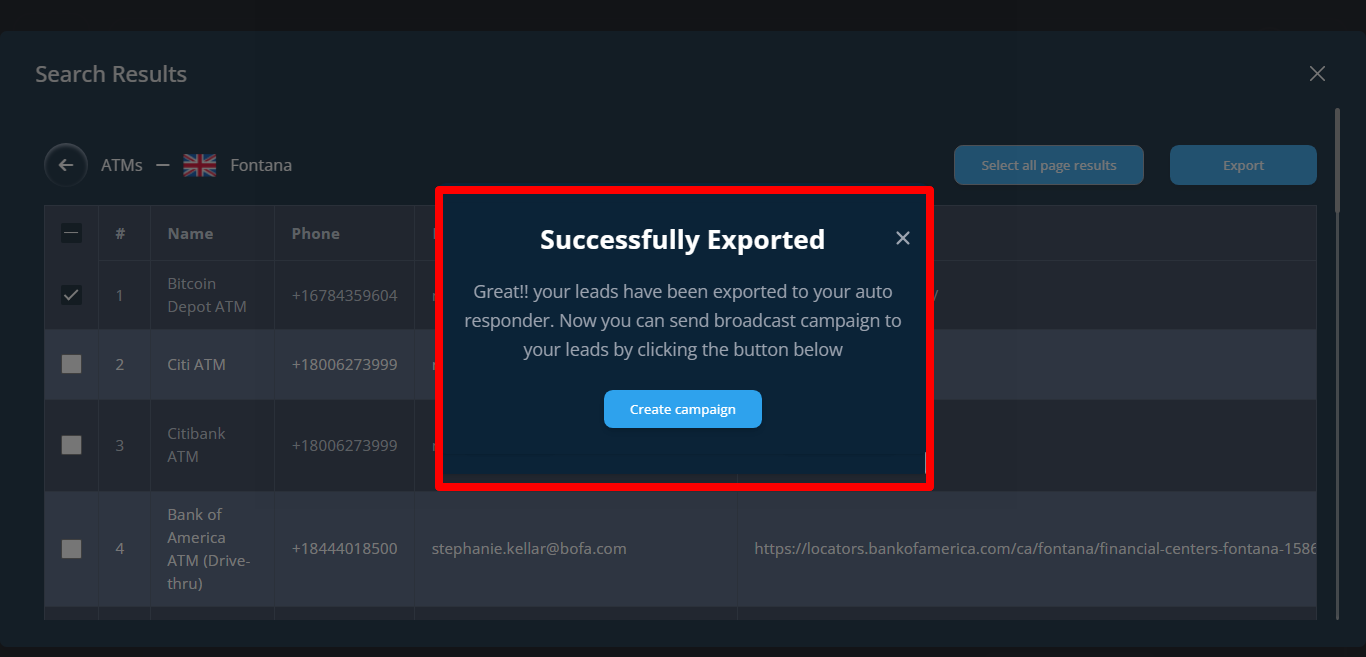
STEP 9: You can create new tags by clicking on the Create Tag button.
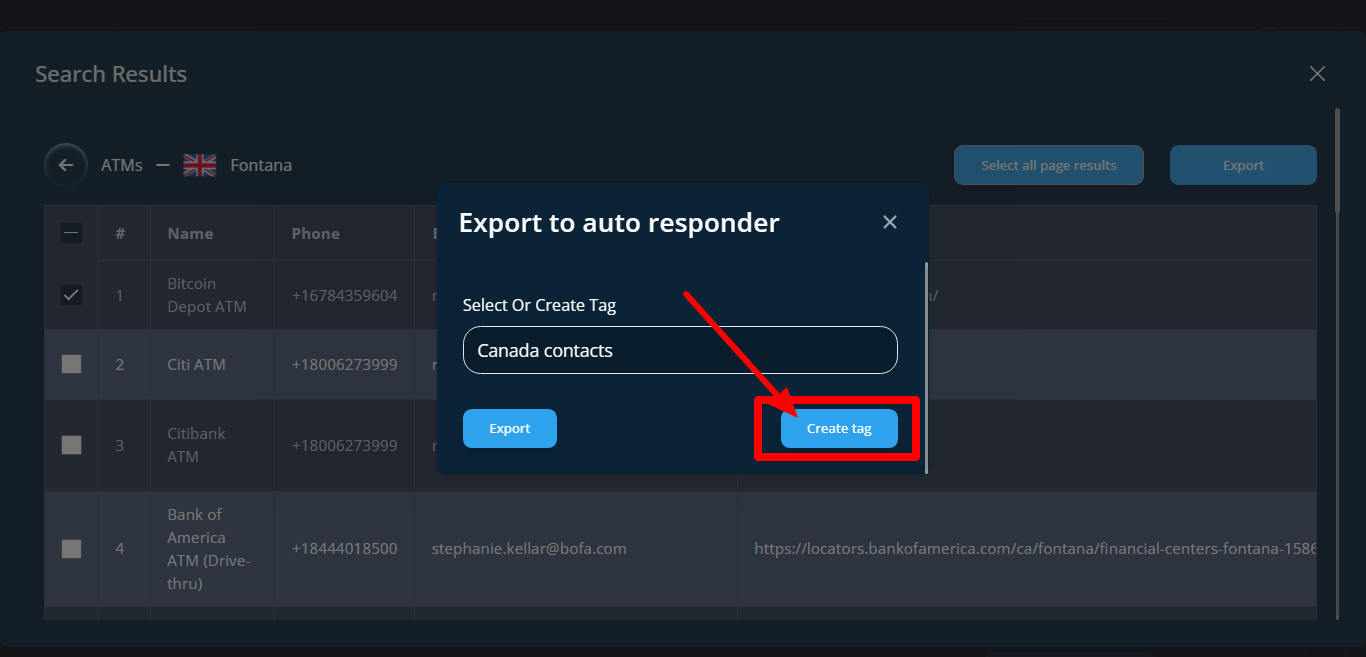
STEP 10: Create tag modal form appears, fill in the correct details then click on the save button to save the tag.