Step 1: After you’ve logged into your Business manager account, it leads you to the dashboard and there you get to see the left nav-bar and a table. On the left-nav bar.
- click on “WORK” dropdown, It takes you to “Contract”
- Click “Contract”
- Click “Contract Template”

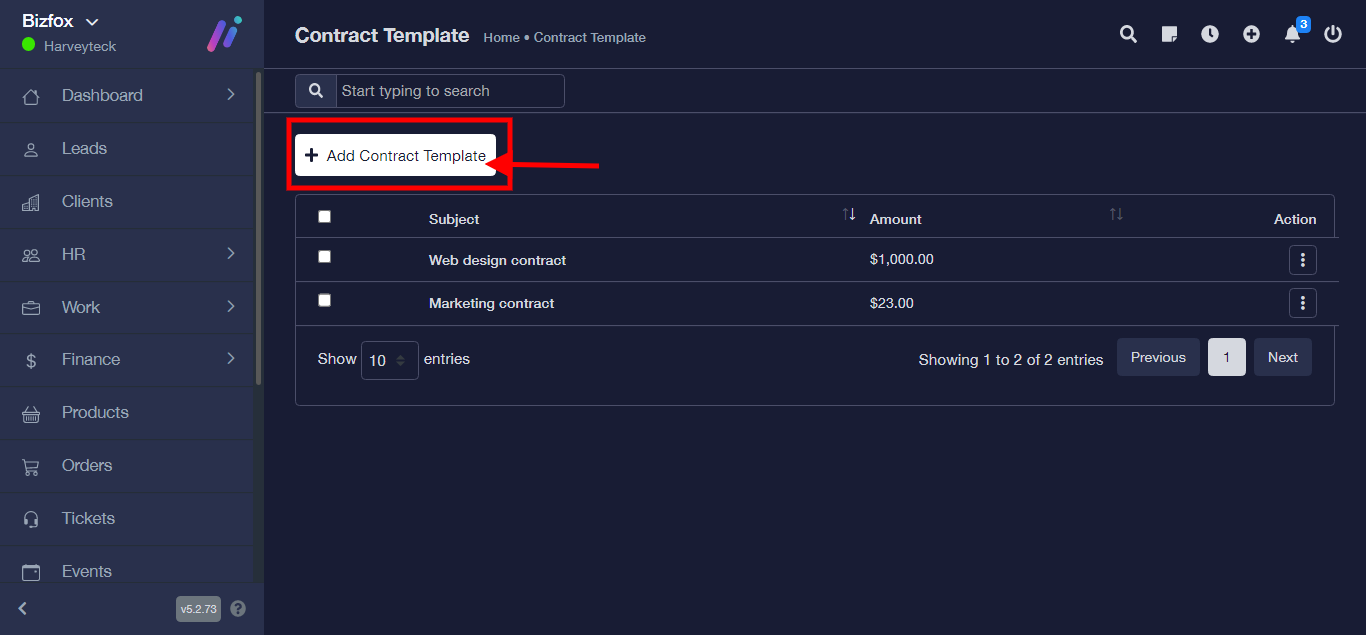
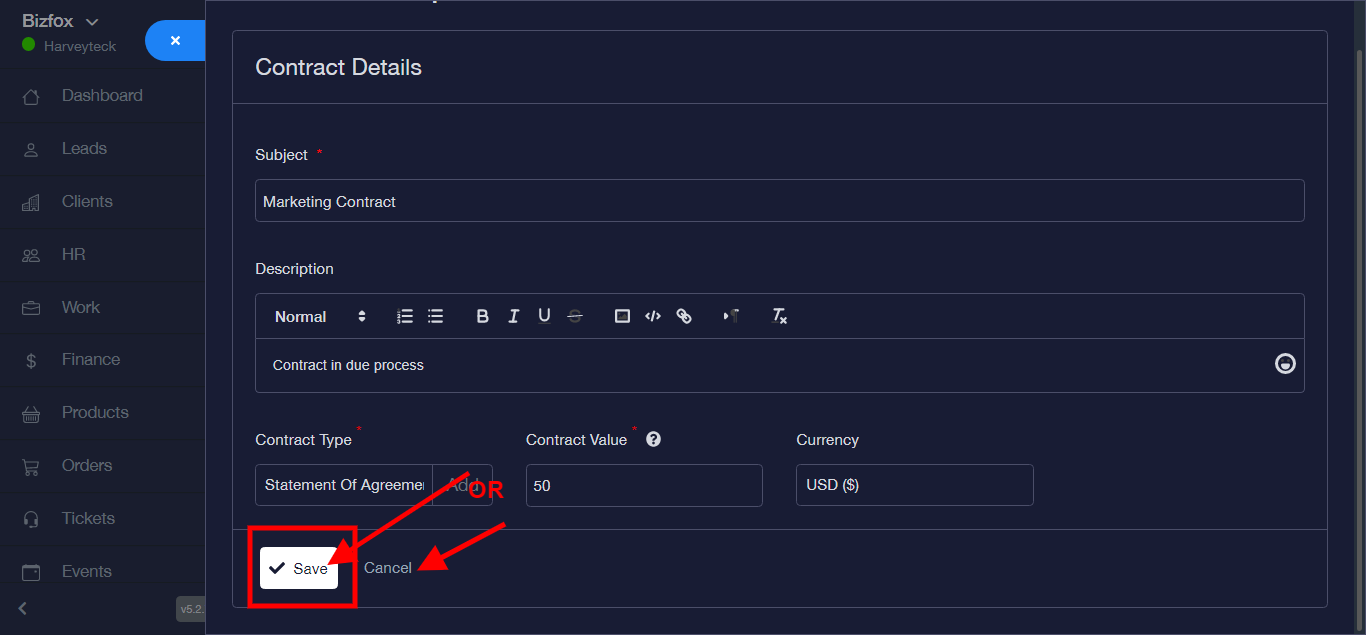
Step 2: Add “Contract Template”
Step 3: Enter “Contract Subject”

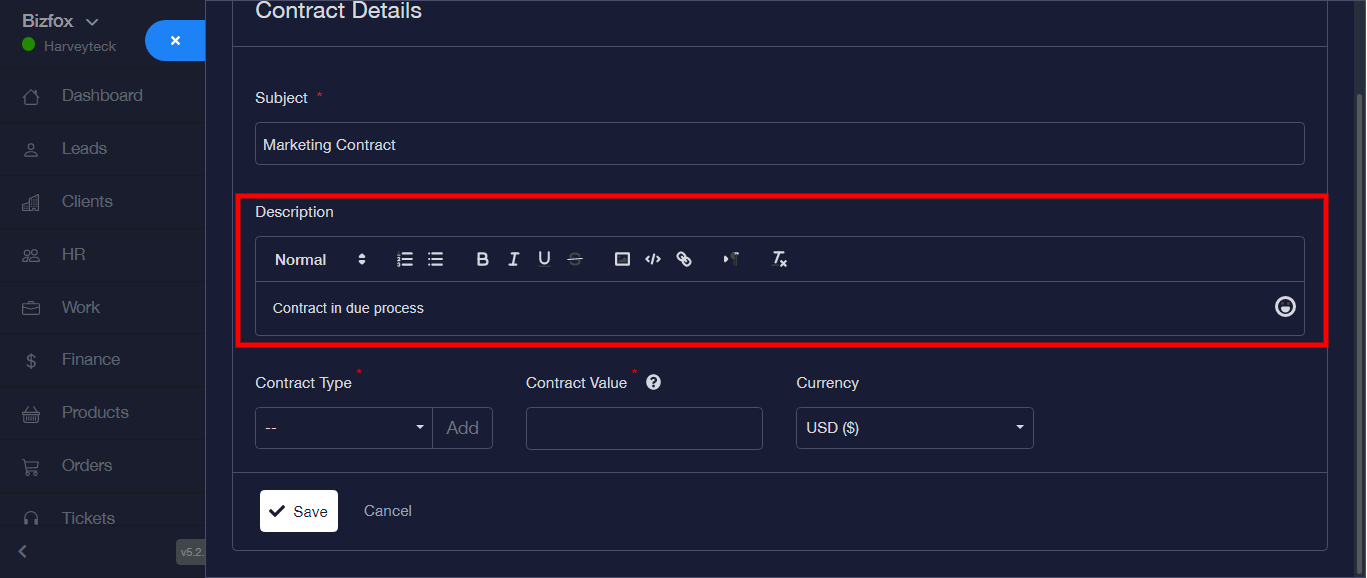
Step 4: Enter “Contract Description”
Step 5: Select “Contract Type” from the dropdown

OR
Click on the “Add” button to add or create a new contract type on the popup modal. Enter the name of the contract, and click the “Save” button to save or the “Close” button to discontinue the process.

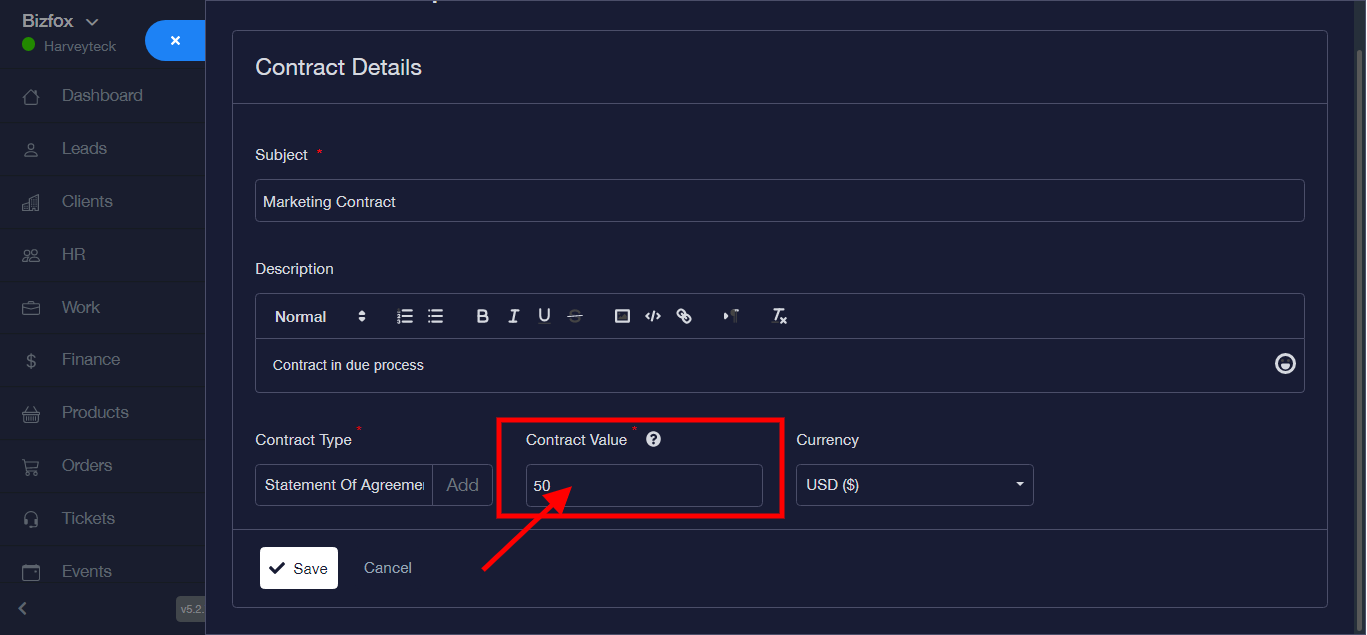
Step 6: Enter “Contract Value”
Step 7: Enter “Contract Currency”

Step 8: Click “Save” to save contract template or the “Cancel” button to Cancel the process
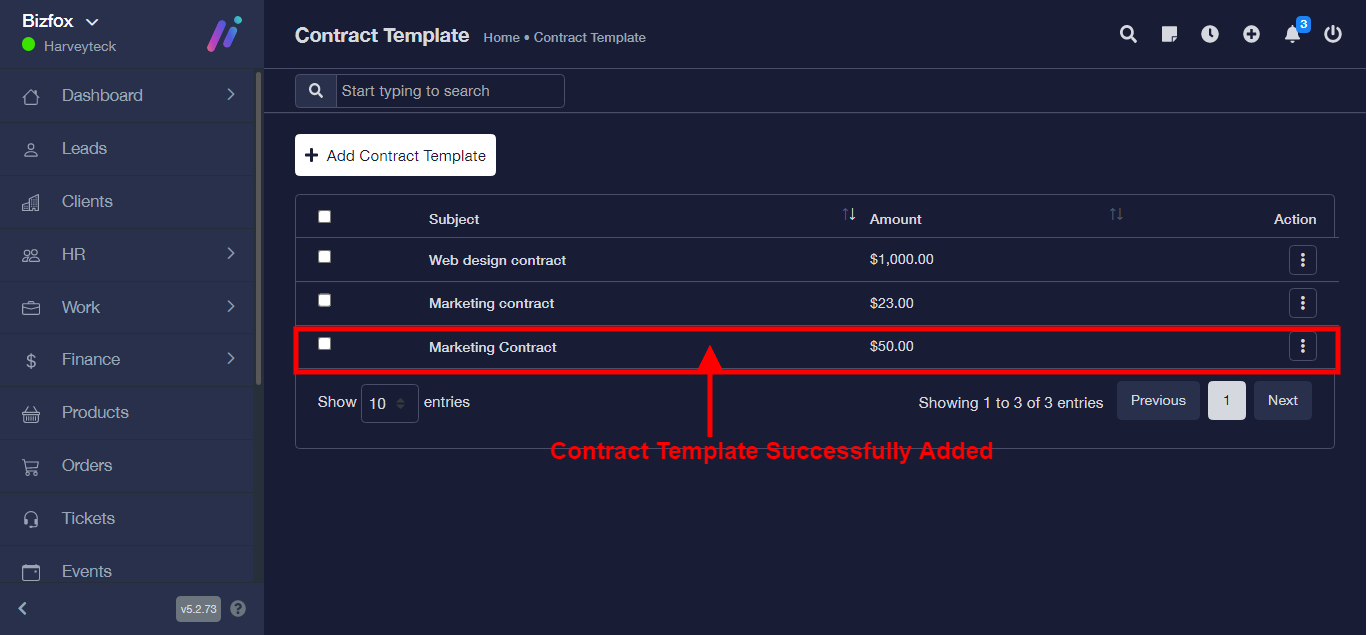
Contract template successfully added