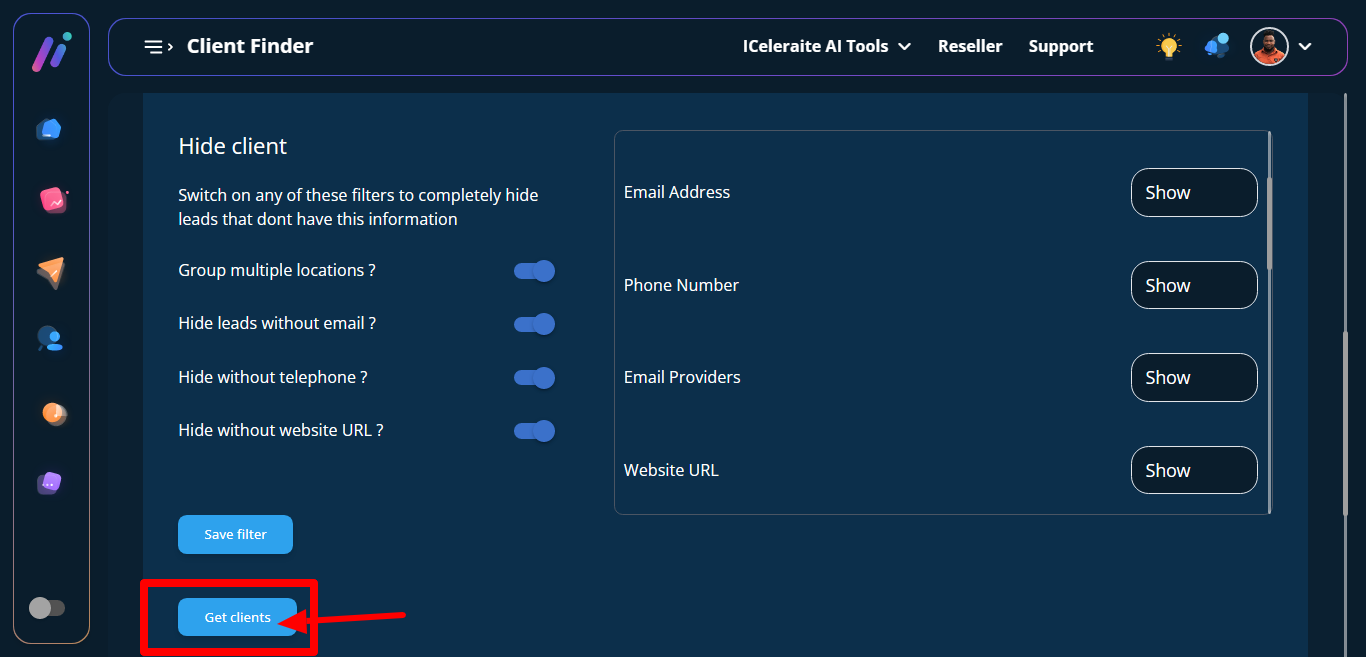
I will show you how to filter for client finder search.
You can either go through the dashboard or through the leadfinder under Iceleriate AI Tools.
STEP 1: Through the dashboard, click on client finder it will then direct you to client finder page.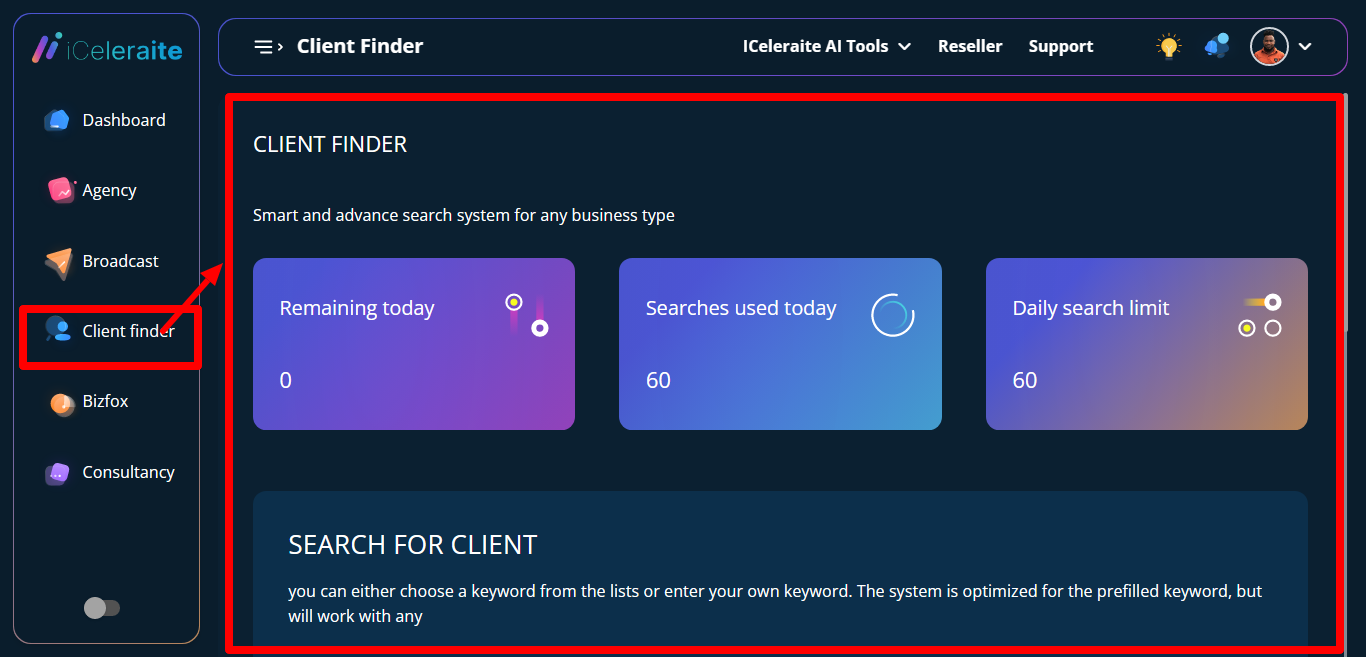
STEP 2: Scroll down to the search section 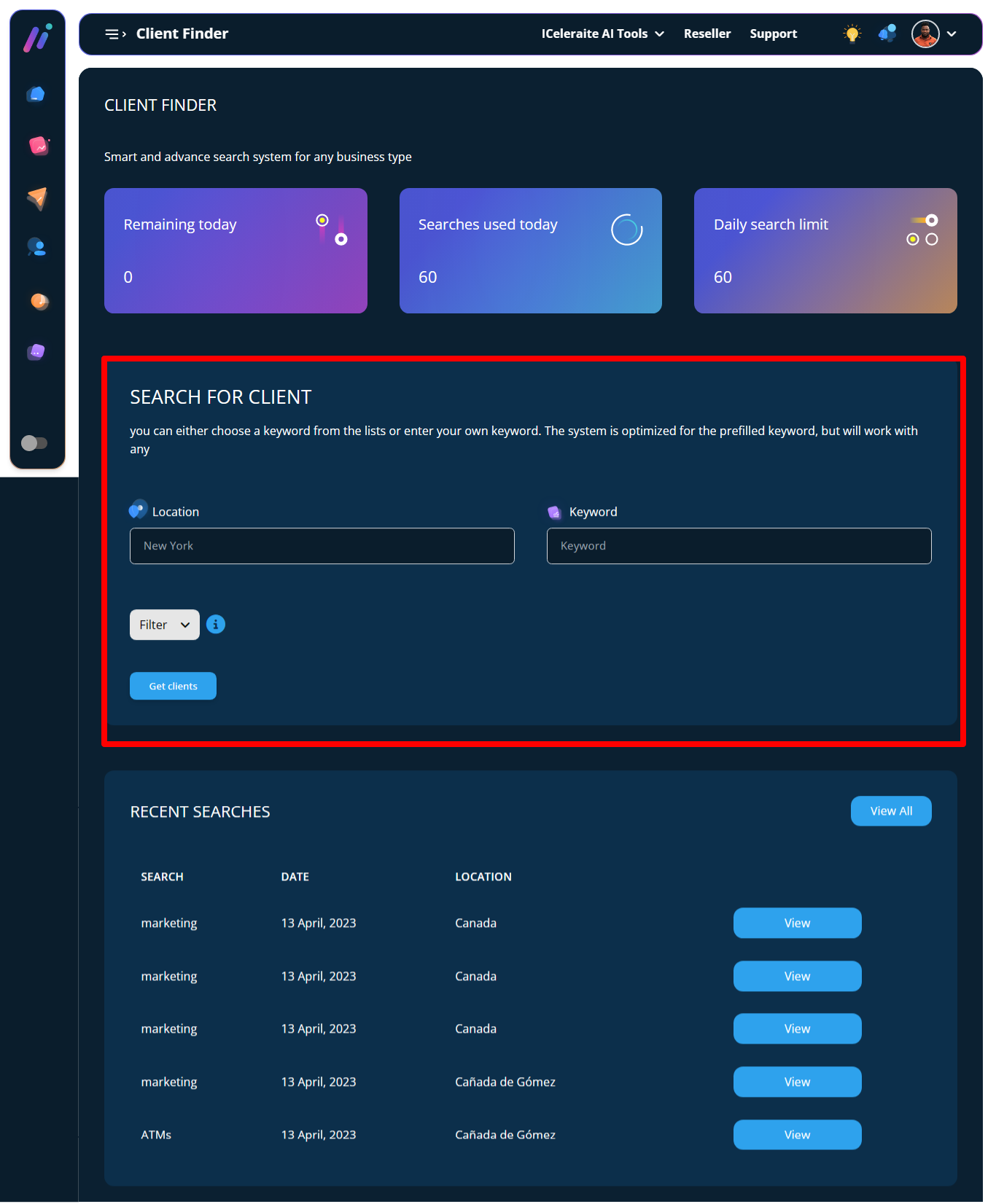
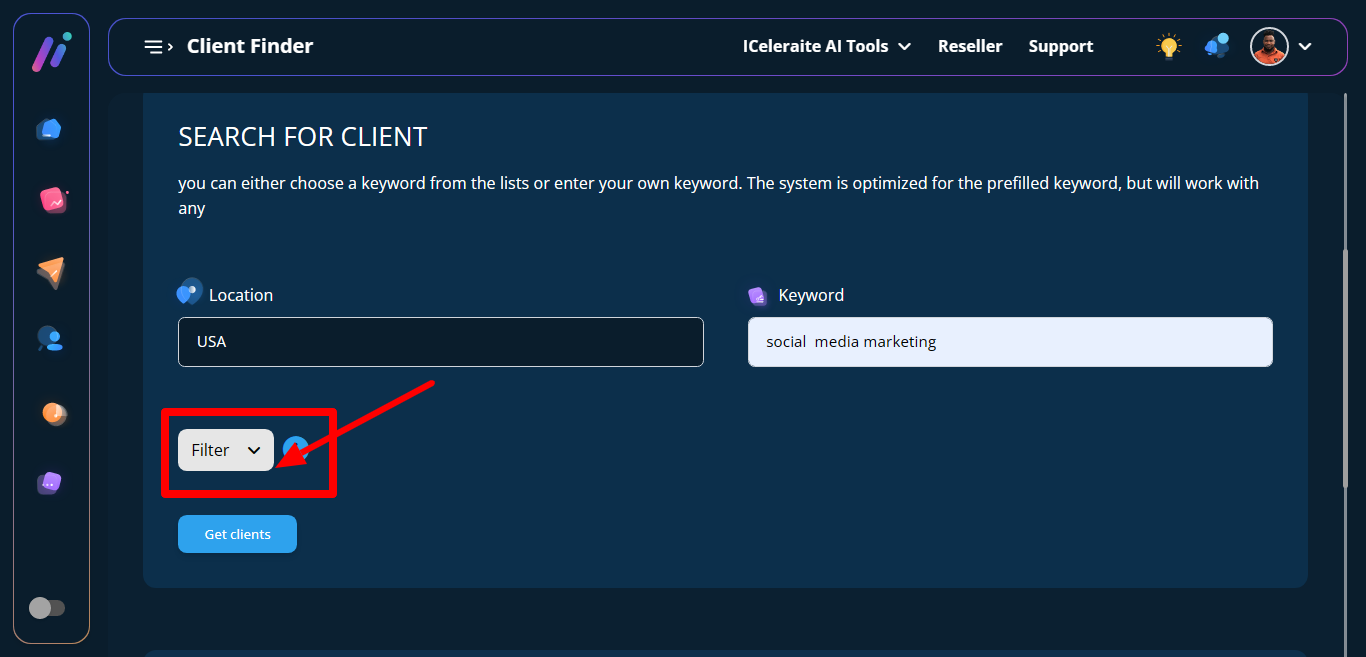
STEP 3: Input your location and keyword to help with your search.
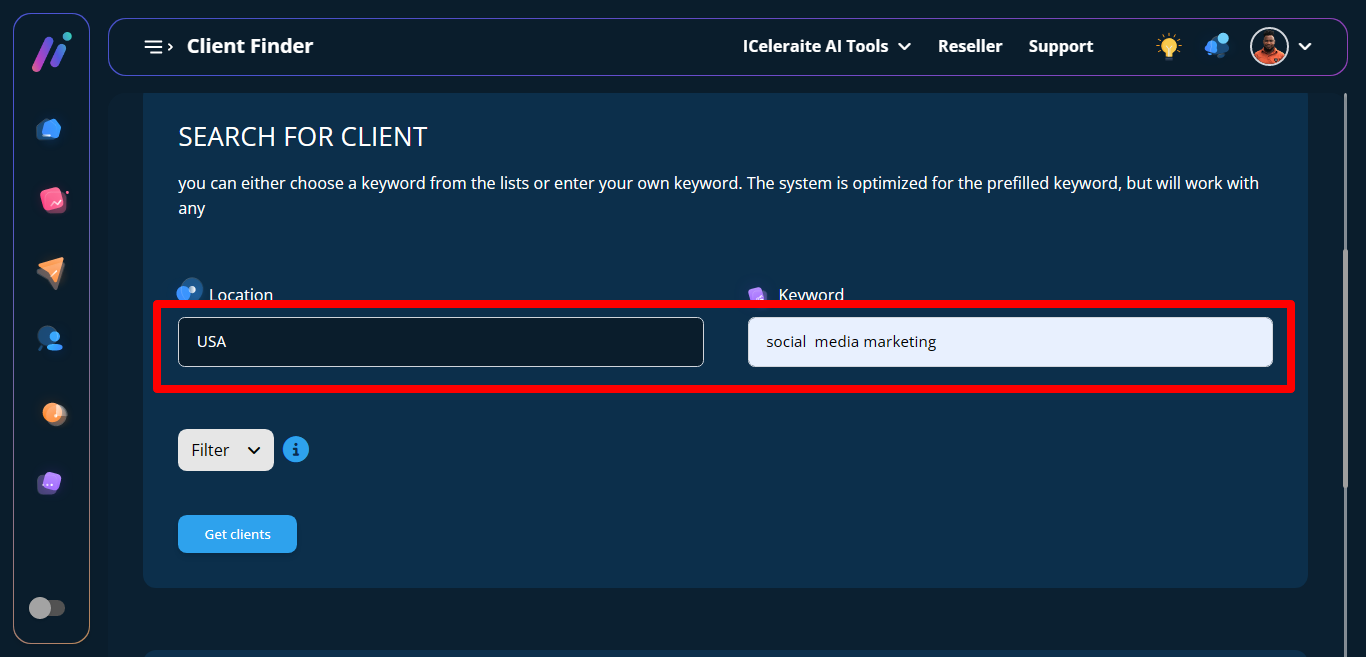
STEP 4: Click on the filter button
STEP 5: A dropdown will appear showing different options to choose from. This helps in hiding options you would and wouldn’t want to see.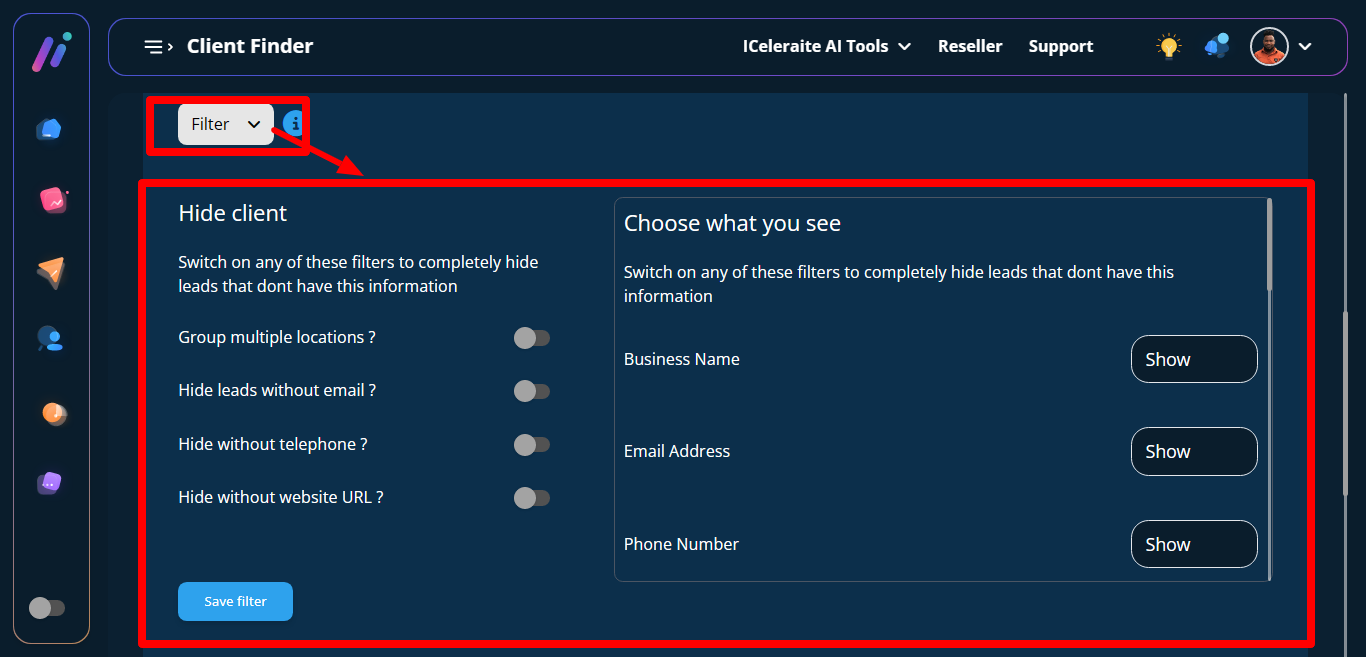
STEP 6: You can click on the toggle button and also on the show button then a dropdown will appear with Hide and Show options.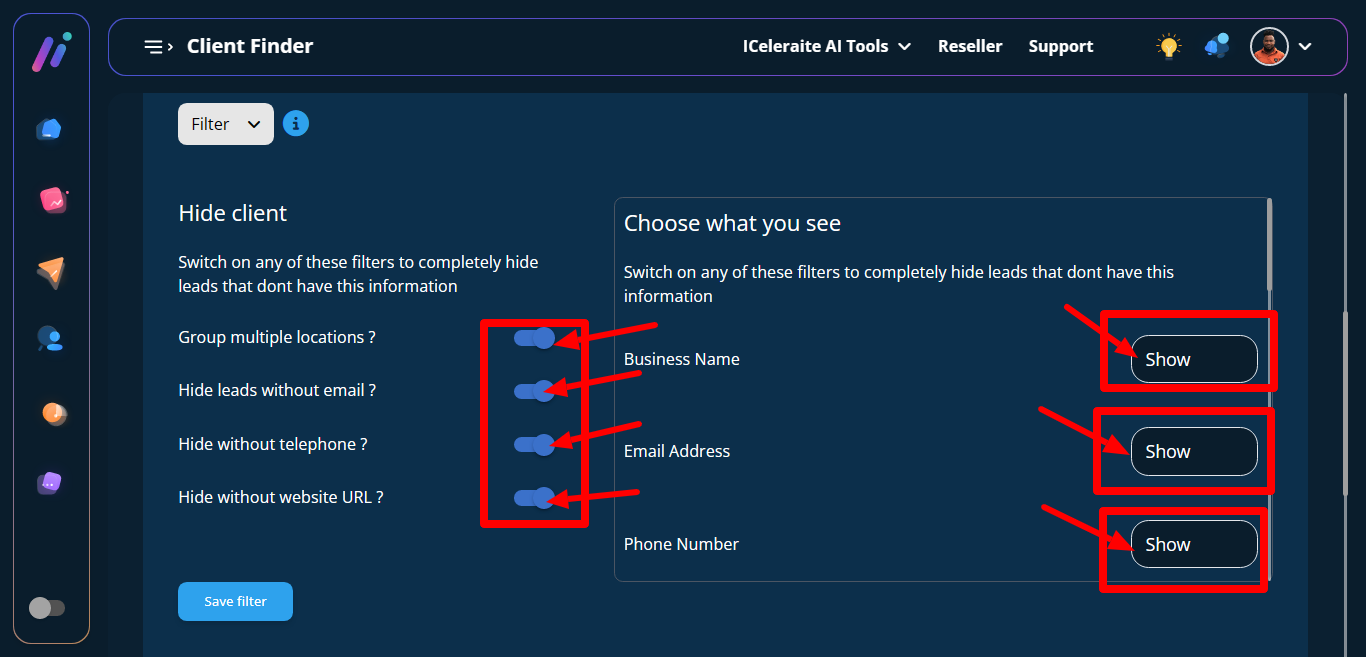
STEP 7: Click on save filter next to save the data.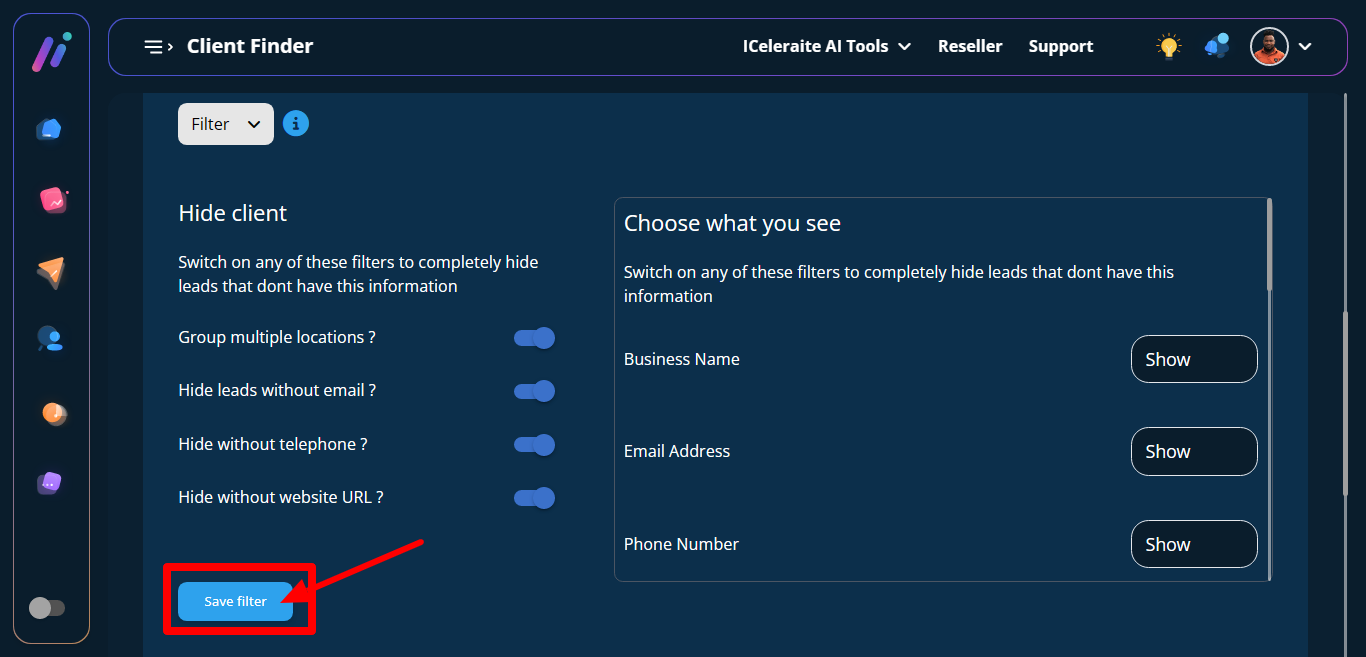
STEP 8: Click on Get Client next.