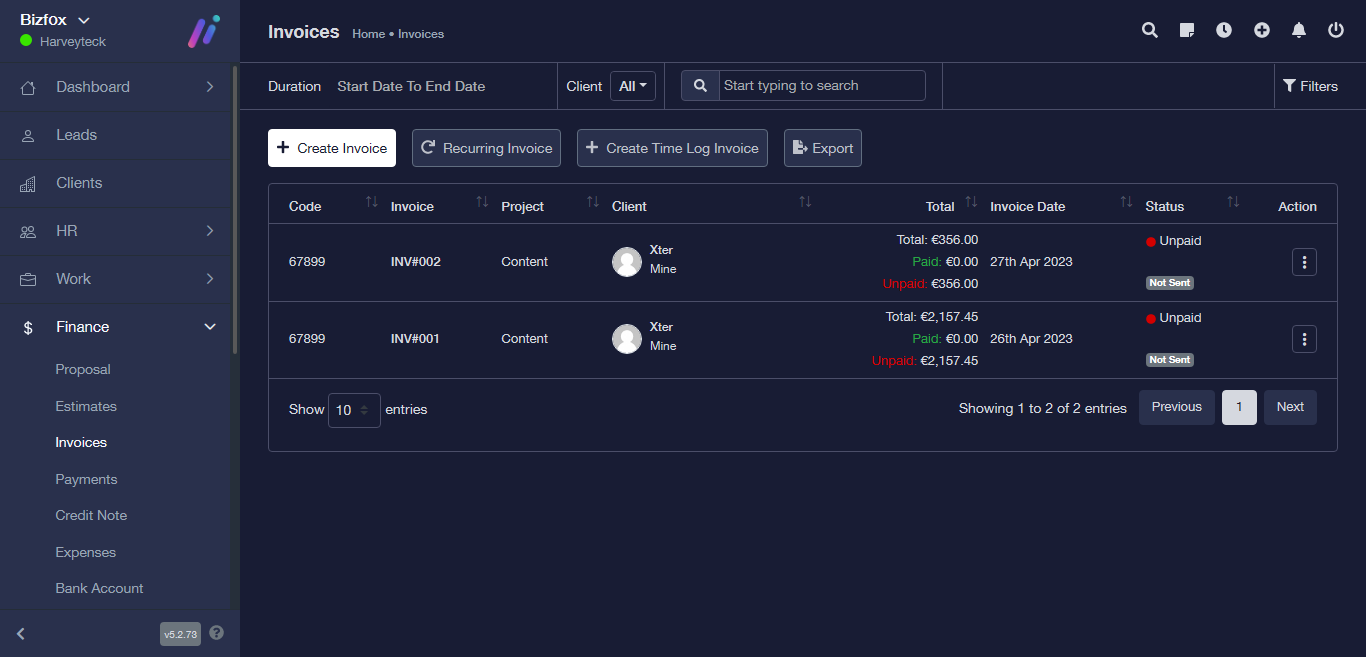
STEP 1: After logging into your Business managers account. First thing that appears is the dashboard, the dashboard has a left side nav-bar.
STEP 2: Next is to click on client, it will then direct you to the client dashboard.
STEP 3: Click on the action button of any client and a dropdown will appear. Then click on the view button.

STEP 4: You will be directed to the client profile page.
STEP 5: Click on invoice, you will then be directed to a new page.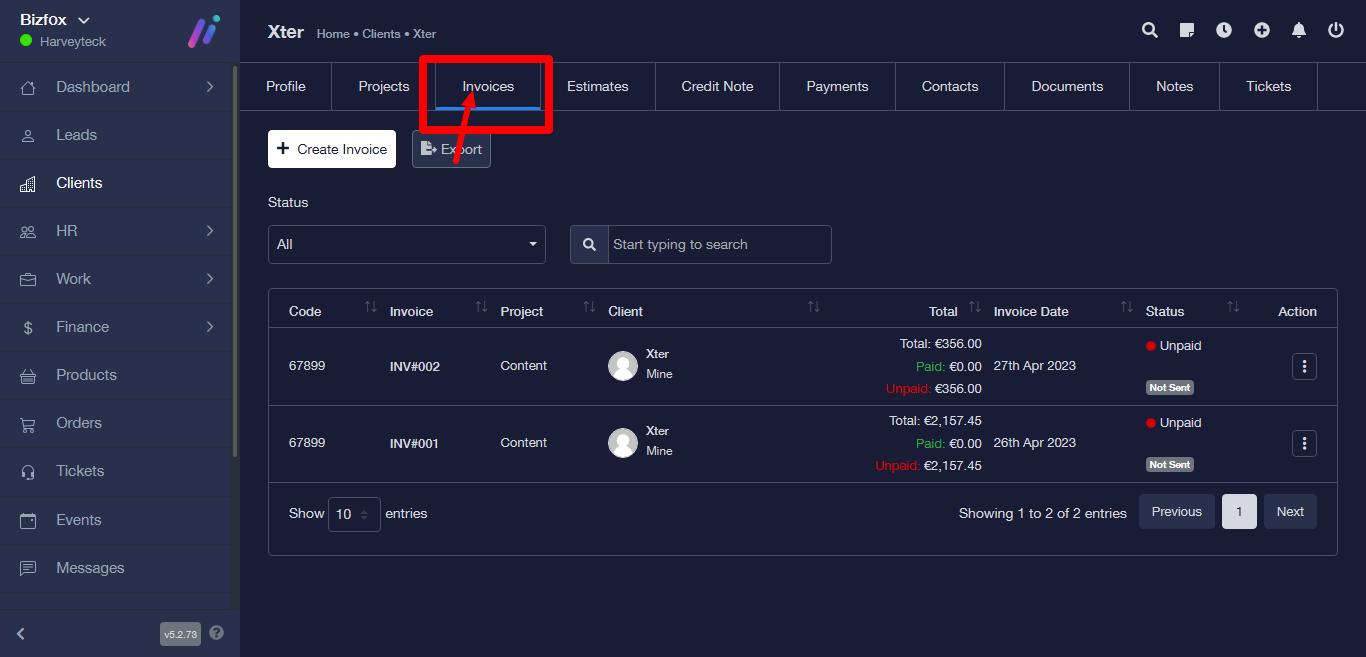
STEP 6: If there is no invoice created you start by clicking the create invoice button at the top.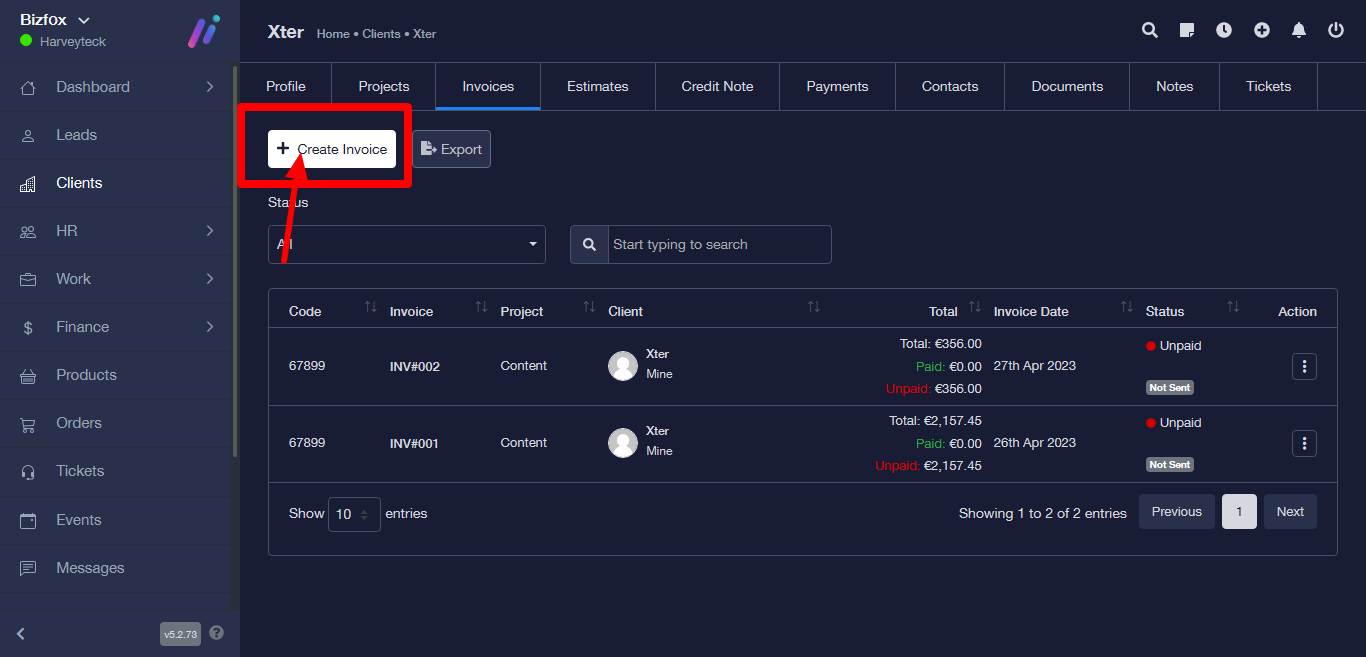
STEP 7: Create invoice page form will appear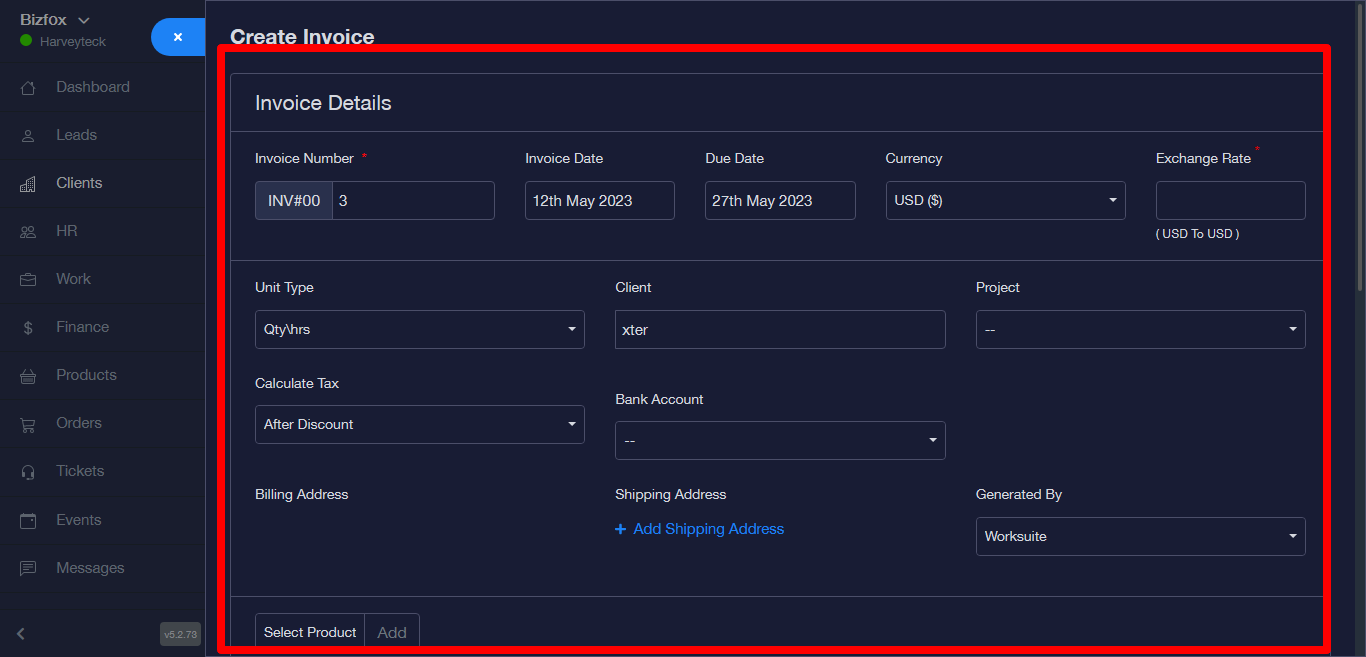
STEP 8: Fill the form with valid details 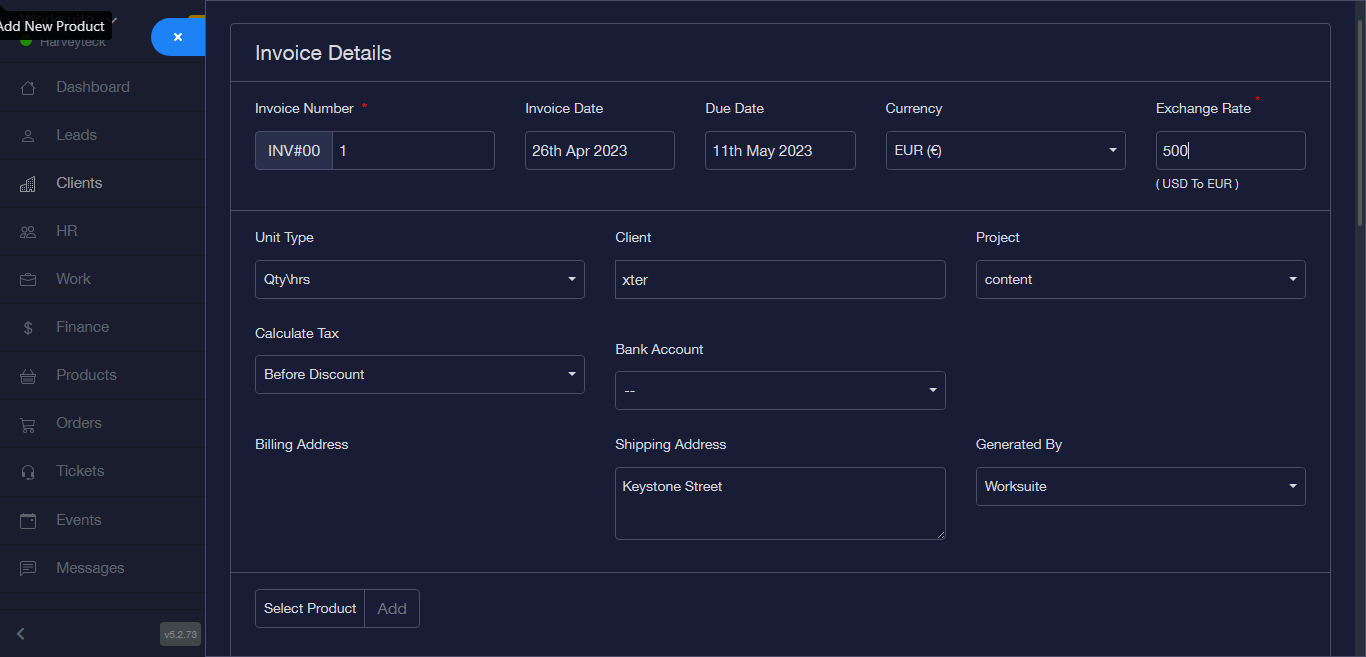
STEP 9: After filling in valid details click on the save button, a pop-up will appear with options of save or save and send.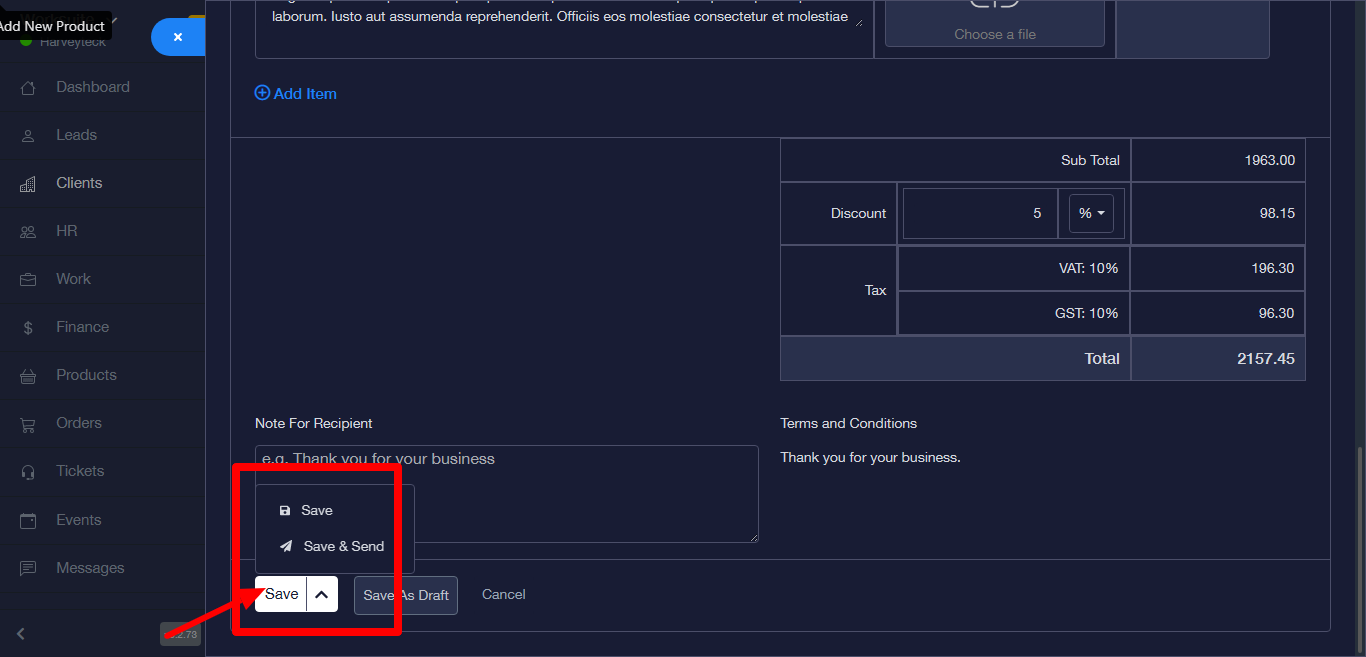
STEP 10: Click on the save button if you want to save with out sending.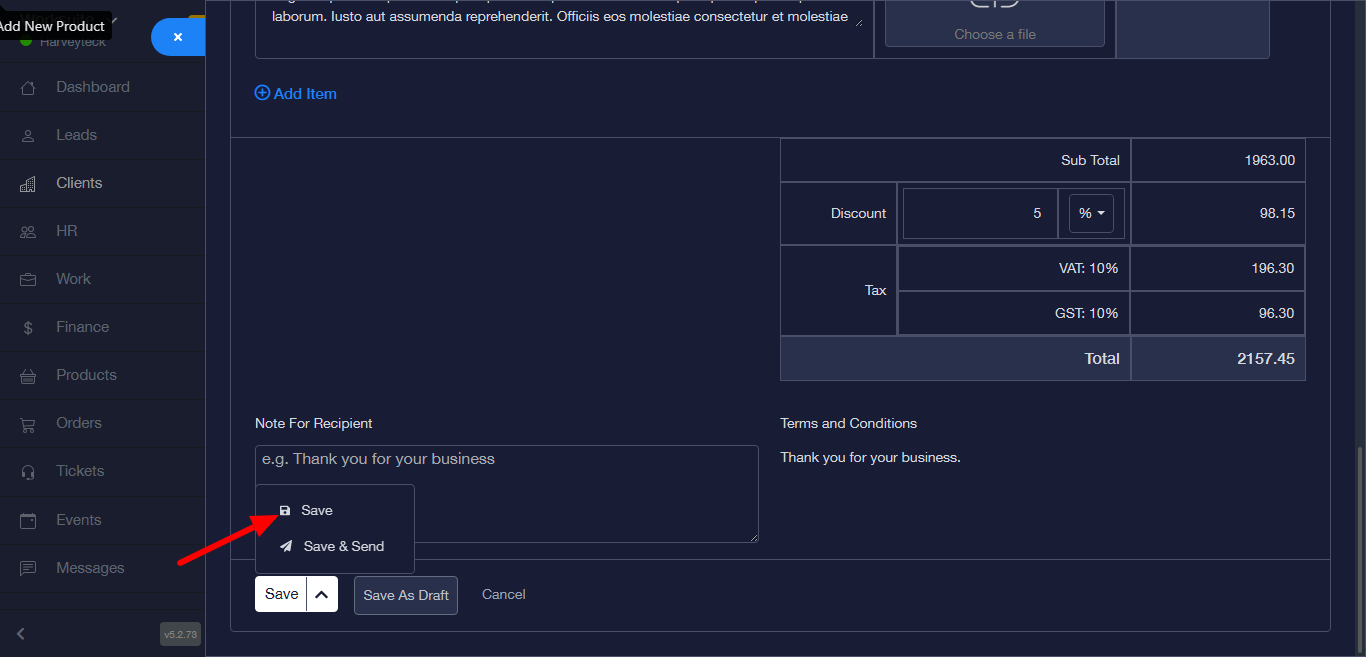
STEP 11: It directs you to a status table page where its been saved.