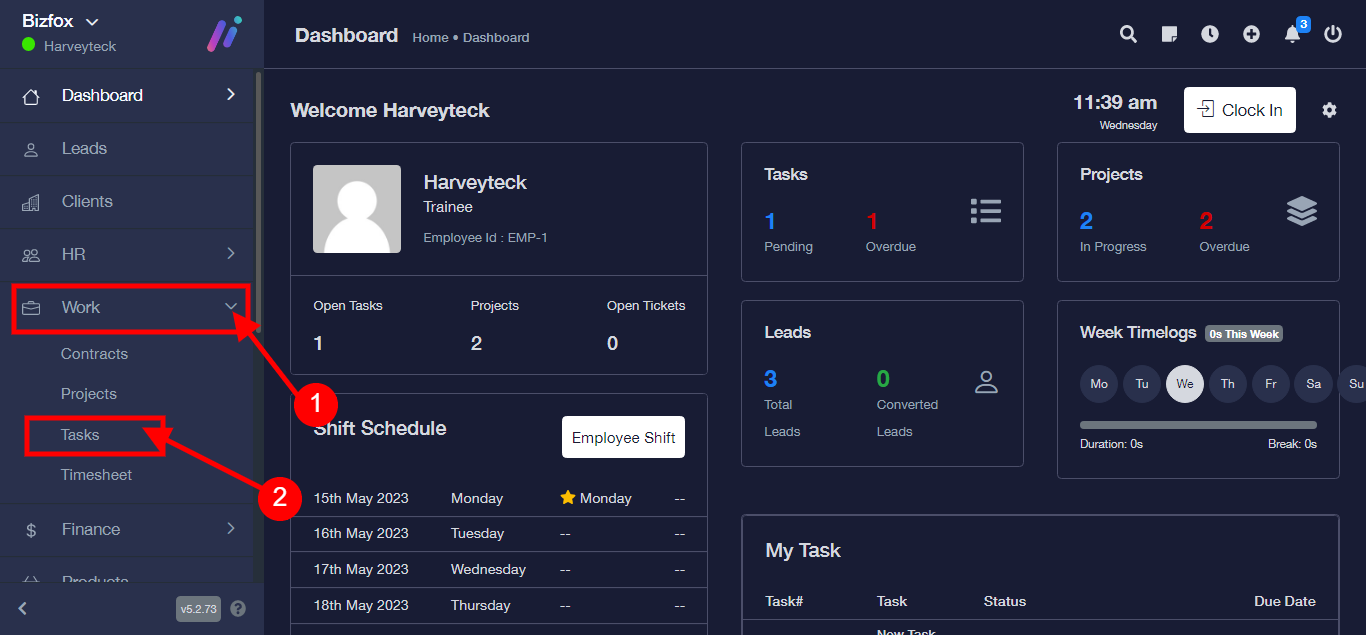
Step 1: After you’ve logged into your Business manager account, it leads you to the dashboard and there you get to see the left nav-bar and a table. On the left-nav bar click on “WORK” dropdown, It takes you to “Task” Click “Task”
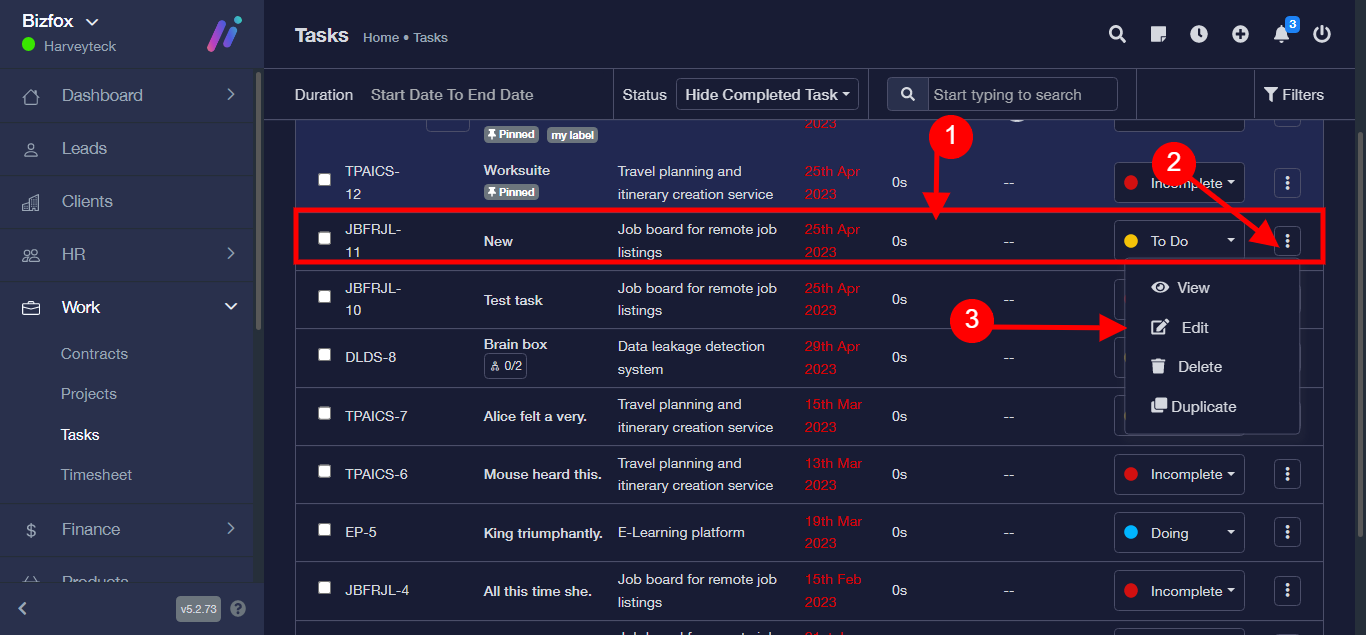
Step 2:
- Select an already existing task
- Click “toggle” button
- Select “Edit”
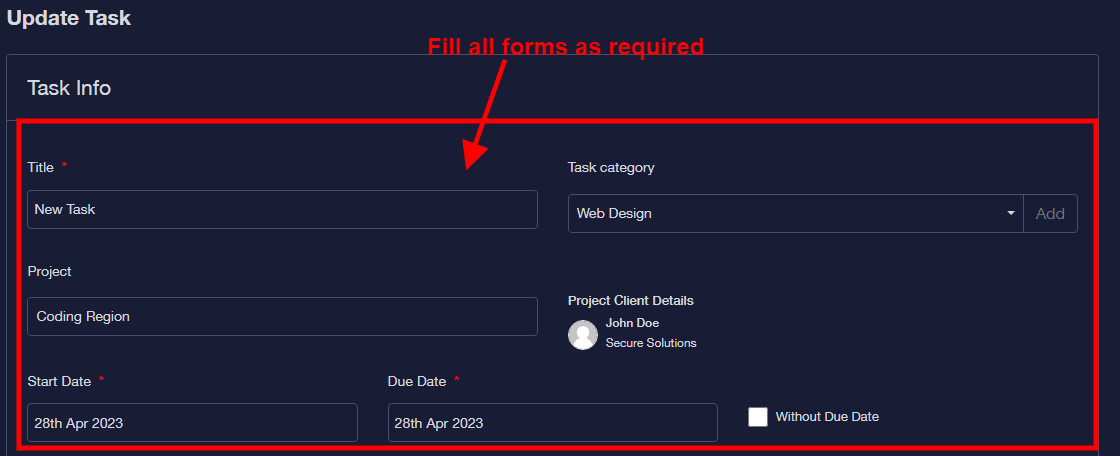
Step 3: After editing forms as required.
Step 4: Select an employee to assign task to from the dropdown.
N/B: If there are no already existing employee, kindly Click on the “Add” button
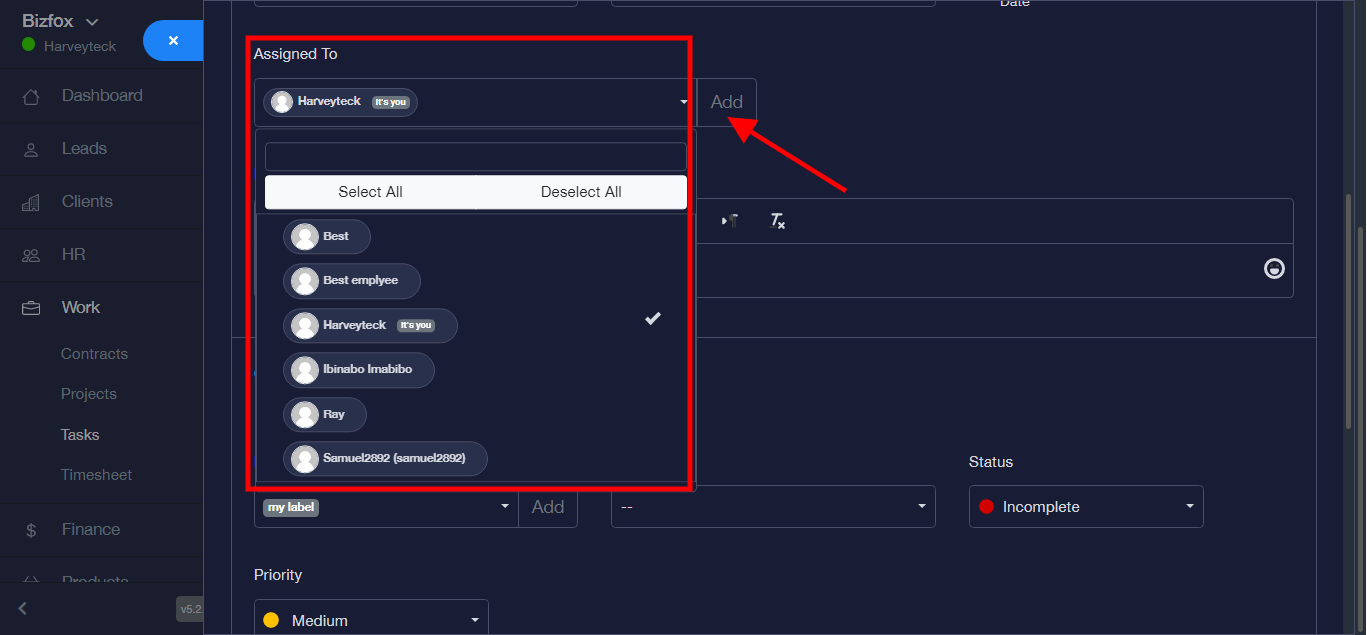
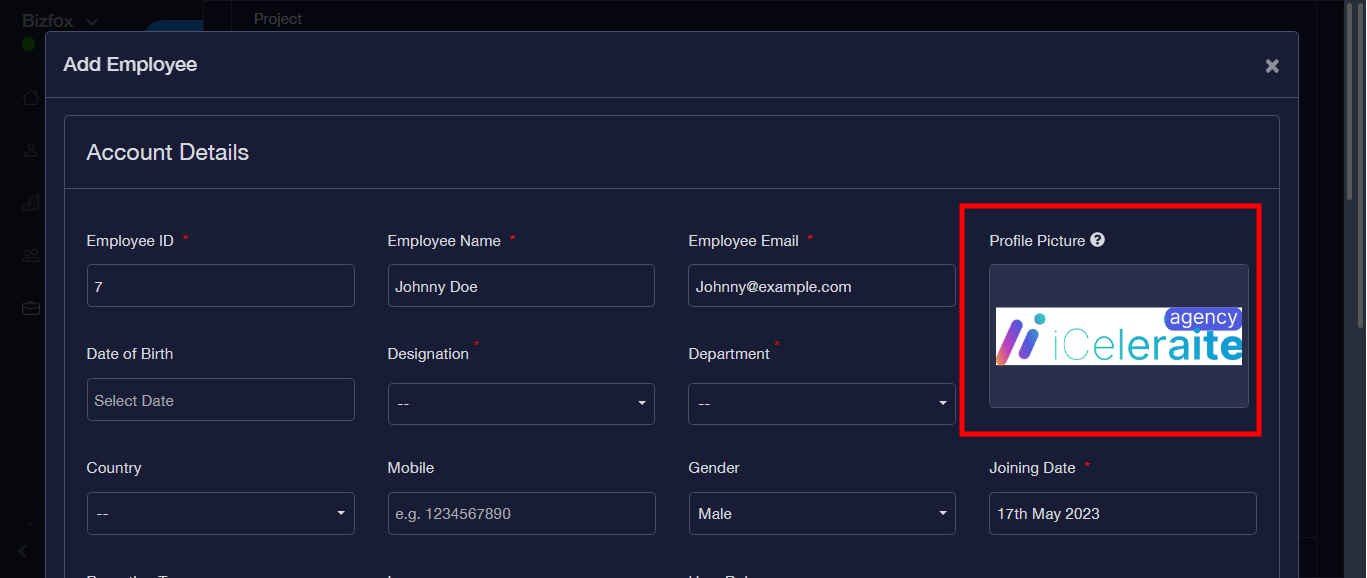
Step 5: Enter Employee ID
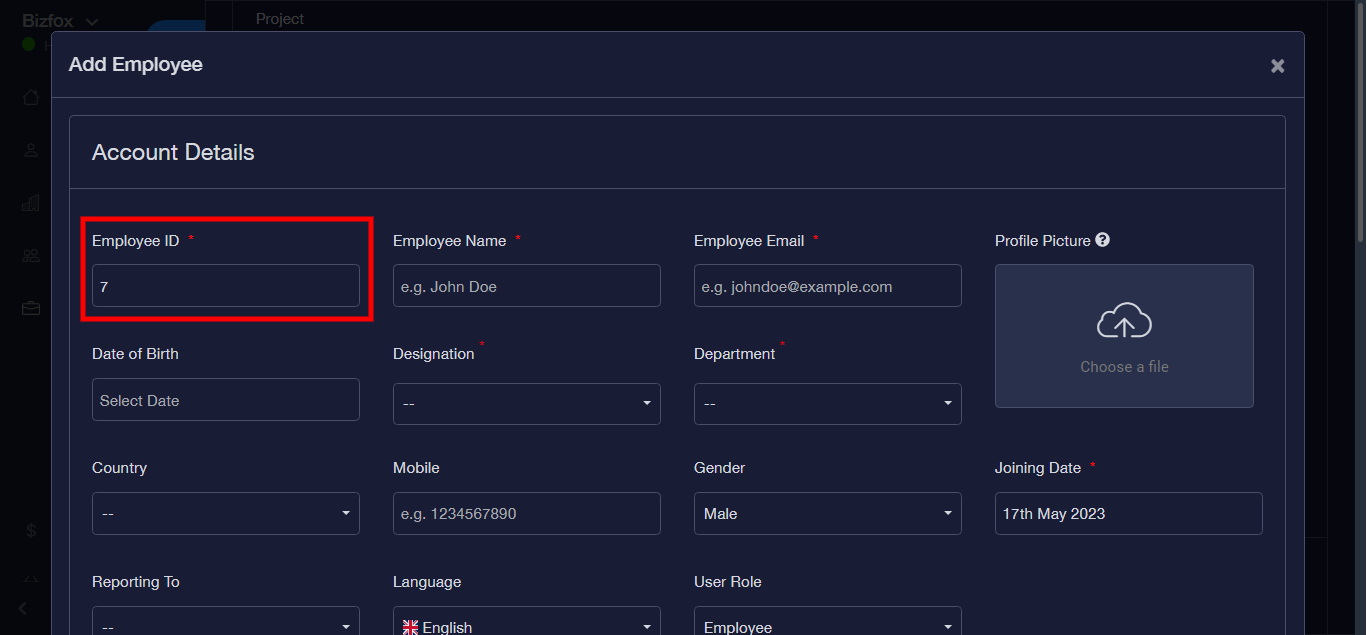
Step 6: Enter Employee Name
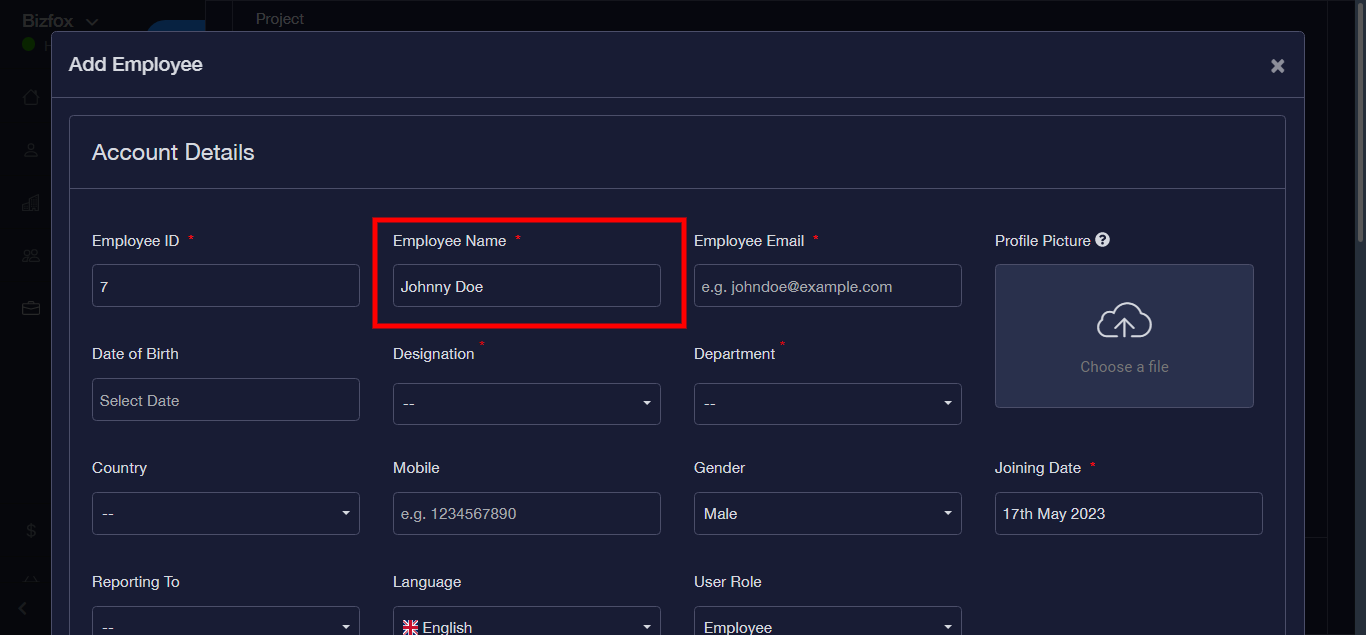
Step 7: Enter Employee Email
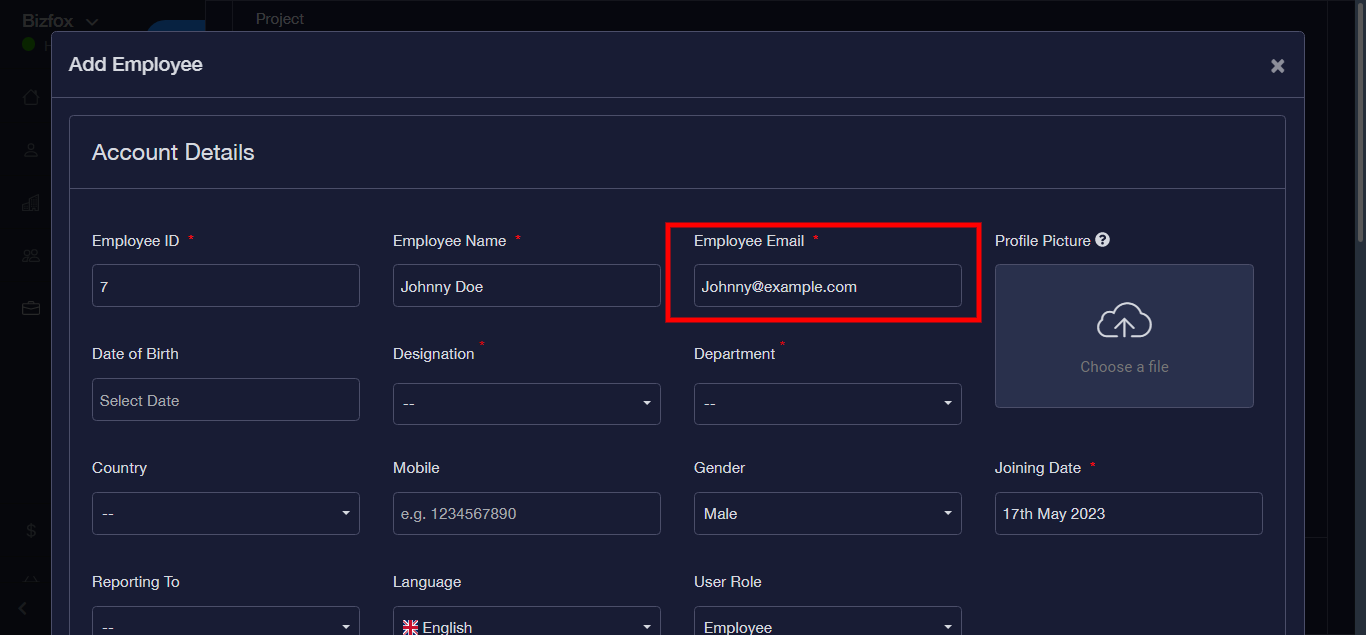
And Select a file from your PC to be used as a “Profile Picture”
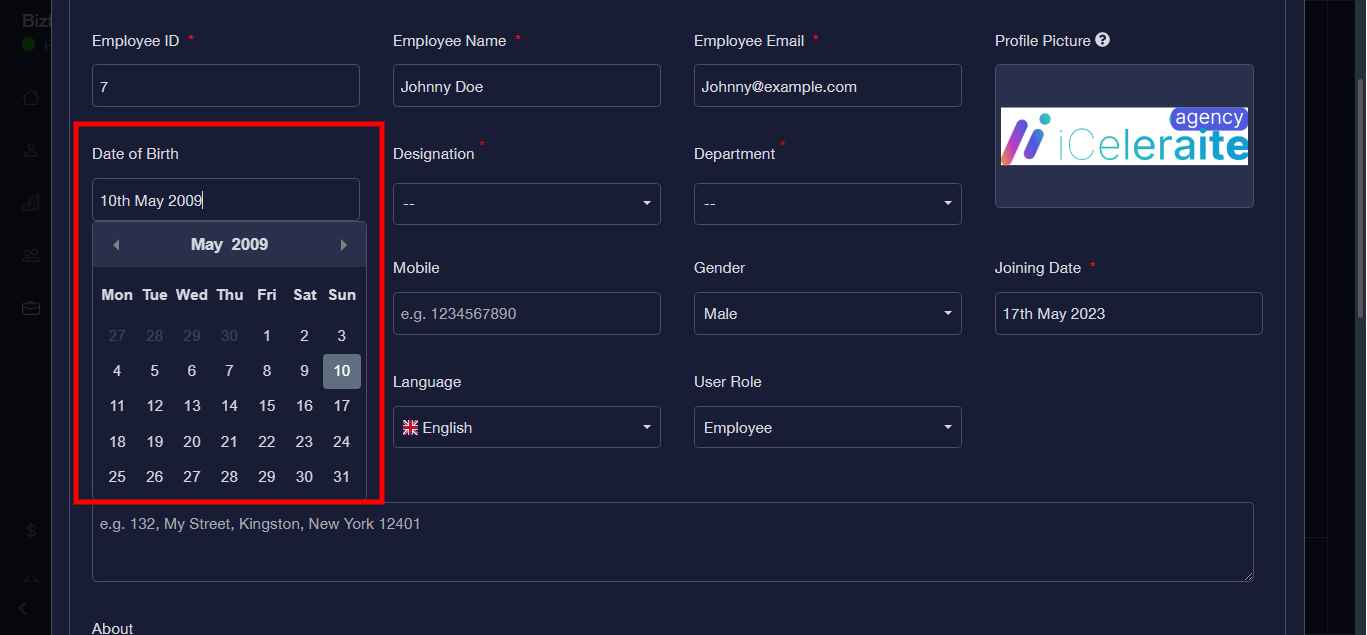
Step 8: Enter Date of Birth
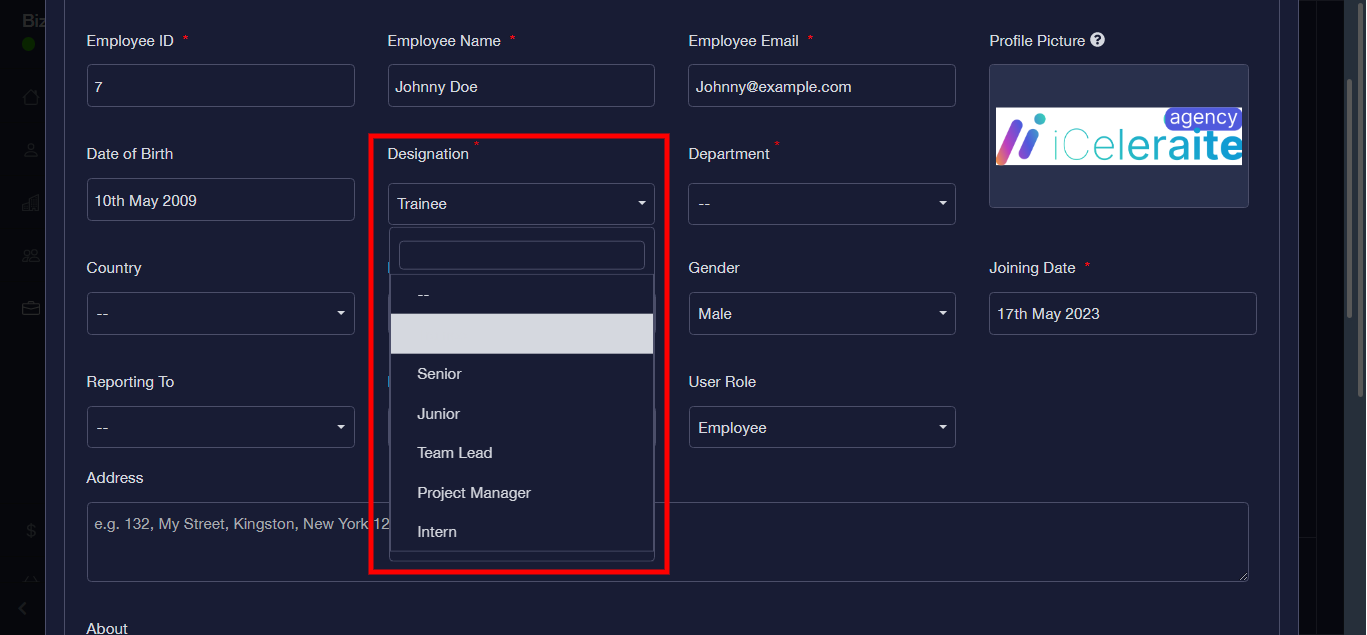
Step 9: Enter Designation
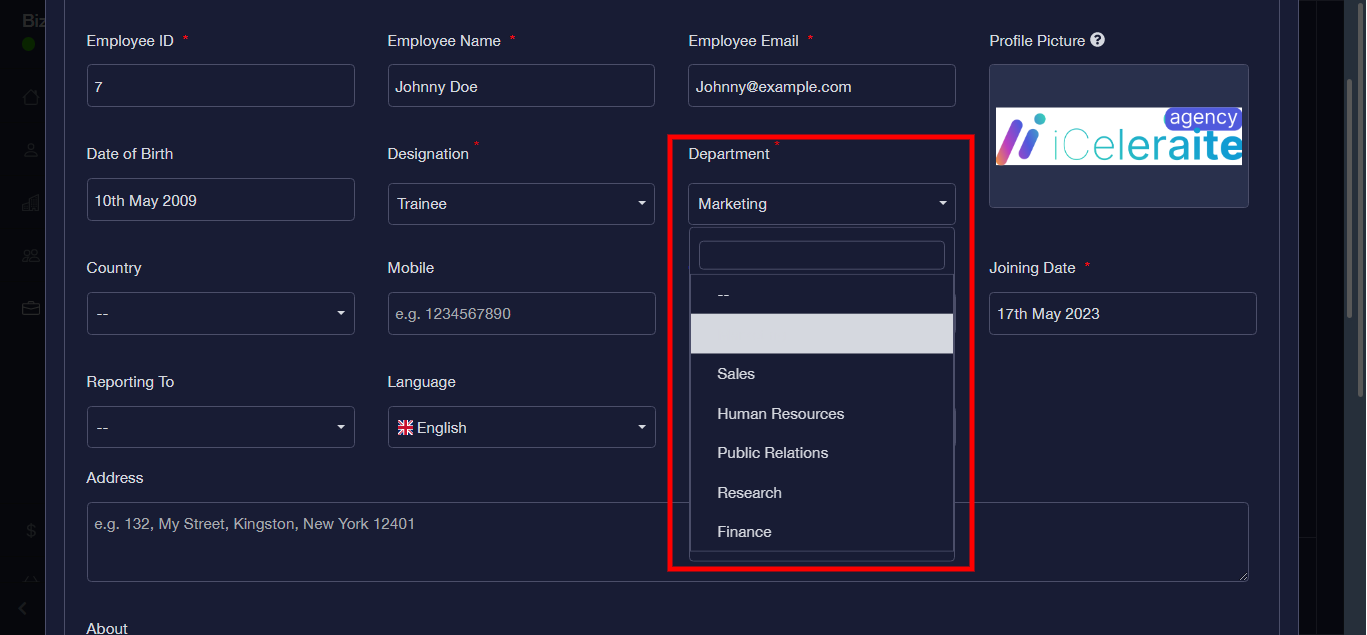
Step 10: Enter Department
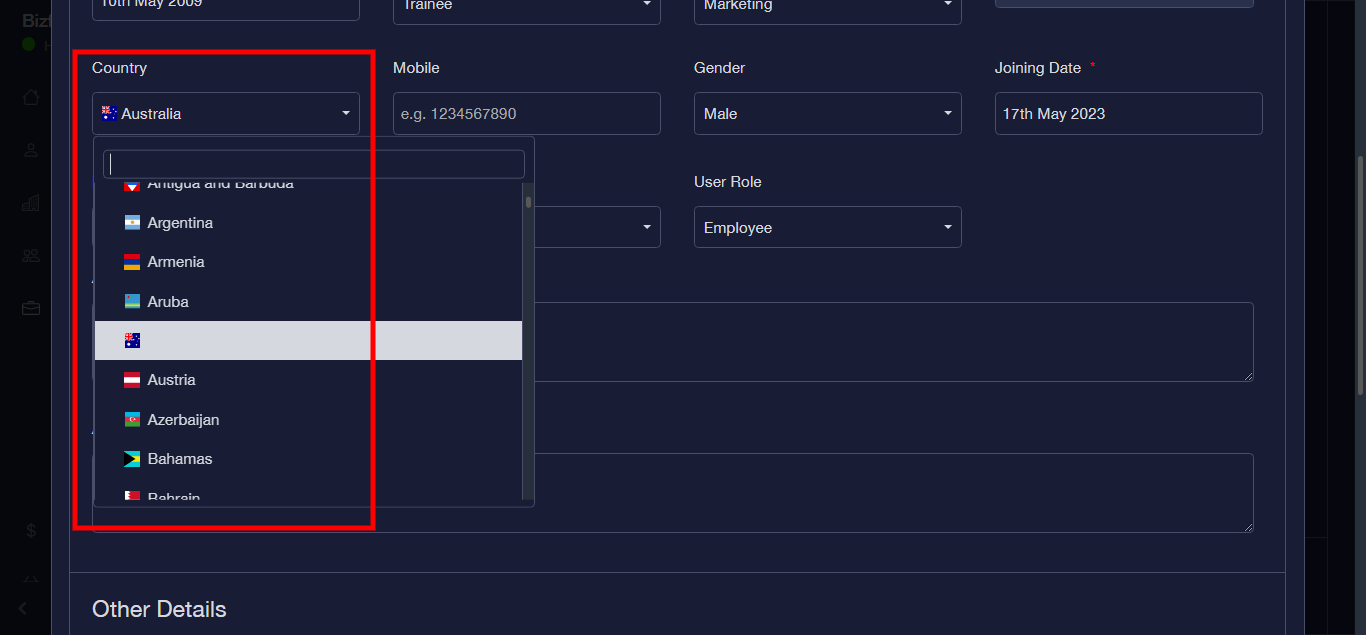
Step 11: Enter Country
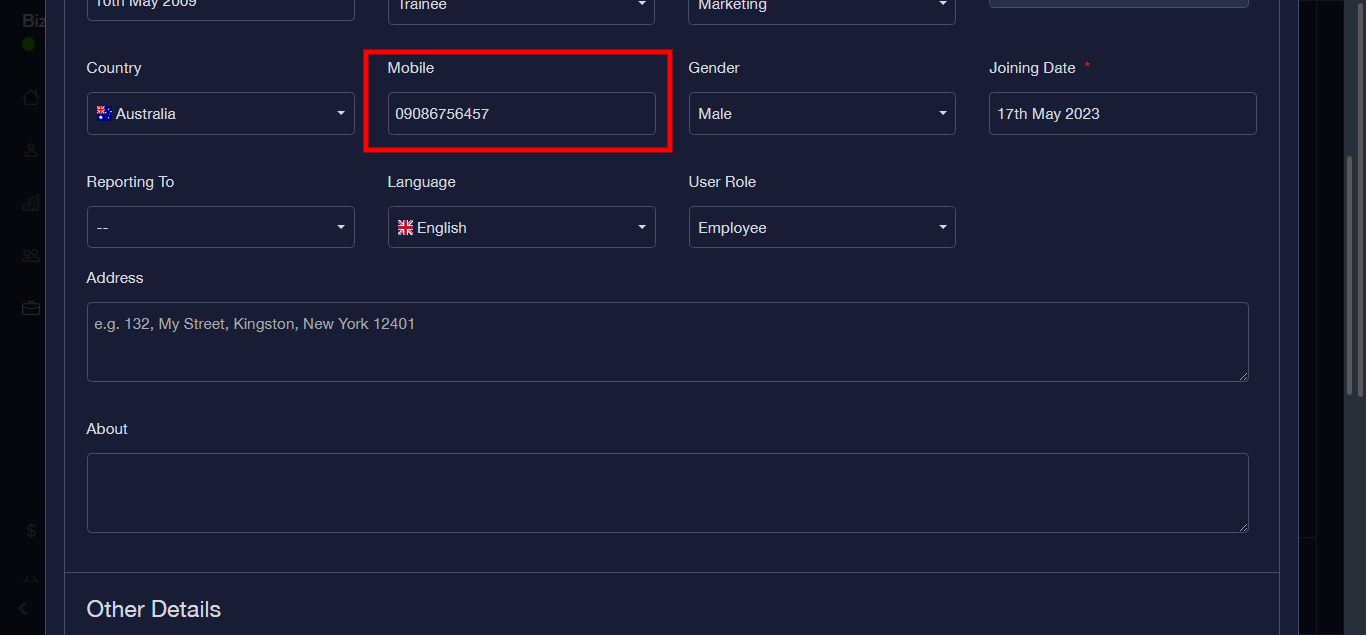
Step 12: Enter Mobile
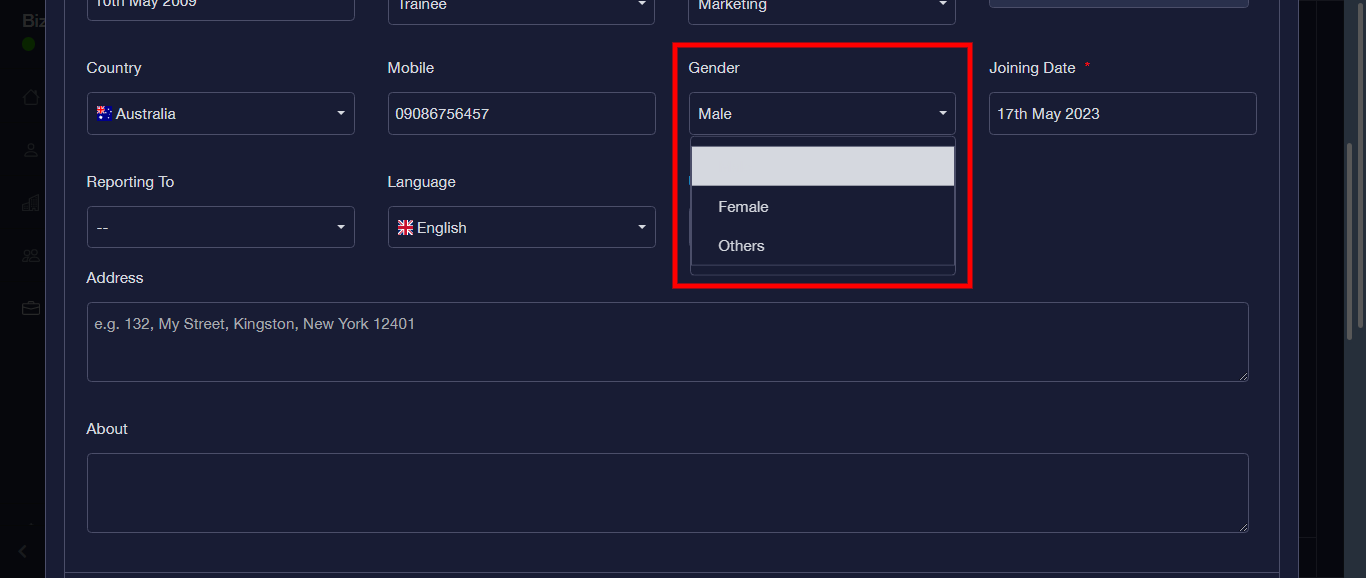
Step 13: Enter Gender from the dropdown
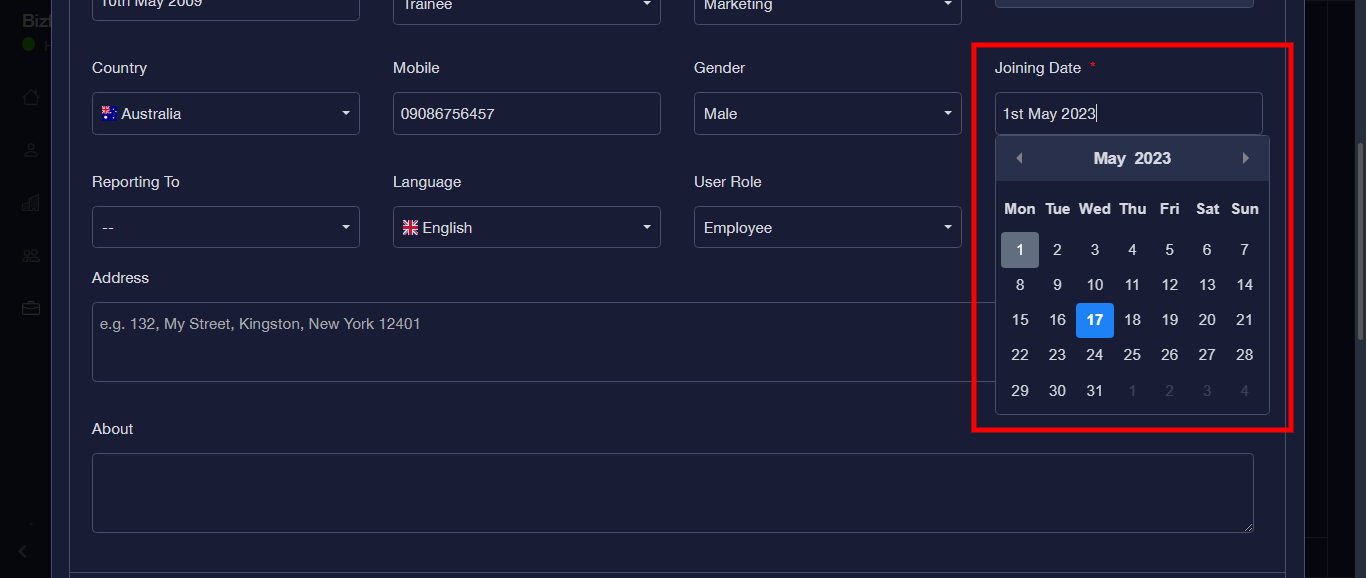
Step 14: Enter Joining Date
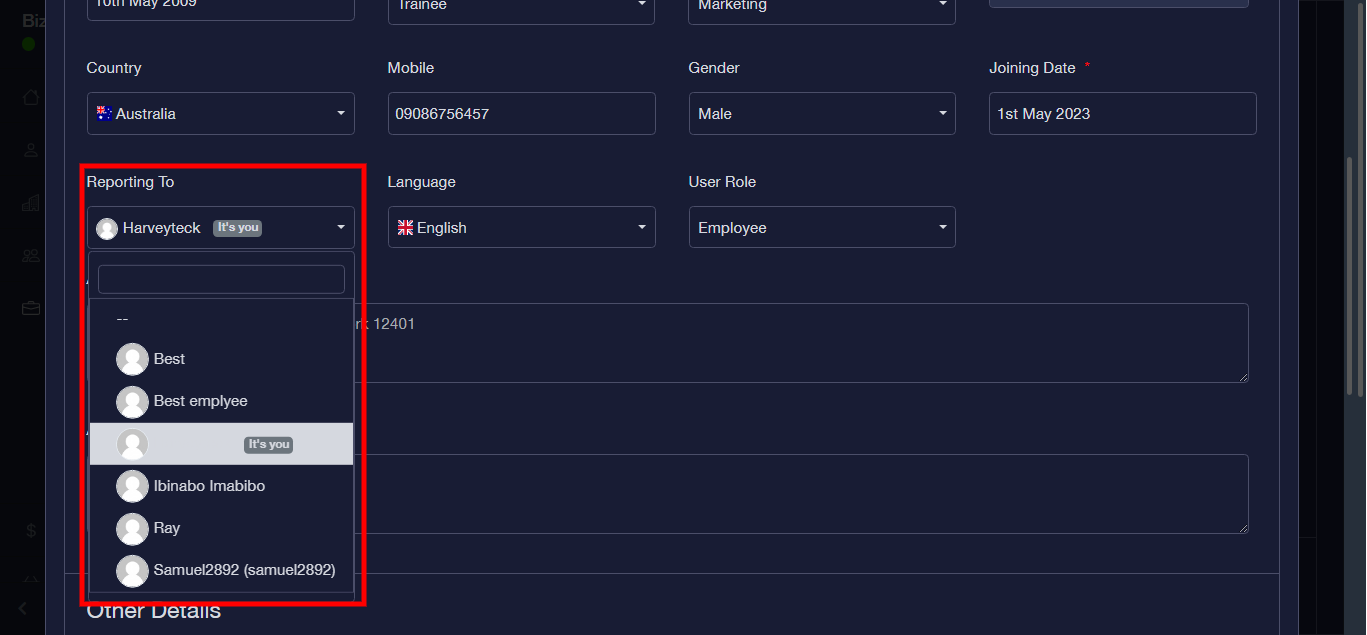
Step 15: Enter “Reporting To”
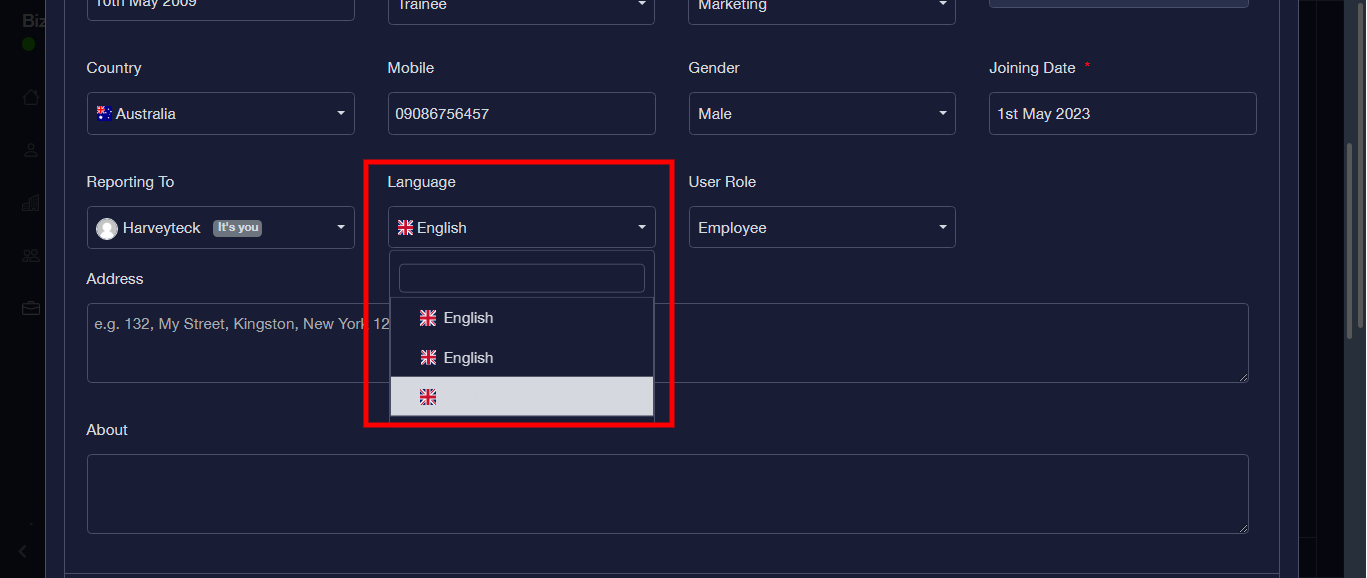
Step 16: Select “Language”
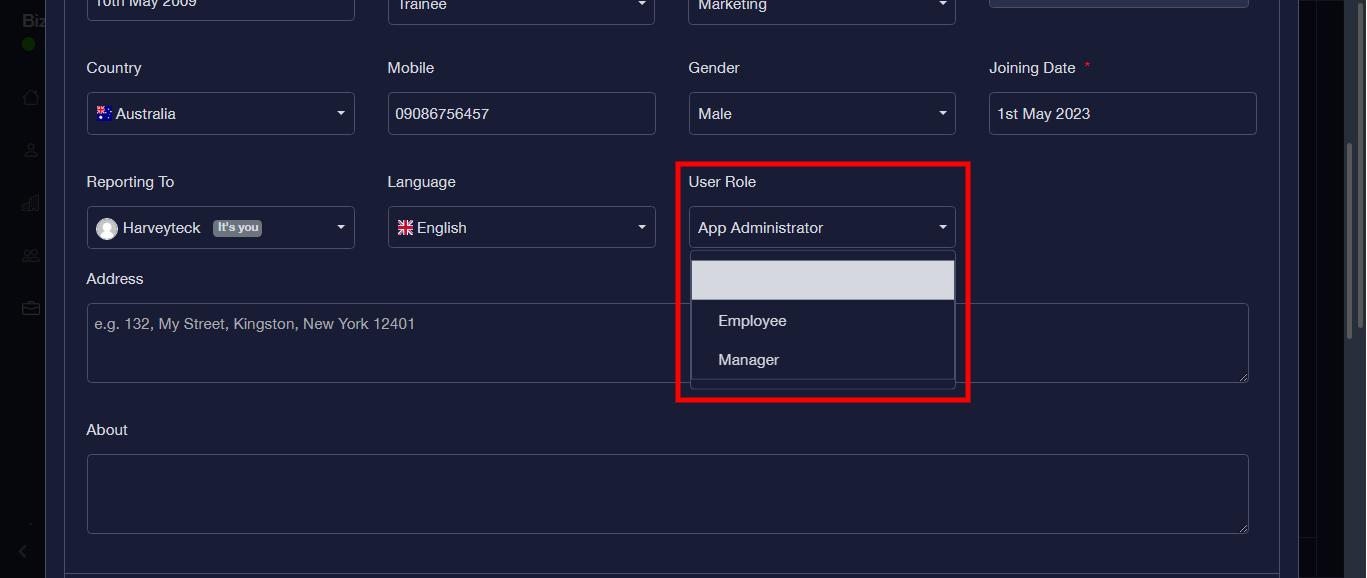
Step 17: Select “User Role”
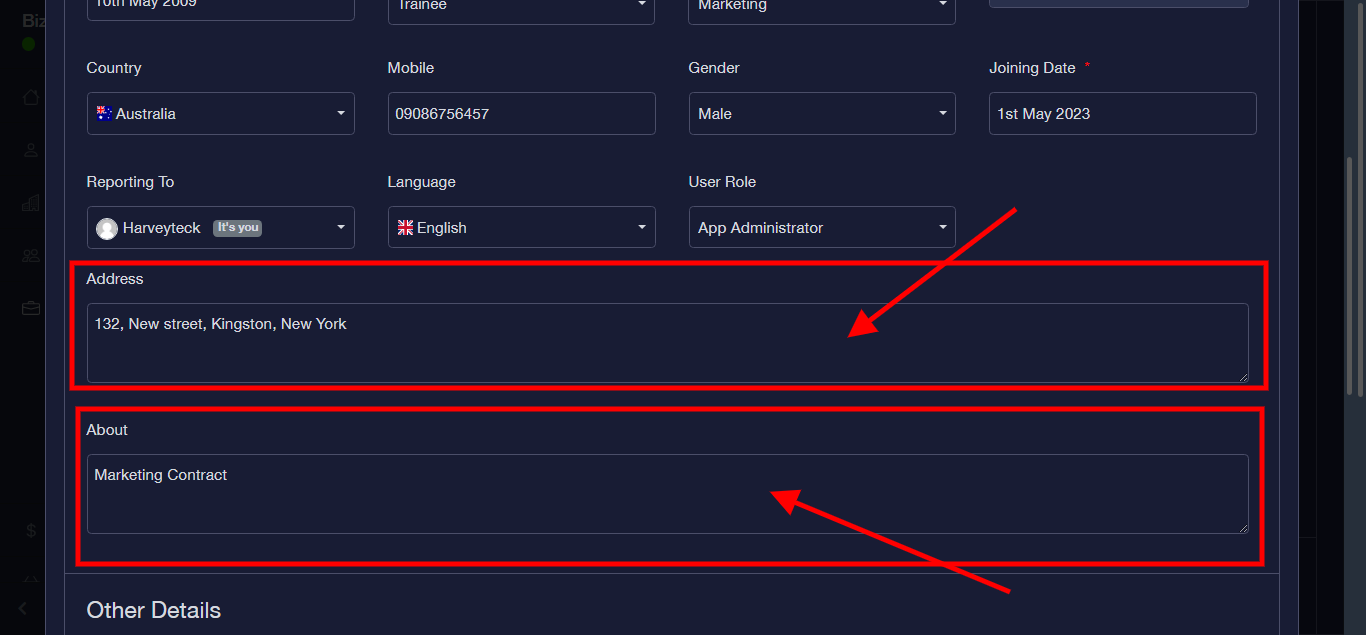
Step 18: Fill the “Address” and “About” form
Step 19:
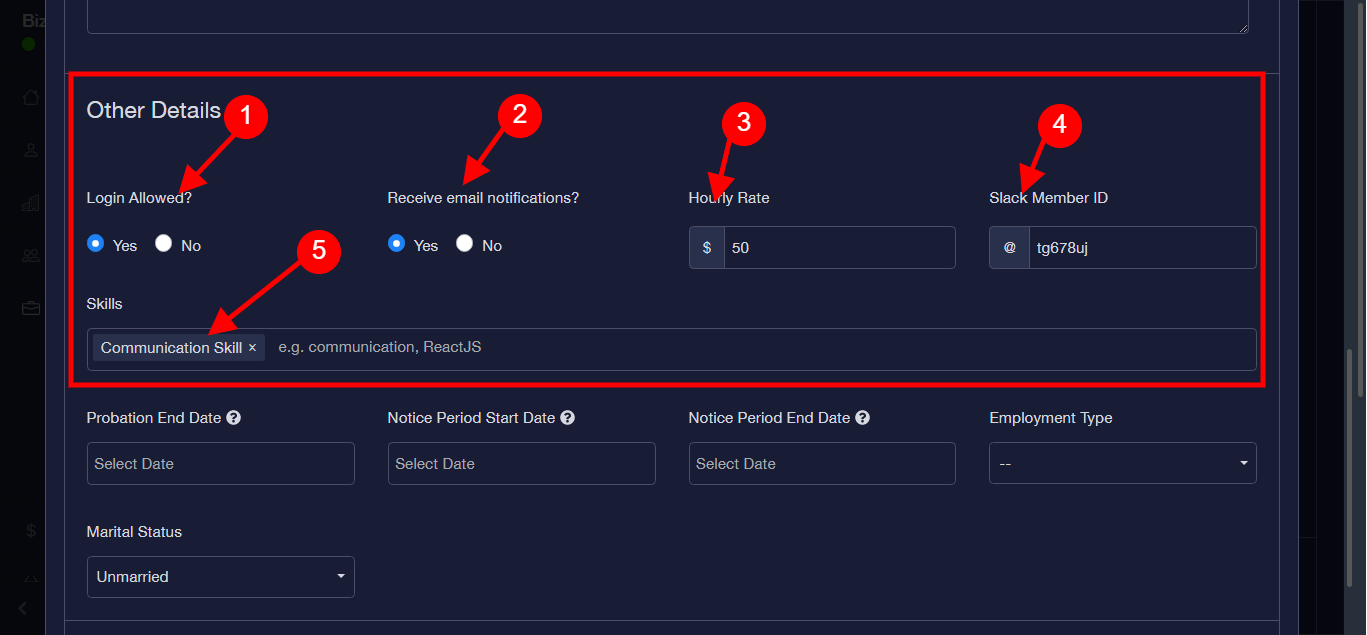
- Thick Login allowed as preferred
- Thick receive email notifications as preferred
- Hourly Rate
- Enter Slack member ID
- Enter Skills
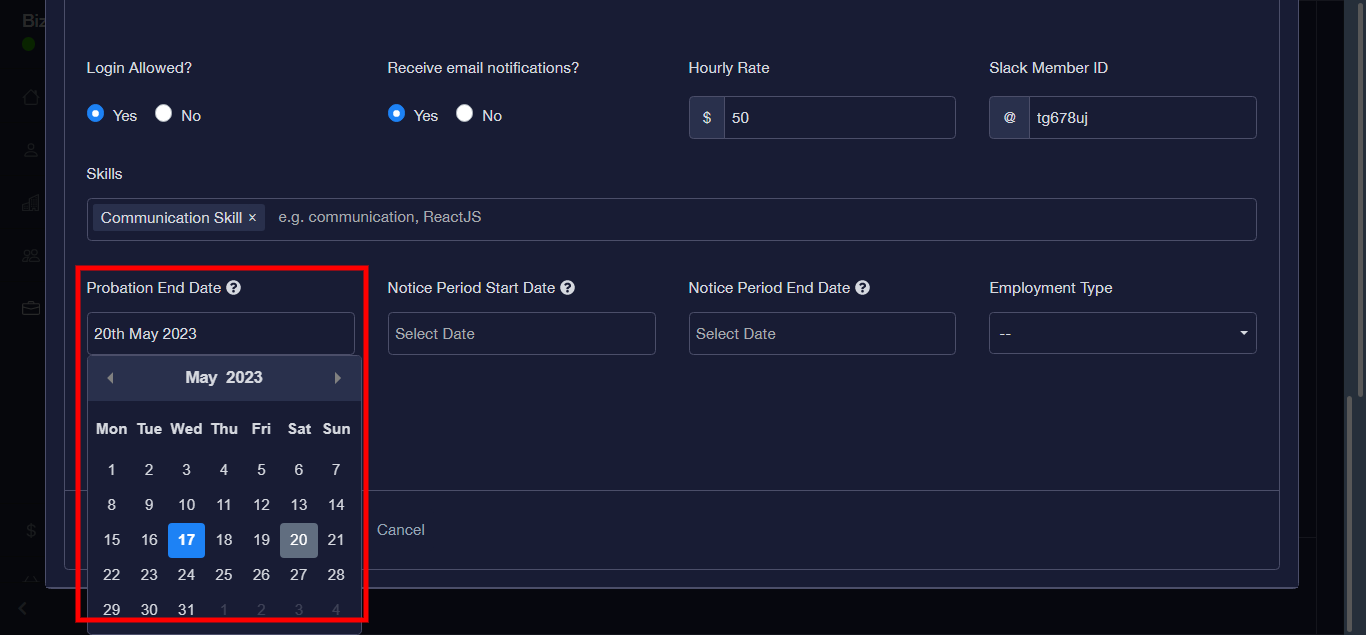
Step 20: Enter Probation end date
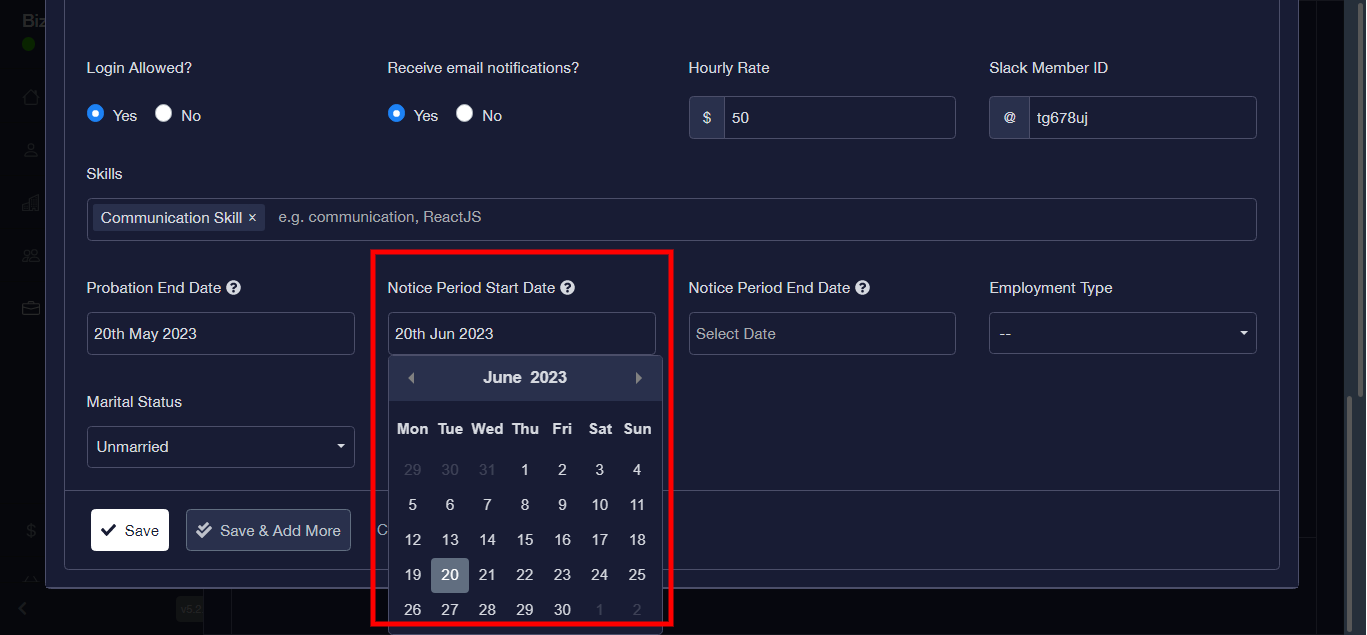
Step 21: Enter Notice Period Start Date
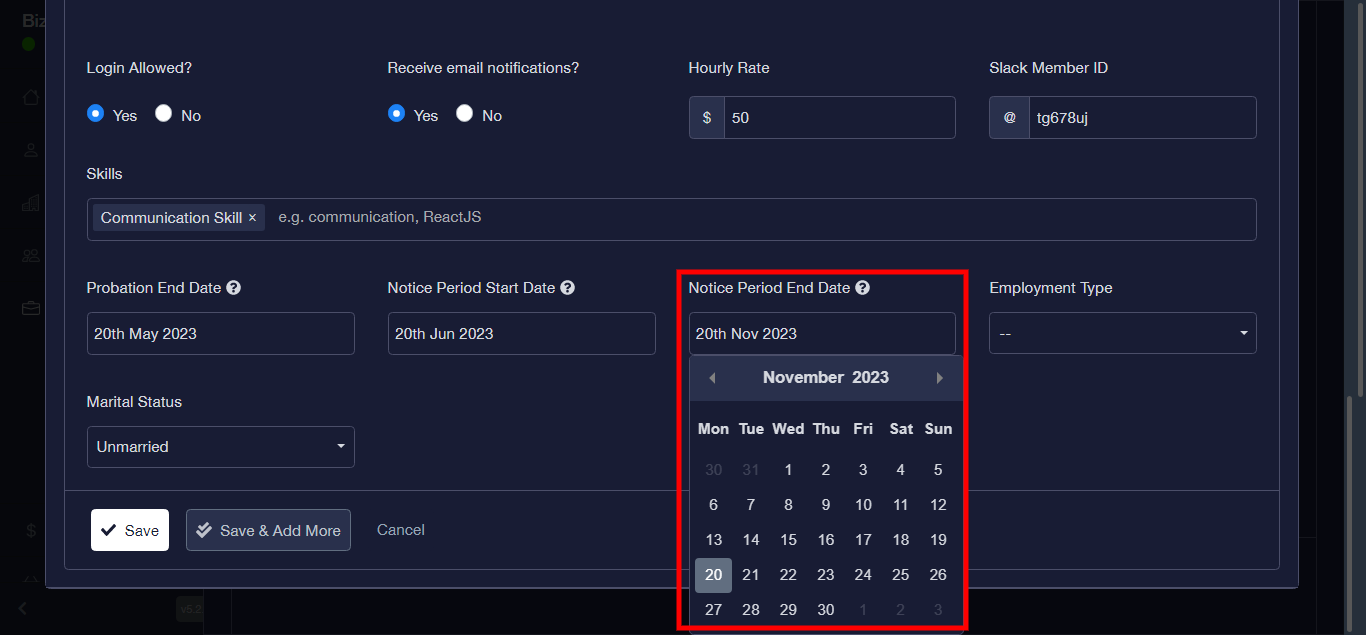
Step 22: Enter Notice Period End Date
Step 23: Enter Employment Type
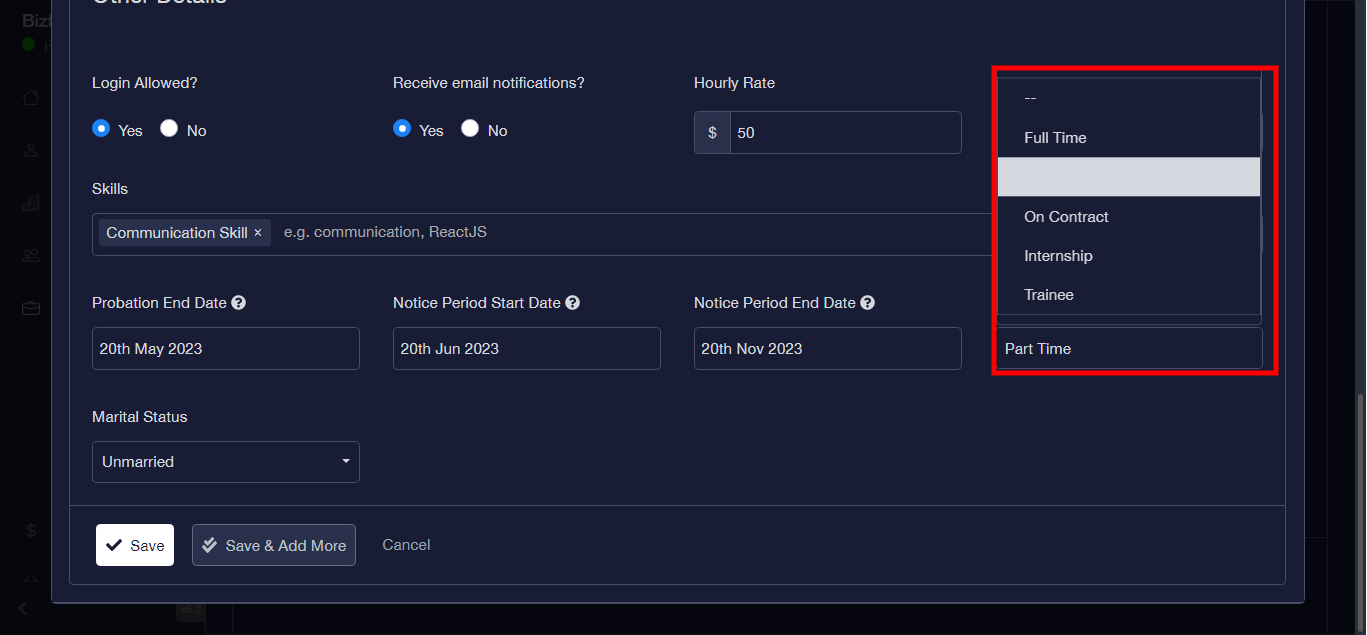
Step 24: Enter Marital Status
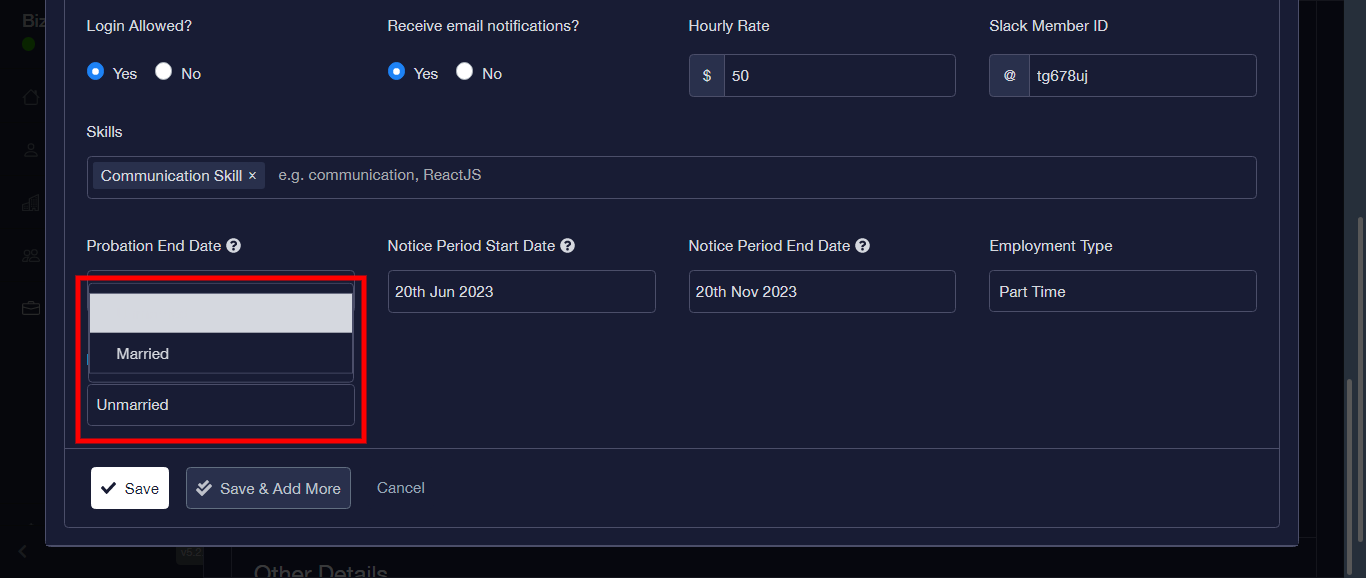
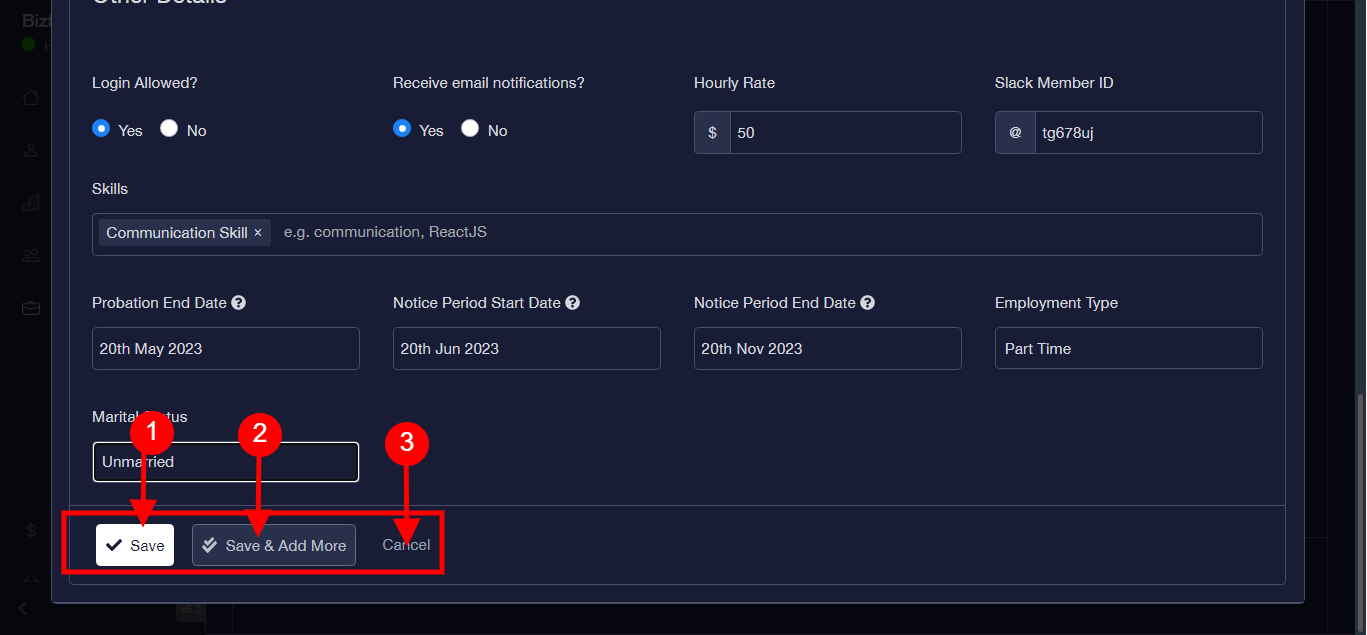
Step 25: Click the Save button to save. or the the “save and add more” to save and add more details as preferred.
N/B: You can use the cancel button to cancel the process if need be.