You can set your profile information on iCeleraite dashboard which involves; adding your name, email, phone number, profile picture, and even a password reset.
Kindly follow the steps below:
Getting Started On Setting Your Profile Information
Log in to your iCeleraite account.
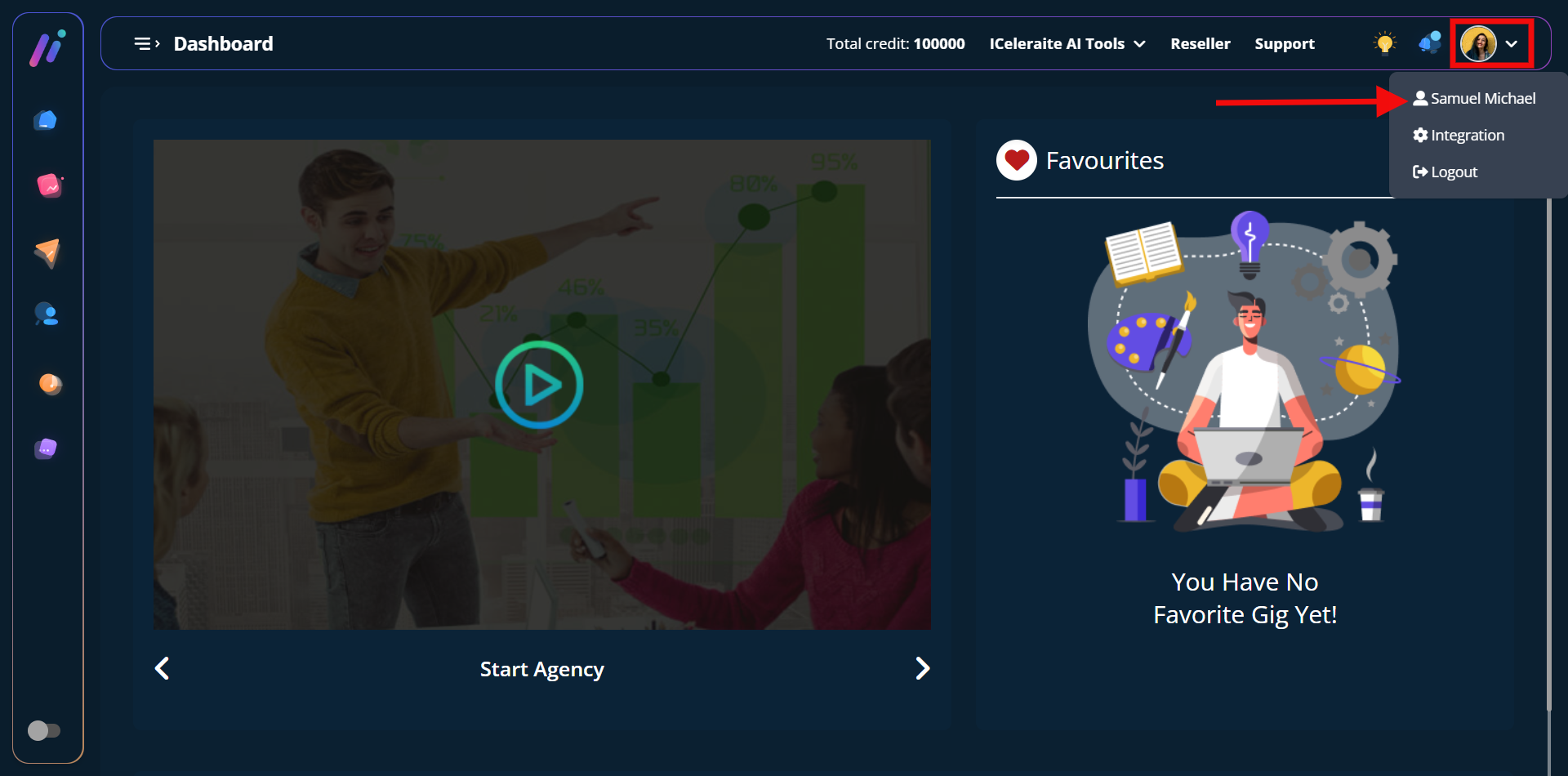
STEP 1: Click on the profile picture area in the top side menu bar of your dashboard and click on the user icon that has your name.
How To Edit Your Name, Email, Phone Number & Profile Picture
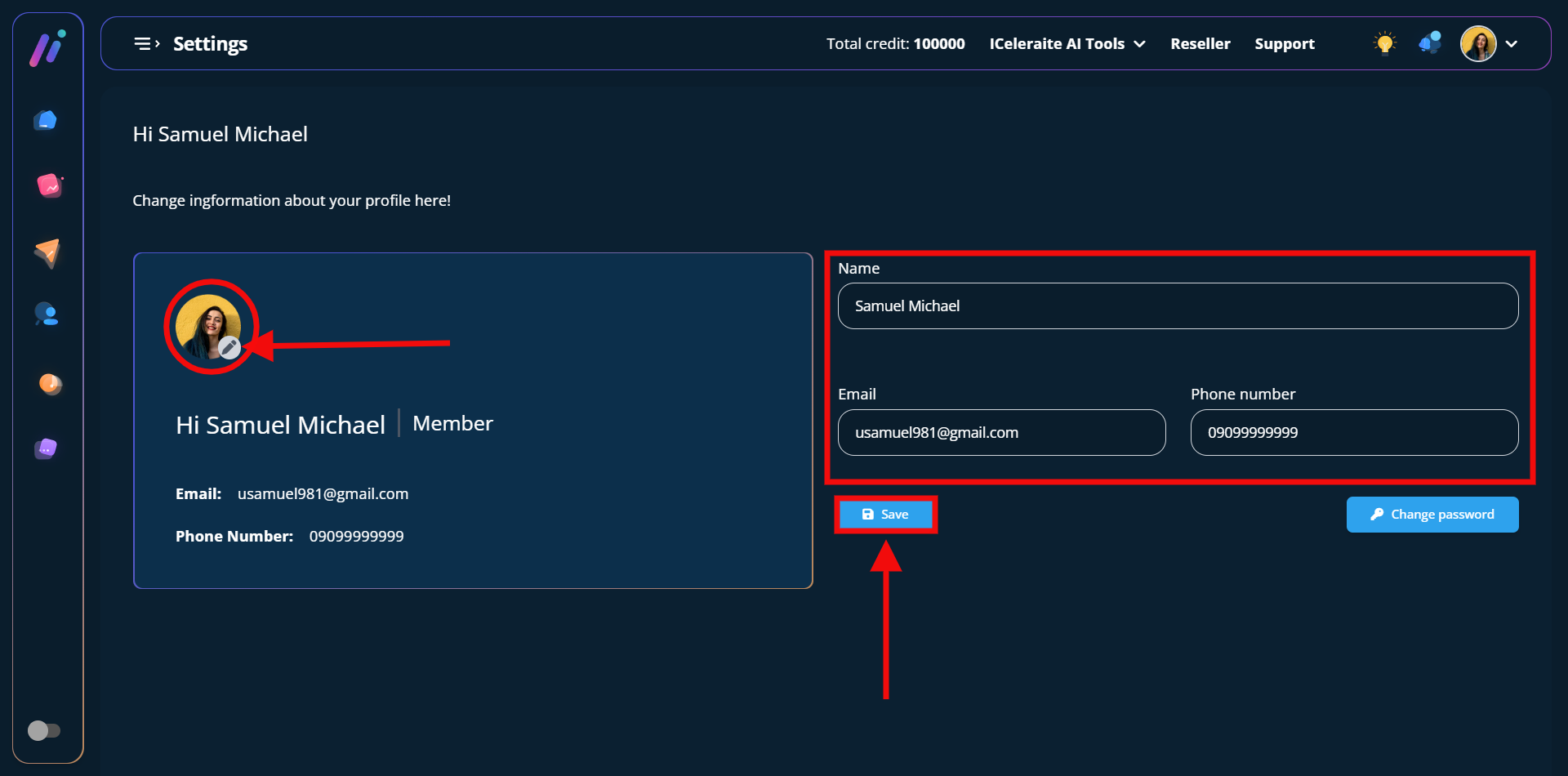
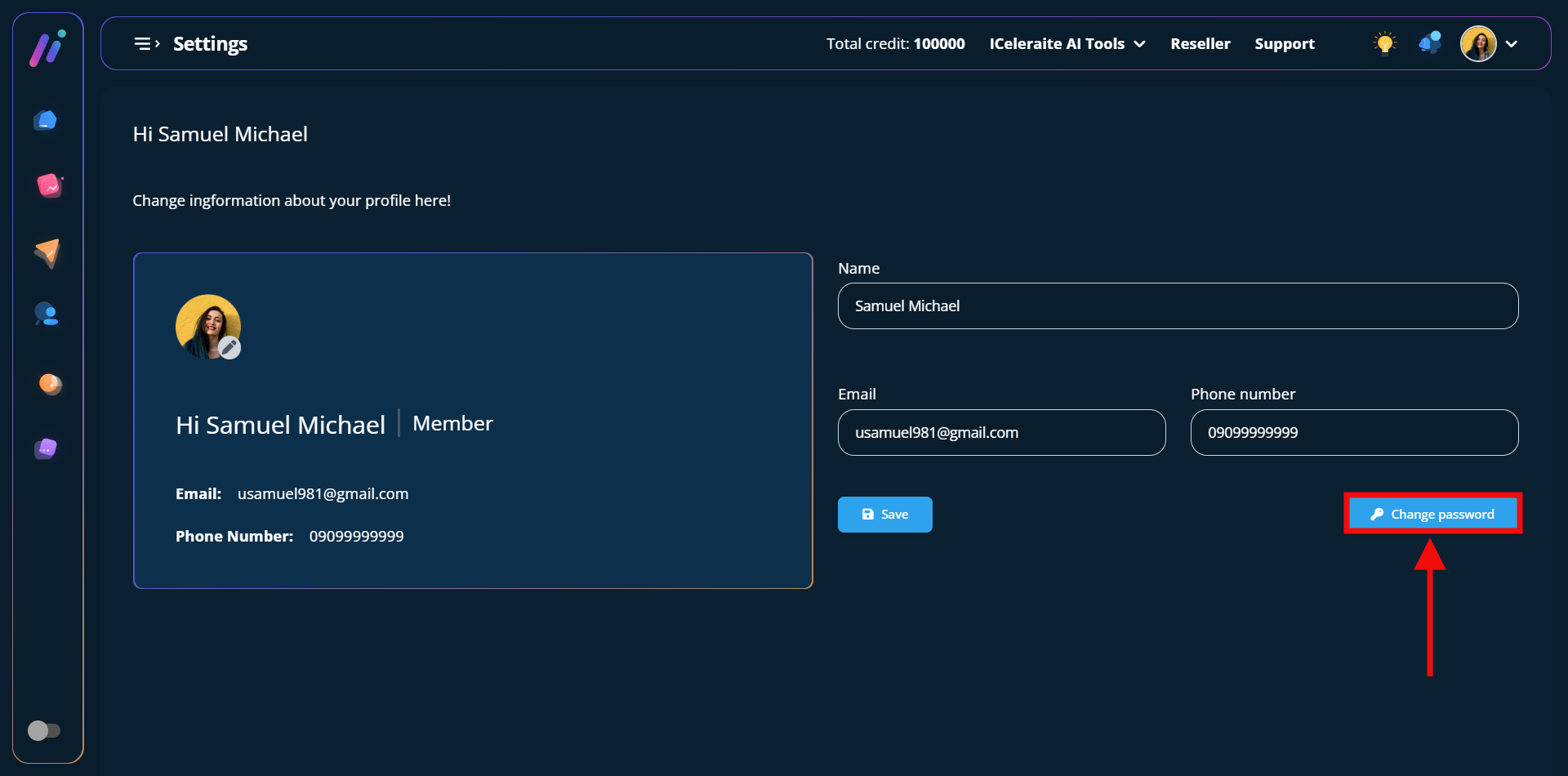
STEP 1: You will be able to edit your profile information once you click on the respective fields however to edit your profile picture you’d need to click on the pen icon on top of the already existing profile picture as shown in the screenshot below;
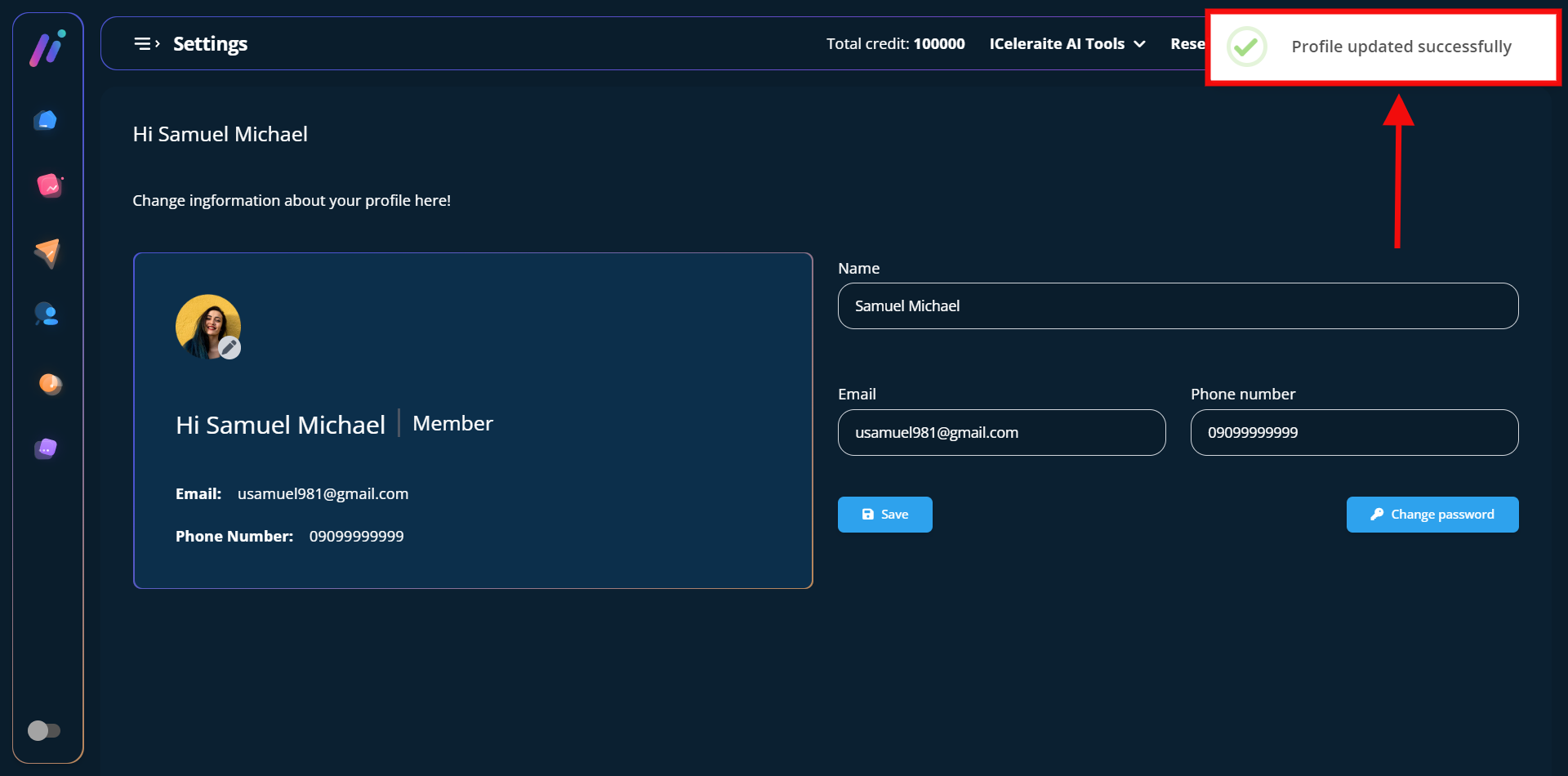
STEP 2: After making your desired edits, go ahead to click on the save button and you will see a pop-up stating that your profile has been updated successfully.
How To Reset Your Password
You can reset your password by following the instructions below;
STEP 1: In your profile area go ahead to click the “change password” button.
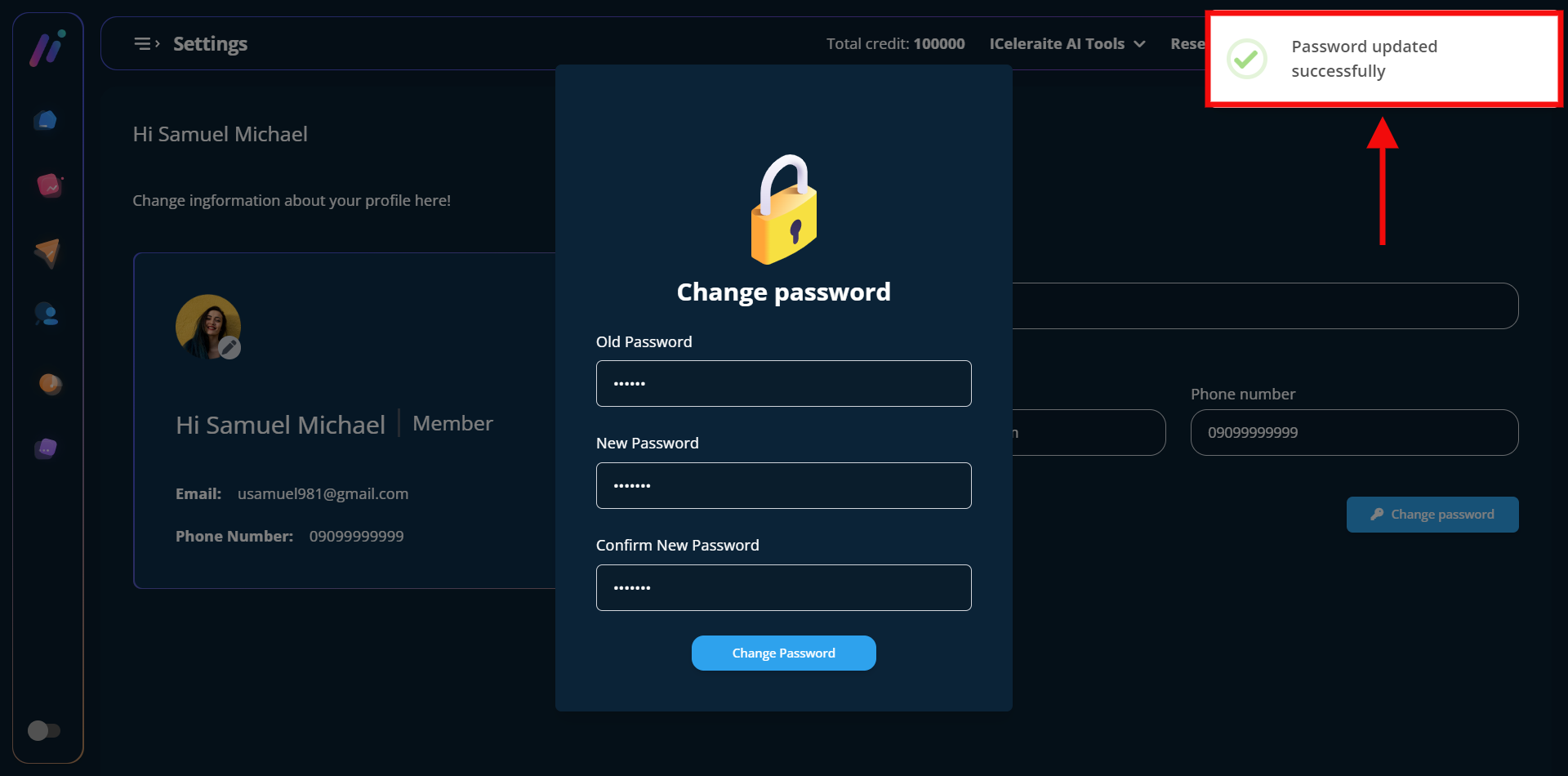
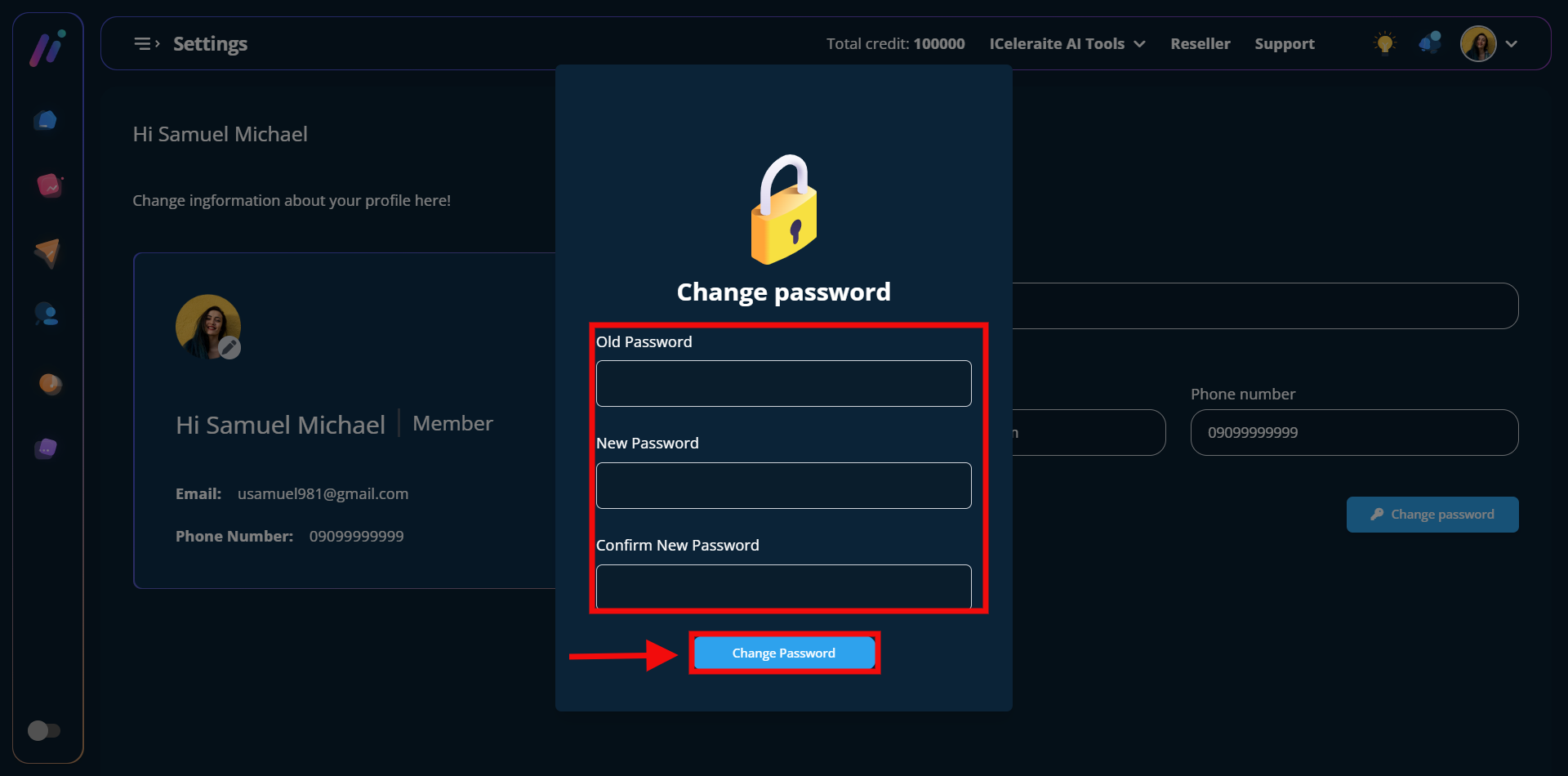
STEP 2: You will see the option to enter your old password, as well as a new password and you’d have to reconfirm the new password after which you can click the “change password” button.
Once the change has been effected, you should see a success pop up message like the one in the screenshot below.