
STEP 1: Log in to your iceleraite account.

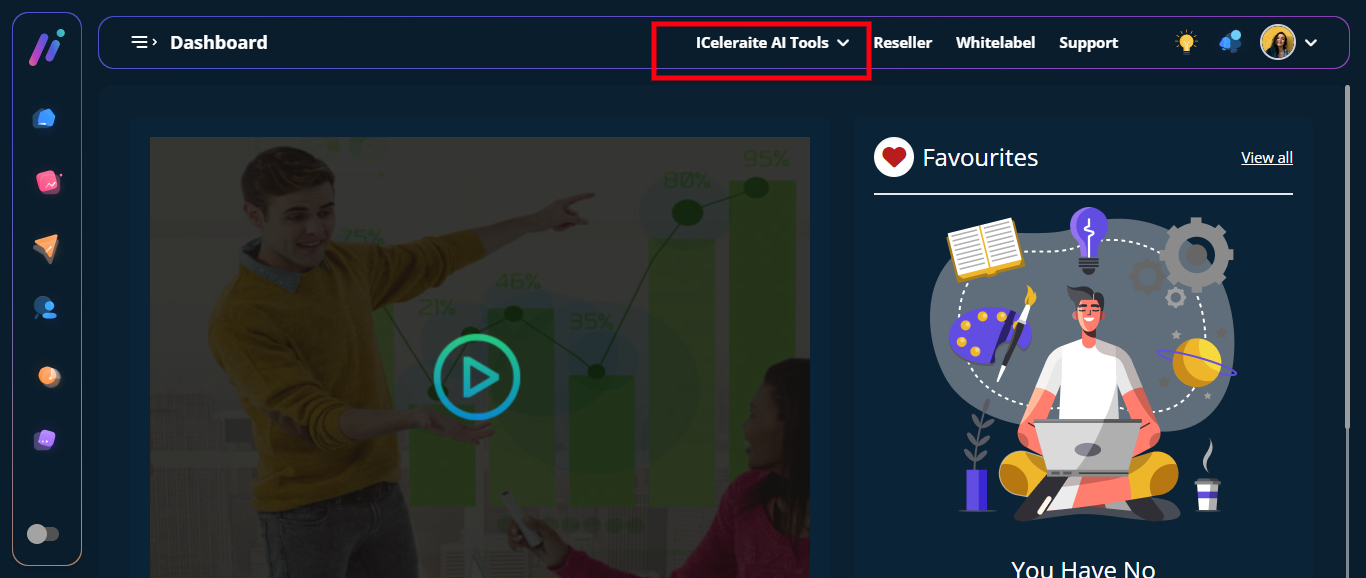
STEP 2: Click on “ICeleraite AI Tools” at the top side of your dashboard.
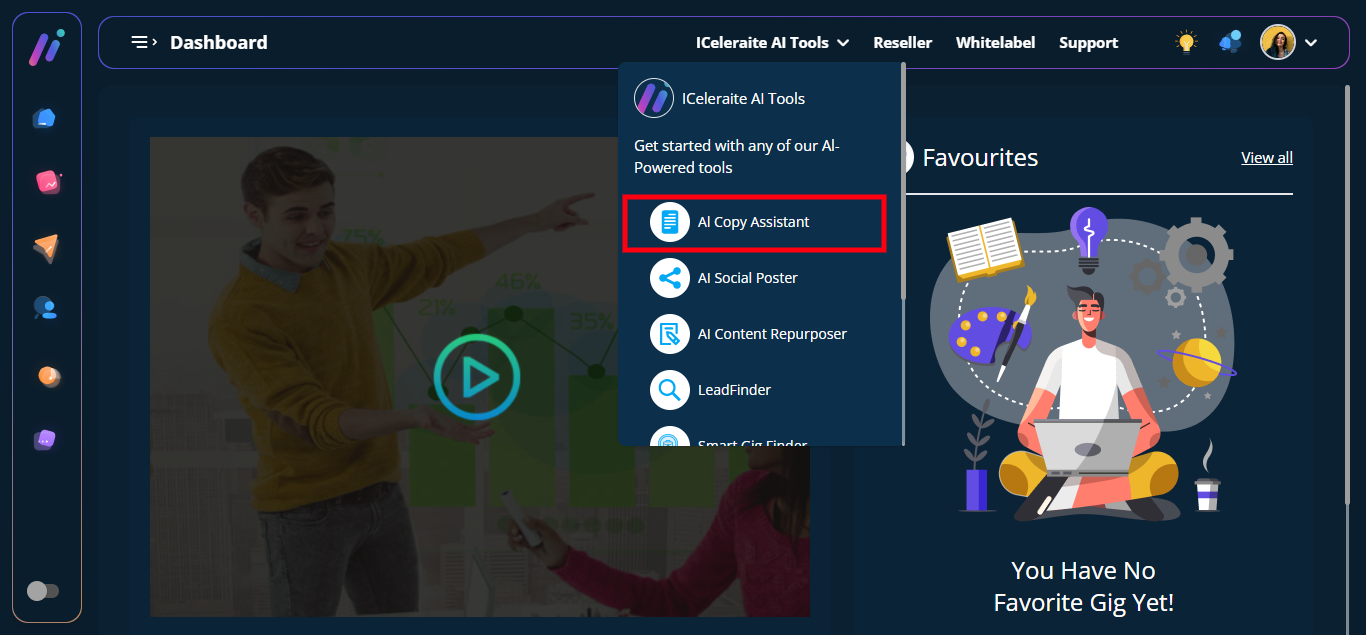
STEP 3: Click on the “Al Copy Assistant” from the drop-down list
After clicking on the ‘AI Copy Assistant, you would be taken to the AI Copy Assistant page
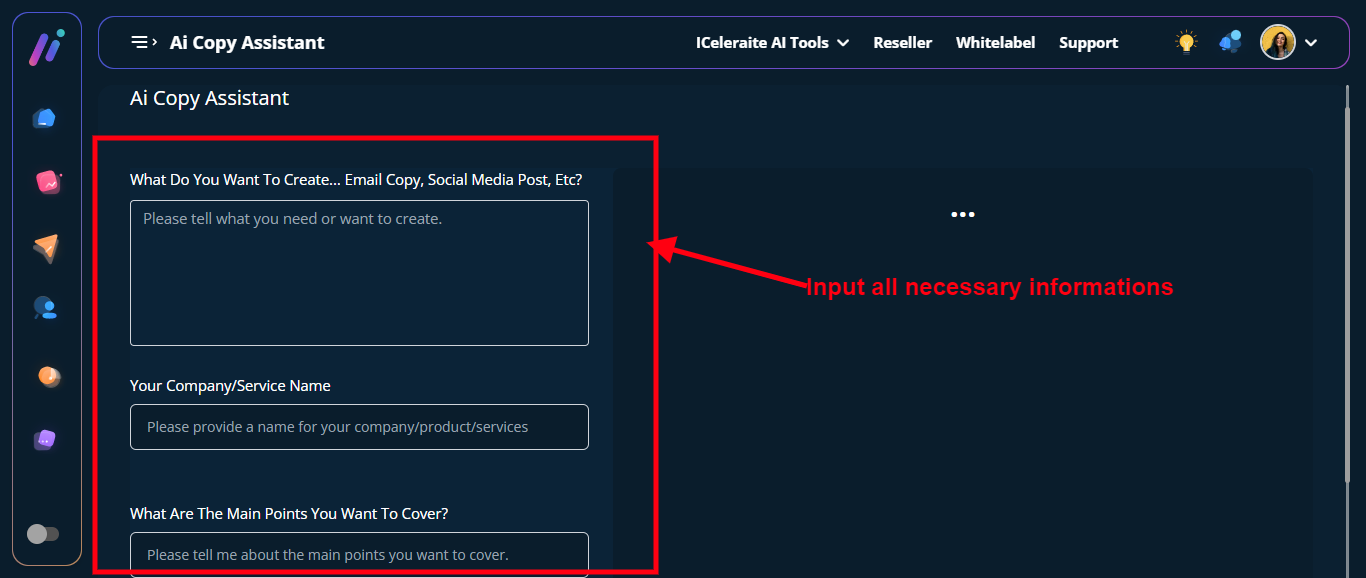
The next thing you have to do is to reply to all the questions the AI is asking to create the content that you want.
Note: Your response will be based on the kind of content you want the AI copy assistant to create for you. The example below is provided to give you a better understanding of what to tell the AI.
AI Question 1: What do you want to create…email copy, social media post, etc?
Response: I would like to create a welcome social media post on Facebook.
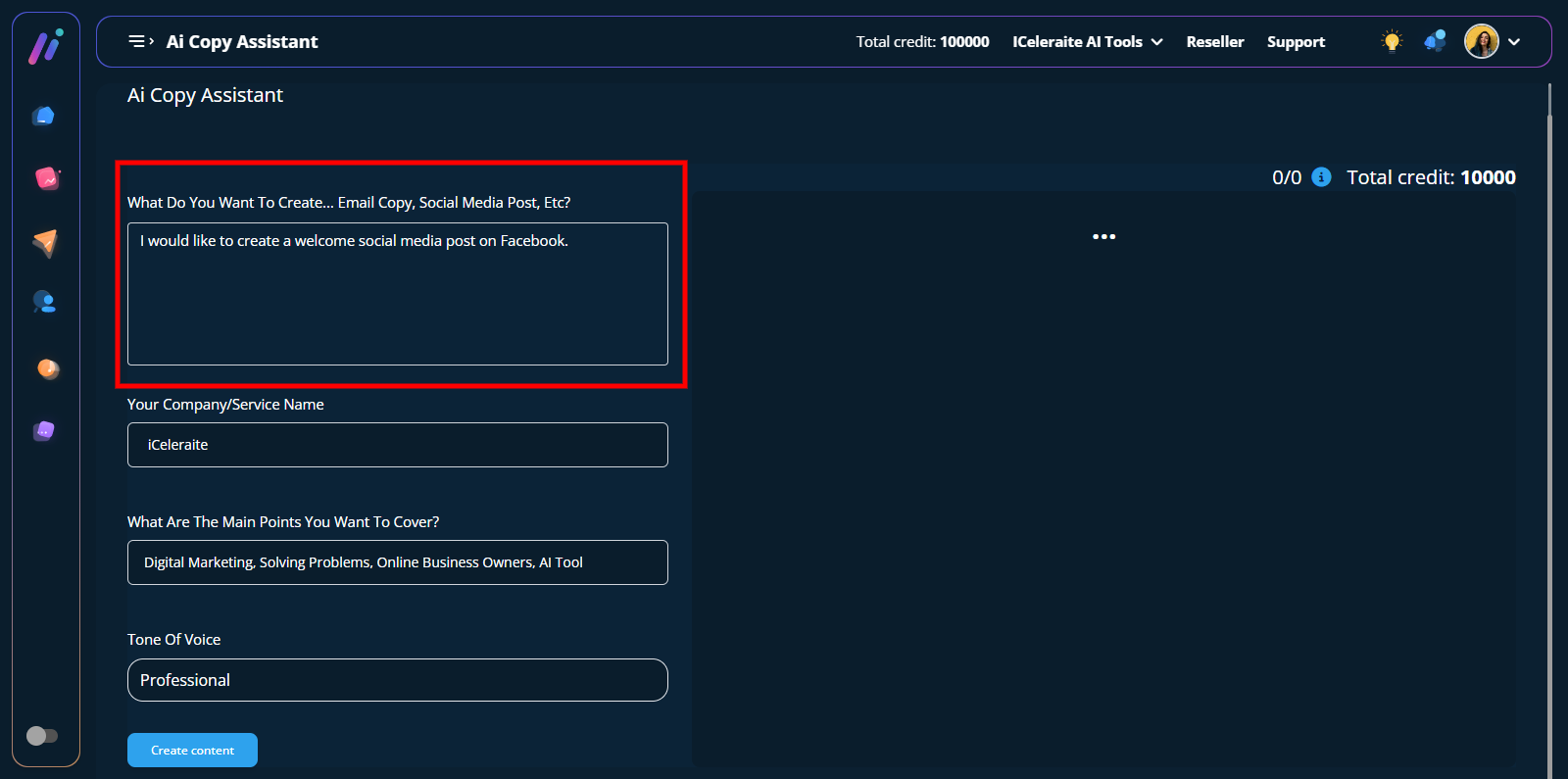
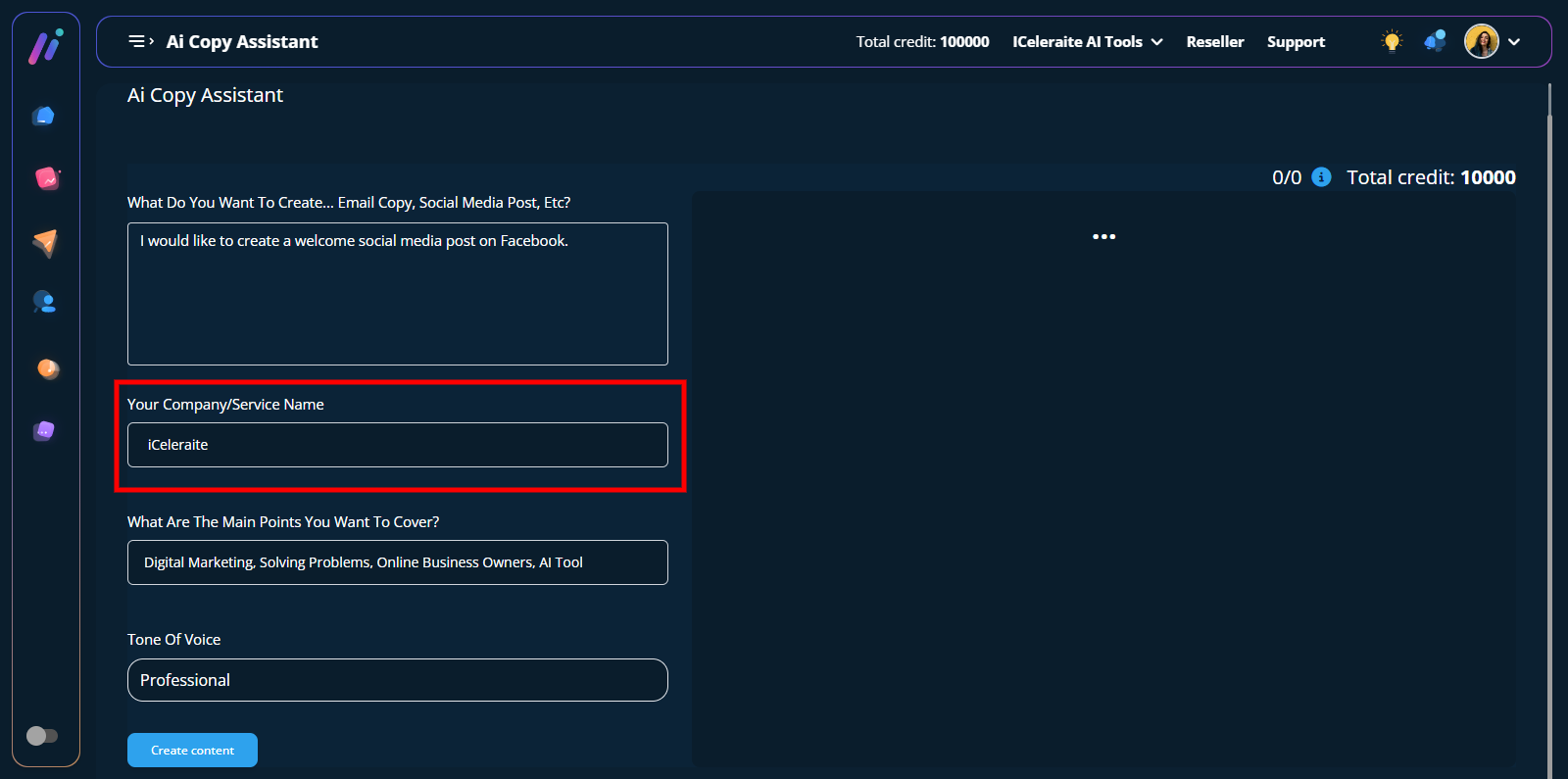
AI Question 2: Your Company/Service Name
Response: iCeleraite
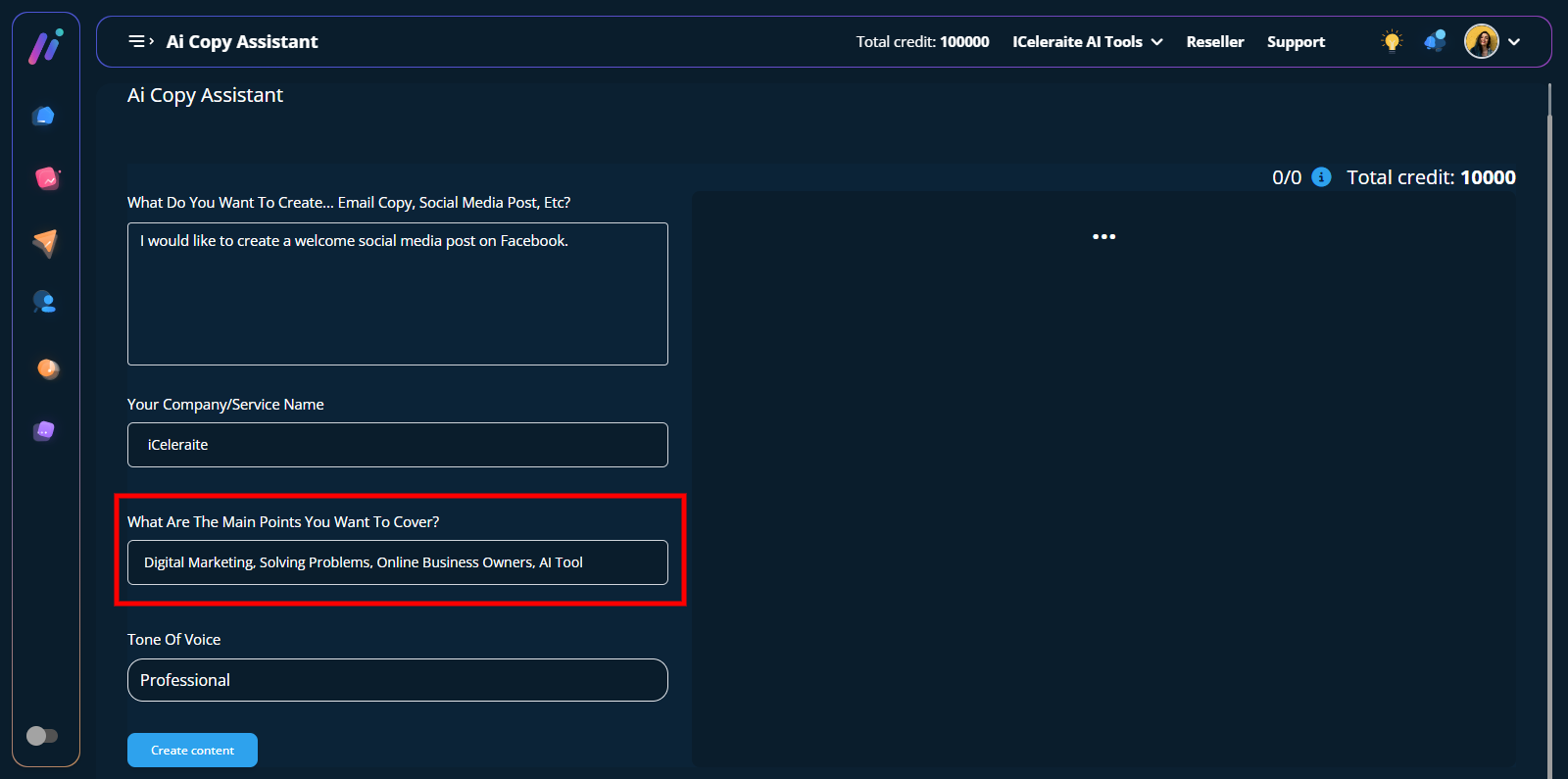
AI Question 3: What are the main points you want to cover?
Response: Digital Marketing, Solving Problems, Online Business Owners, AI Tool
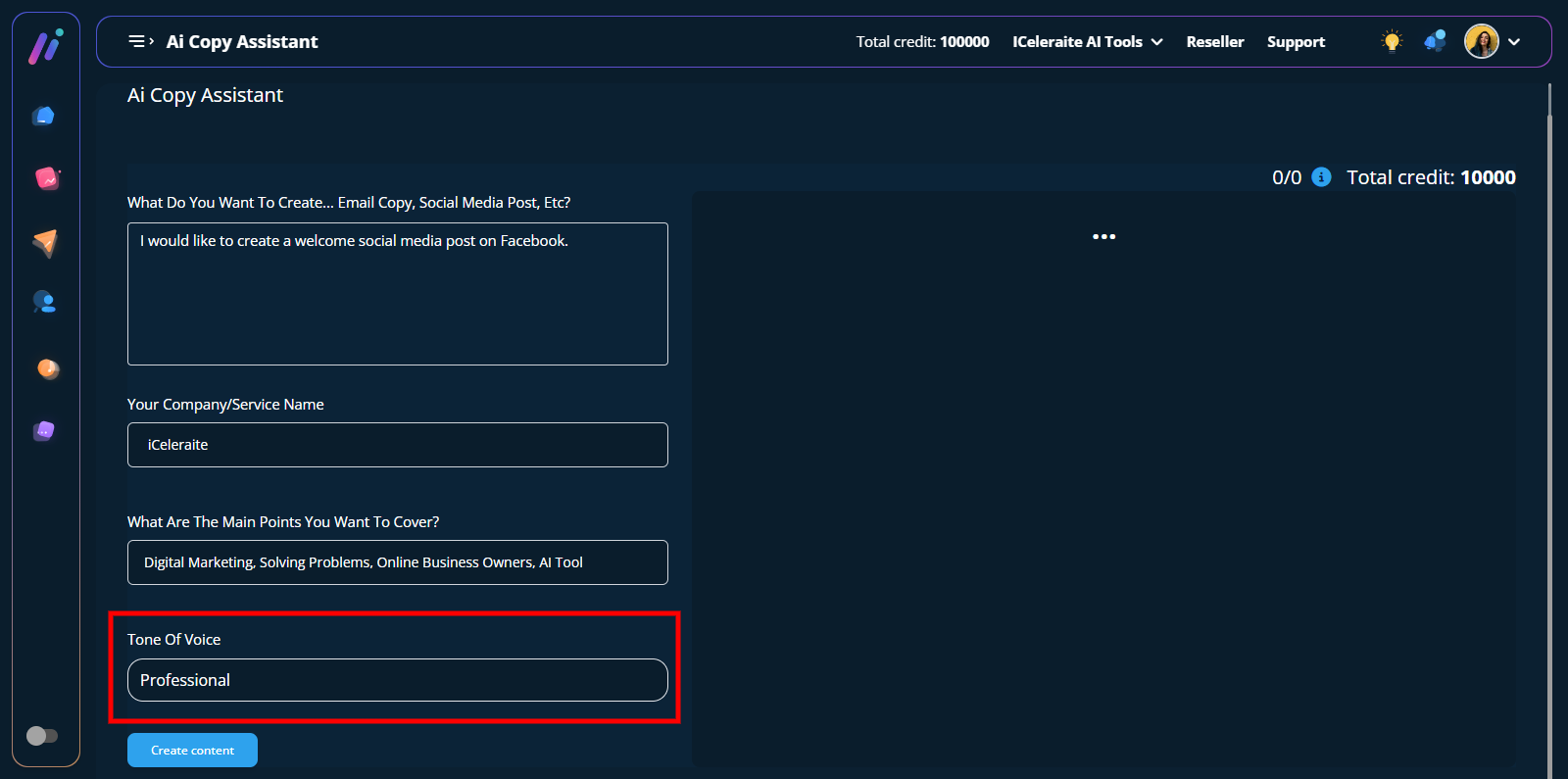
AI Question 4: Tone of Voice
My Response: Professional
After answering all the questions the AI is asking, you would have to scroll down and click the ”create content” button
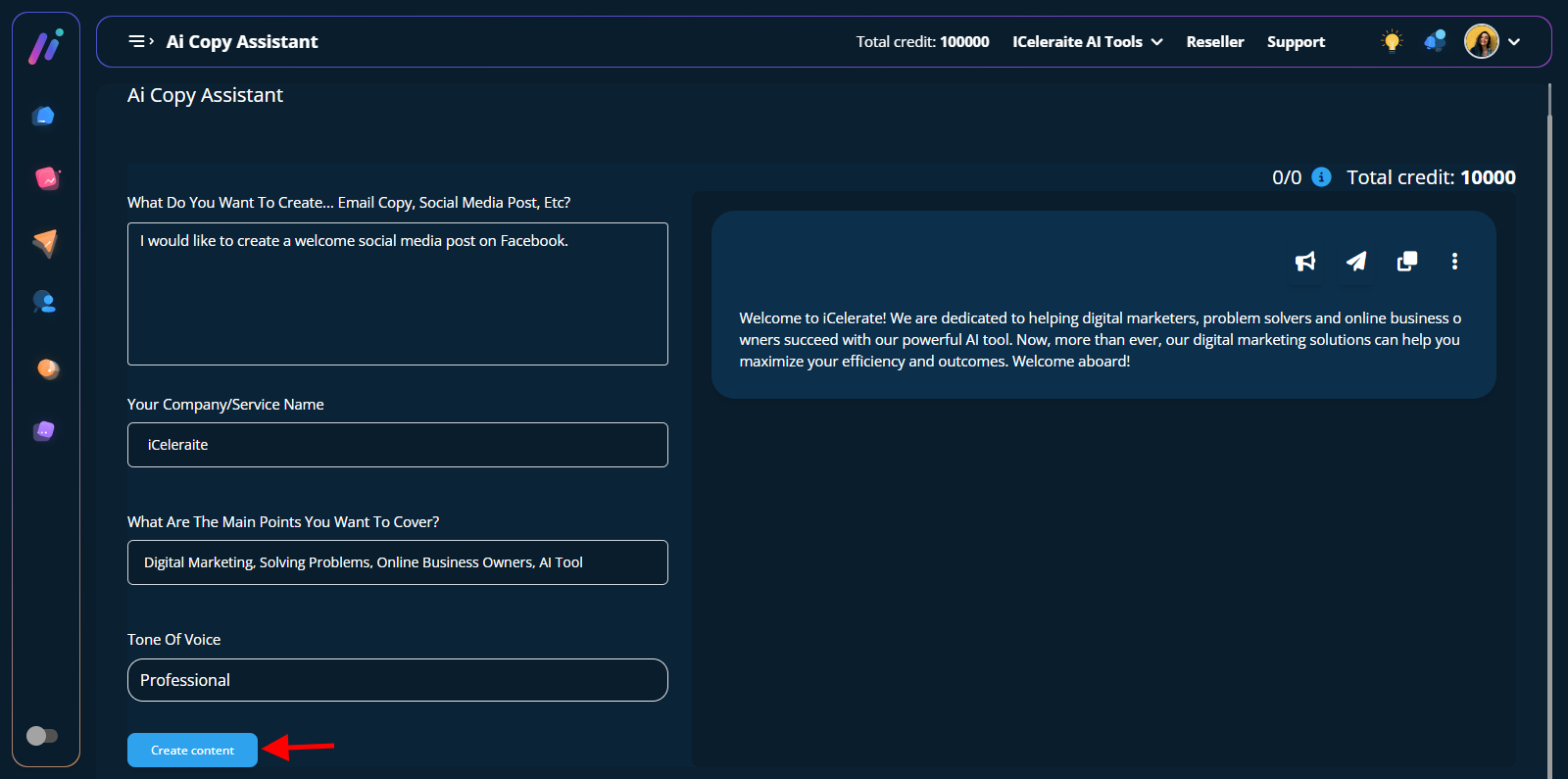
“Content” has been created successfully!
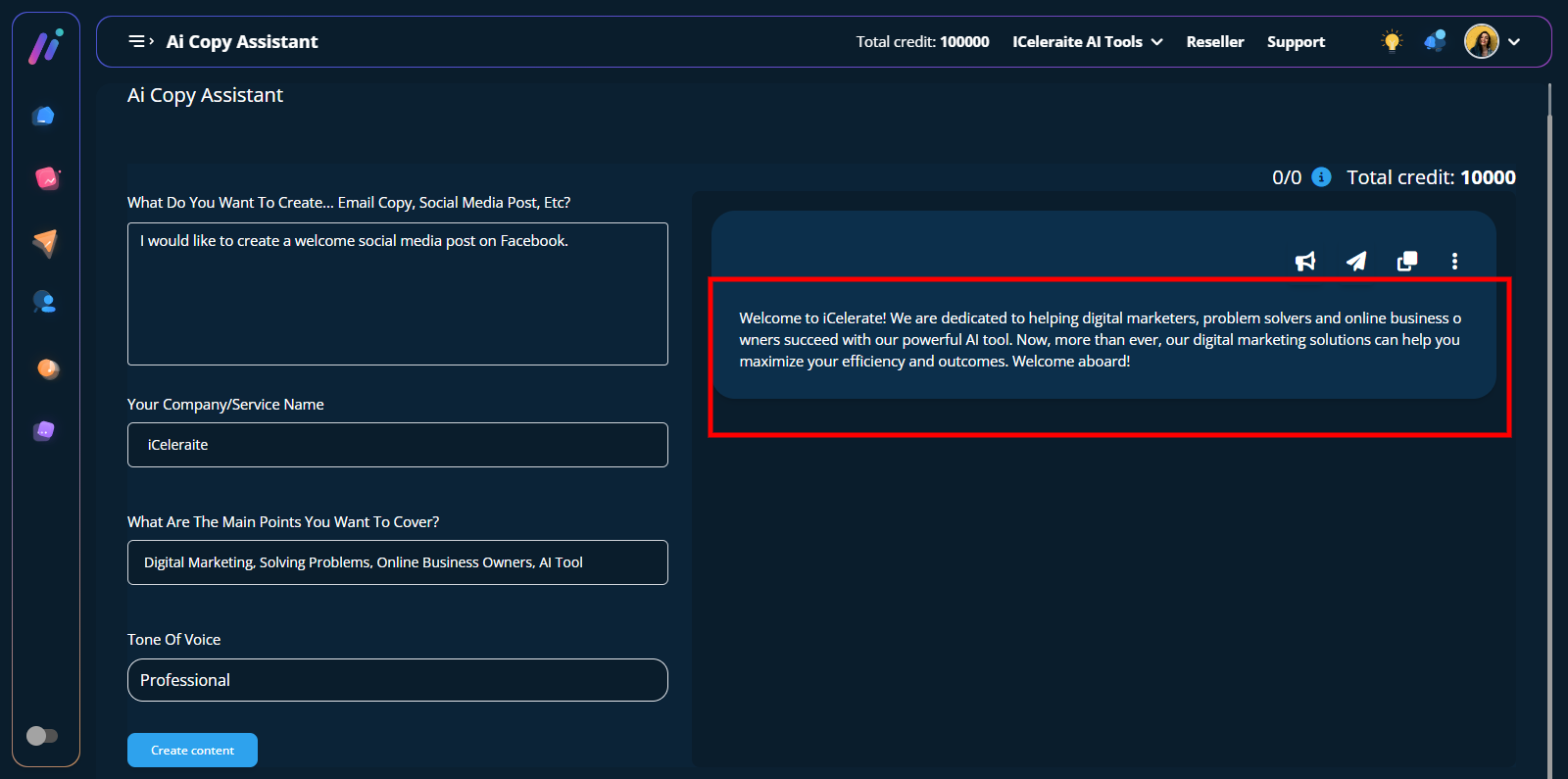
The AI provides you the option to send email broadcasts, post content on social media, copy content to clipboard, and save it as template.
