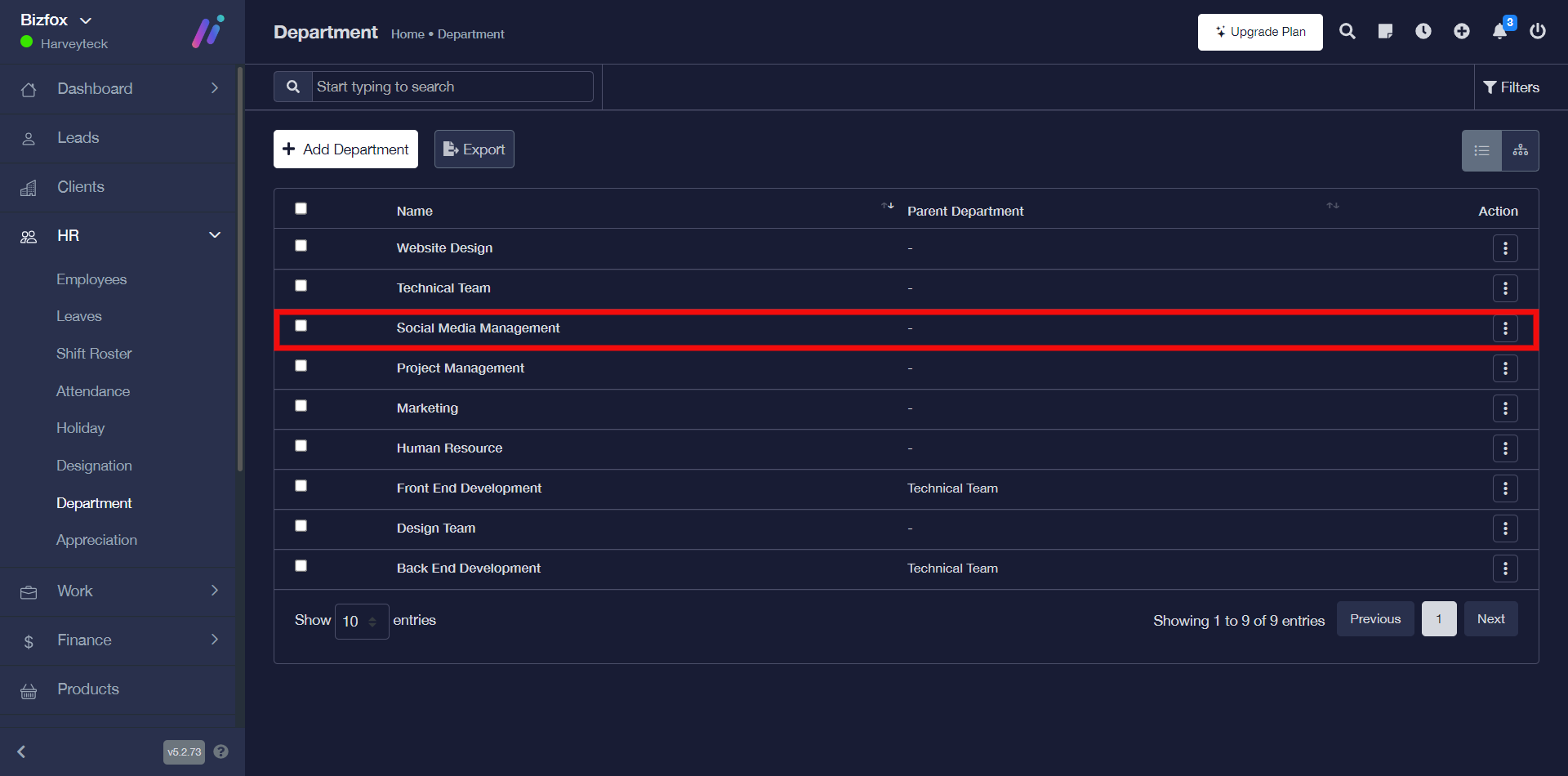
You can add, edit, or delete department on iCeleraite business manager dashboard by simply following the steps below;
Getting Started On Adding Department
Log in to your iCeleraite Business Manager account.
STEP 1: In the left-hand menu, click on “HR” and in the dropdown go ahead to click on “Department” as shown in the screenshot below;

STEP 2: Click on the “Add department” button

STEP 3: Enter the name of your department and go ahead to select any of the parent departments from the drop-down after which you can click the save button.

Note: It is optional to select a Parent department, you can skip it if you want your Department to be a Parent department.

STEP 4: You will see a pop-up stating that the record has been saved successfully and it will also appear in the list of available departments.

How To Edit Department
You can edit department by simply following the instructions below;
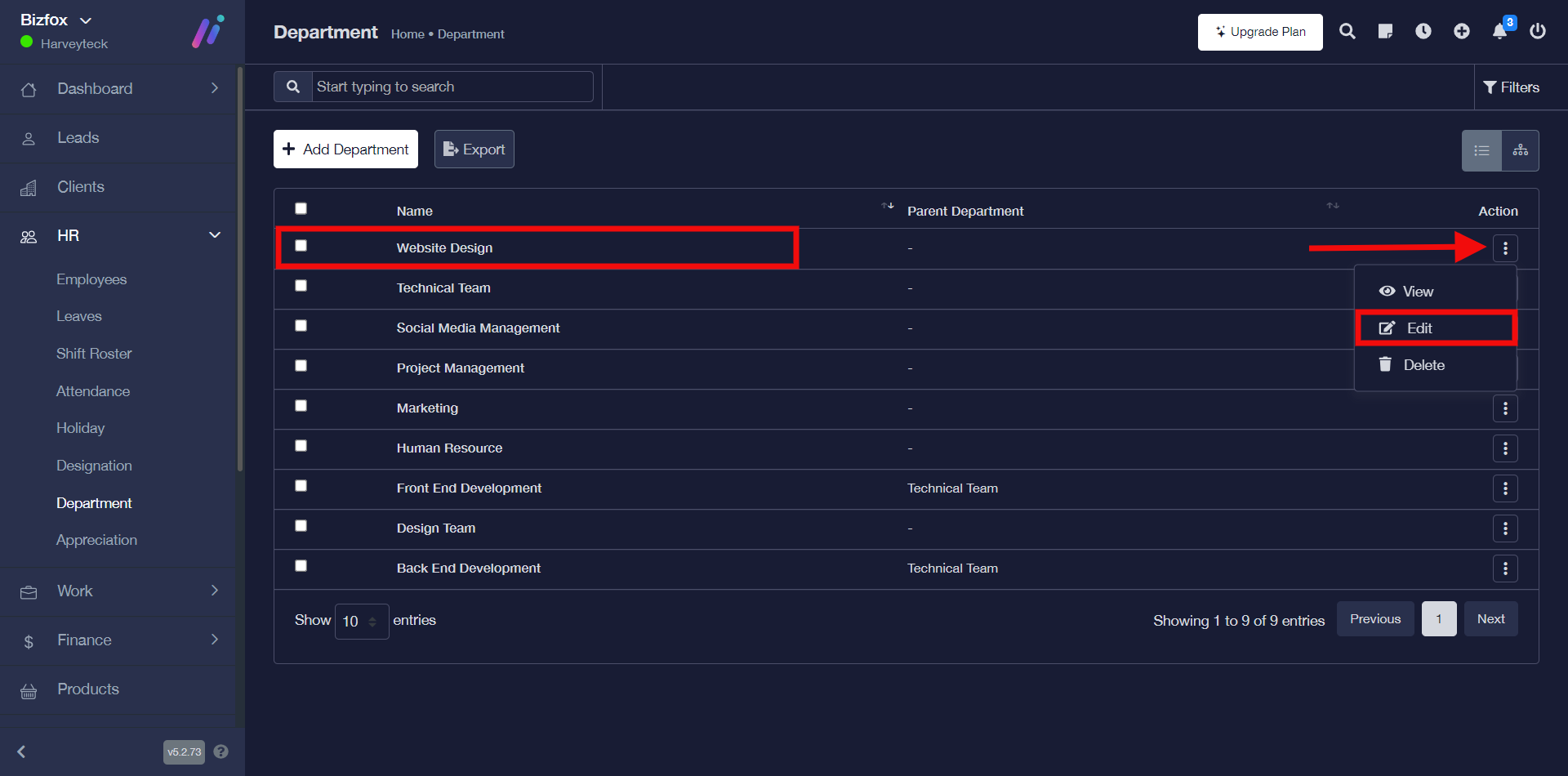
STEP 1: To edit department, click on the “triple dot action button” on the particular department you would like to make changes to then go ahead to click “edit” in the drop-down.
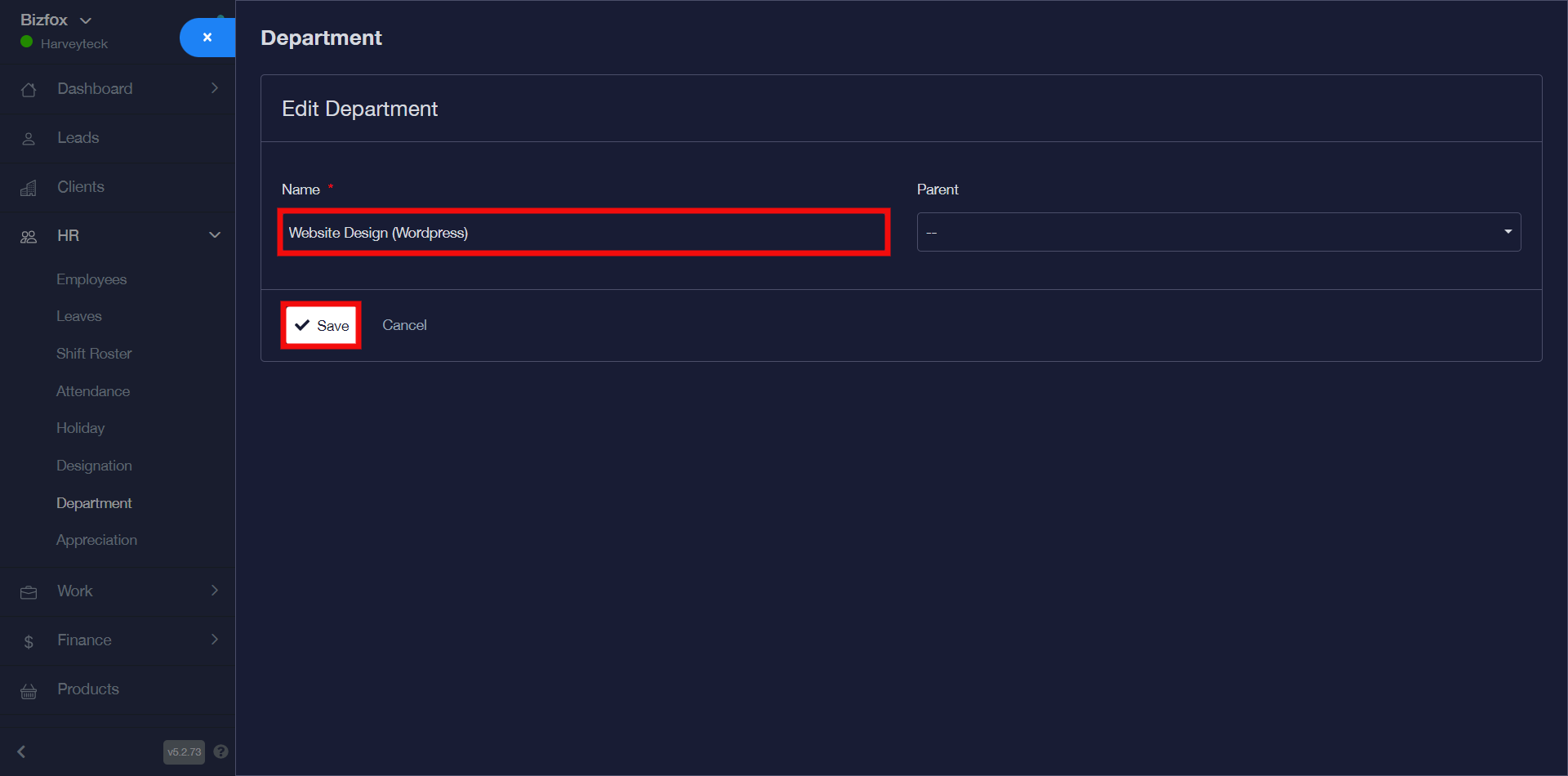
STEP 2: You can go ahead to edit the details you would like to make changes to and then click the “save” button after which you will see a pop-up message stating that your update was successful.

How To Delete Department
You can delete department by simply following the instructions below;
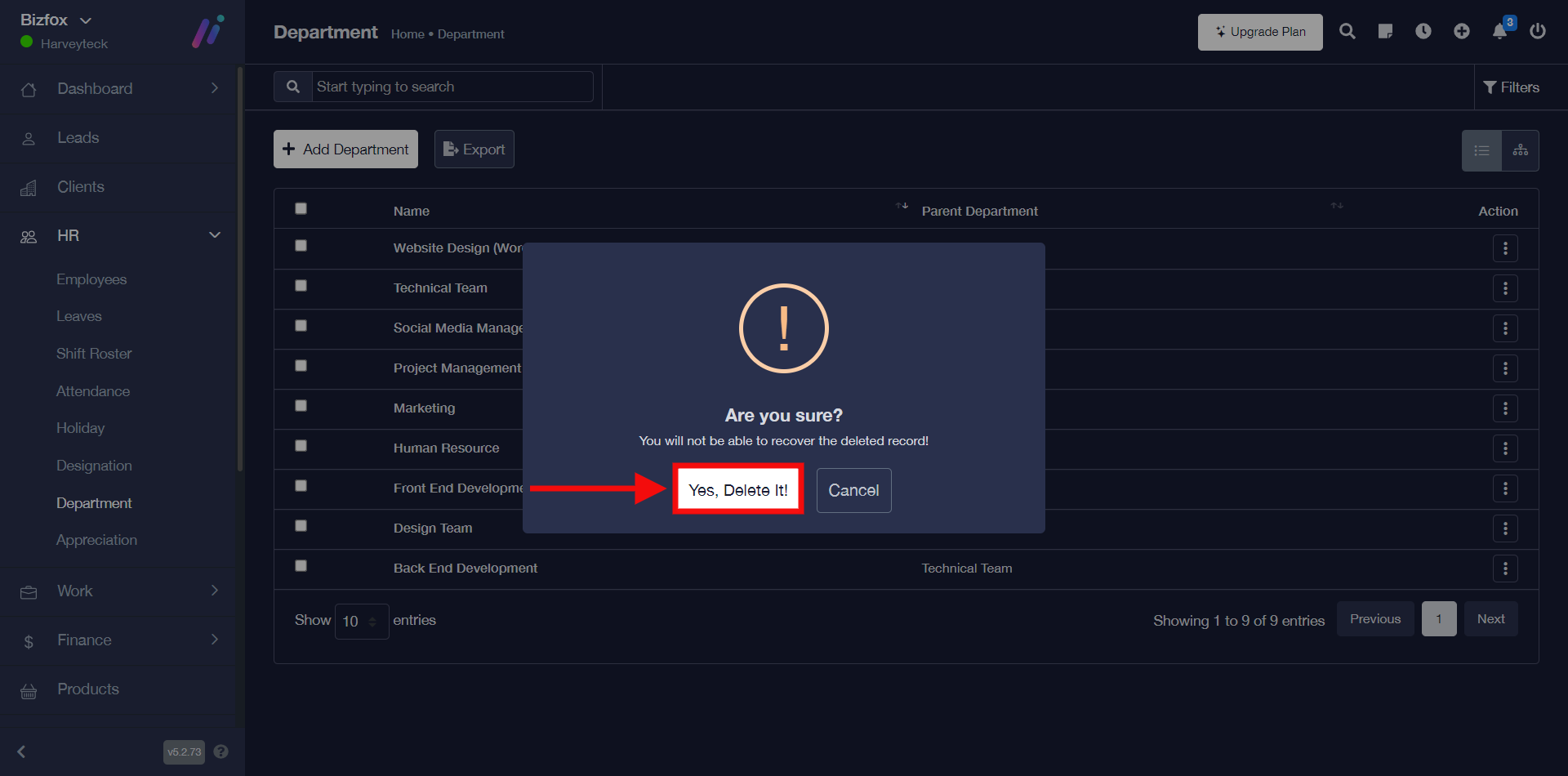
STEP 1: To delete department, click on the “triple dot action button” on the particular department you would like to remove then go ahead to click “delete” in the drop-down.
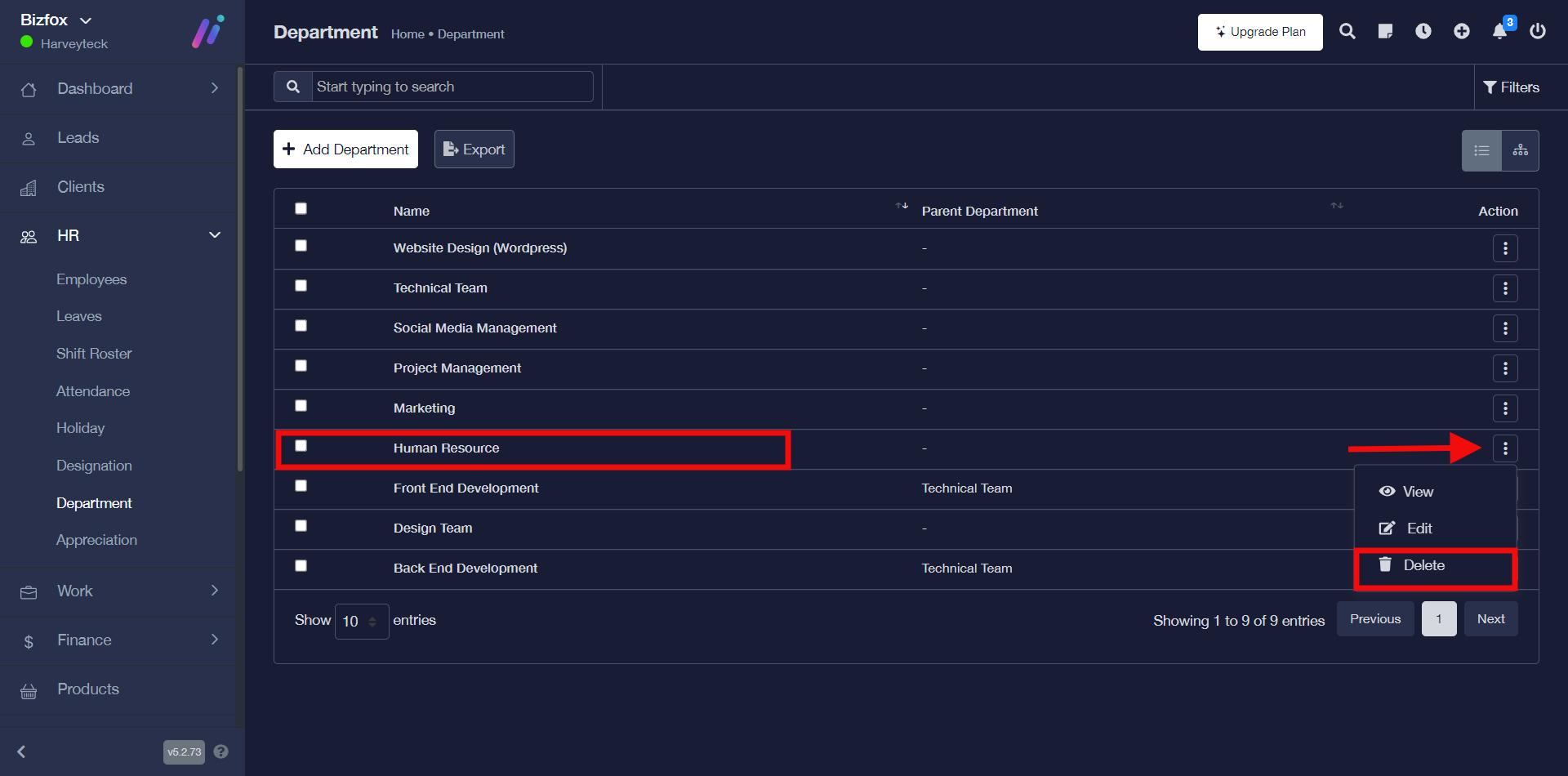
STEP 2: You can go ahead to click on the “Yes, Delete it” button, and then you will see a pop message stating that the department was deleted successfully.