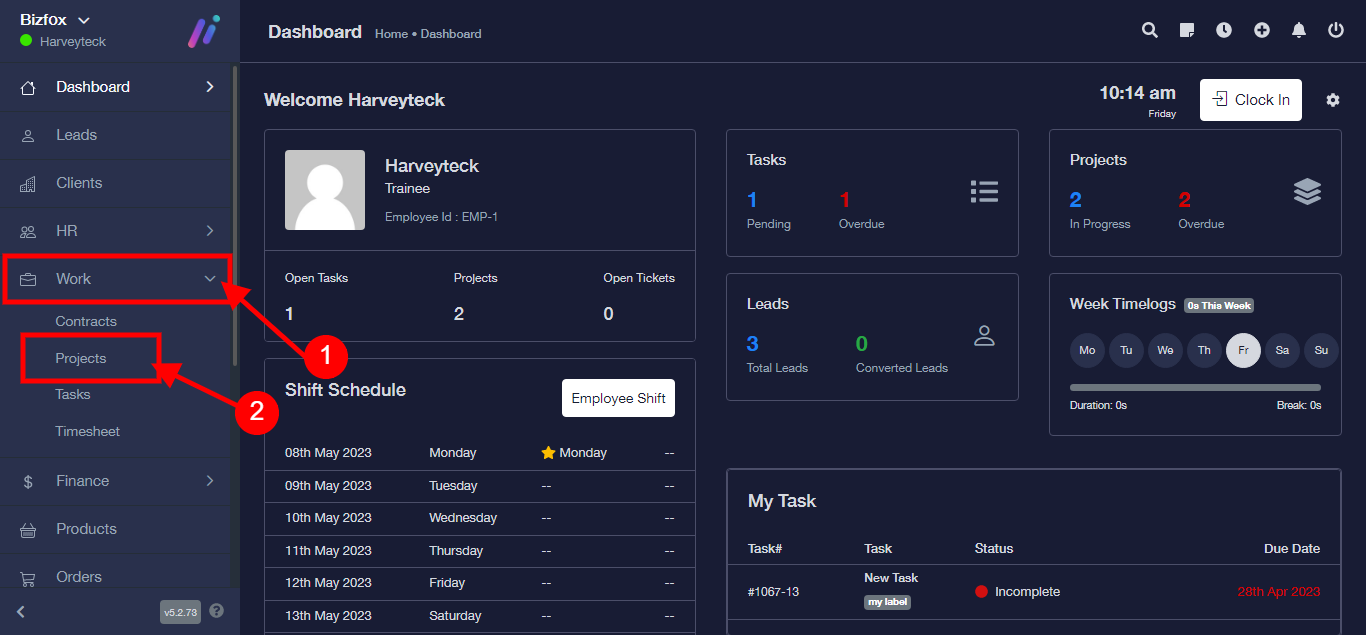
Step 1: After you’ve logged into your Business manager account, it leads you to the dashboard and there you get to see the left nav-bar and a table. On the left-nav bar click on “WORK” dropdown, It takes you to “PROJECT” Click on “PROJECT”
Step 2:
1) Select an already existing project
2) Click on the three toggle button
3) Select View

Step 3:
1) Click “More”
2) Select “Note” from the dropdown

Step 4: “Add Note”

Step 5: Add “Note Tittle”

Step 6: Select “Note Type” “Private or Public”

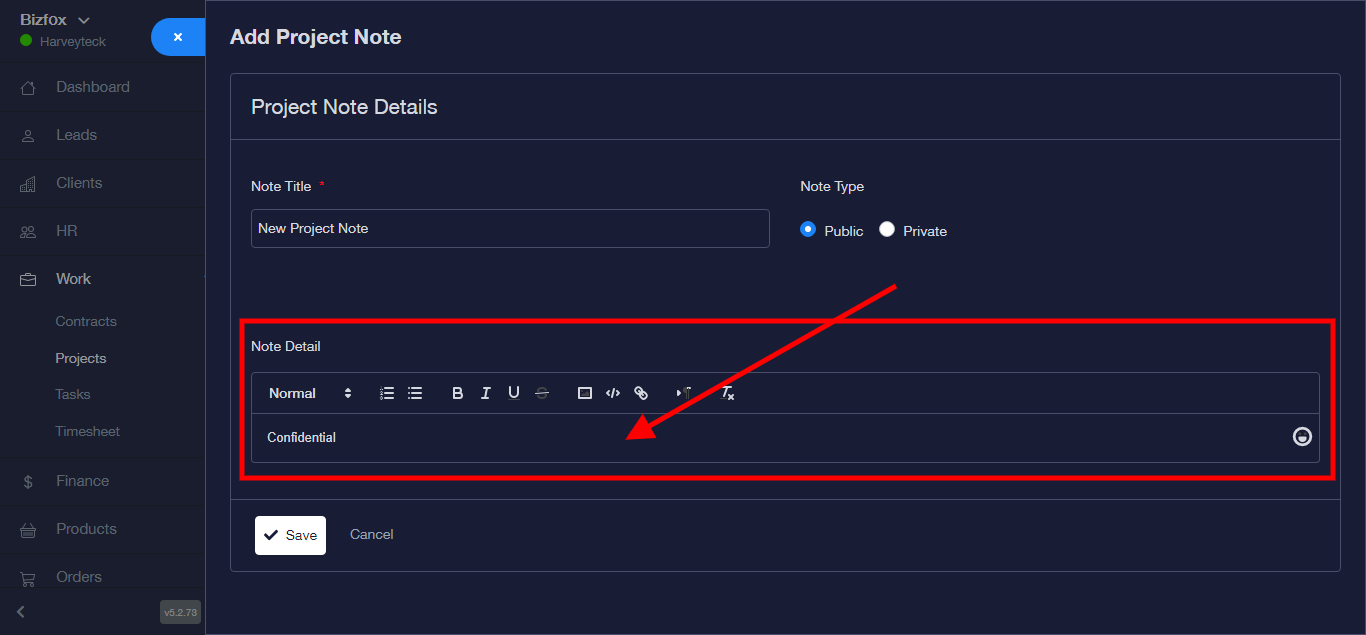
Step 7: Enter “Note Details”
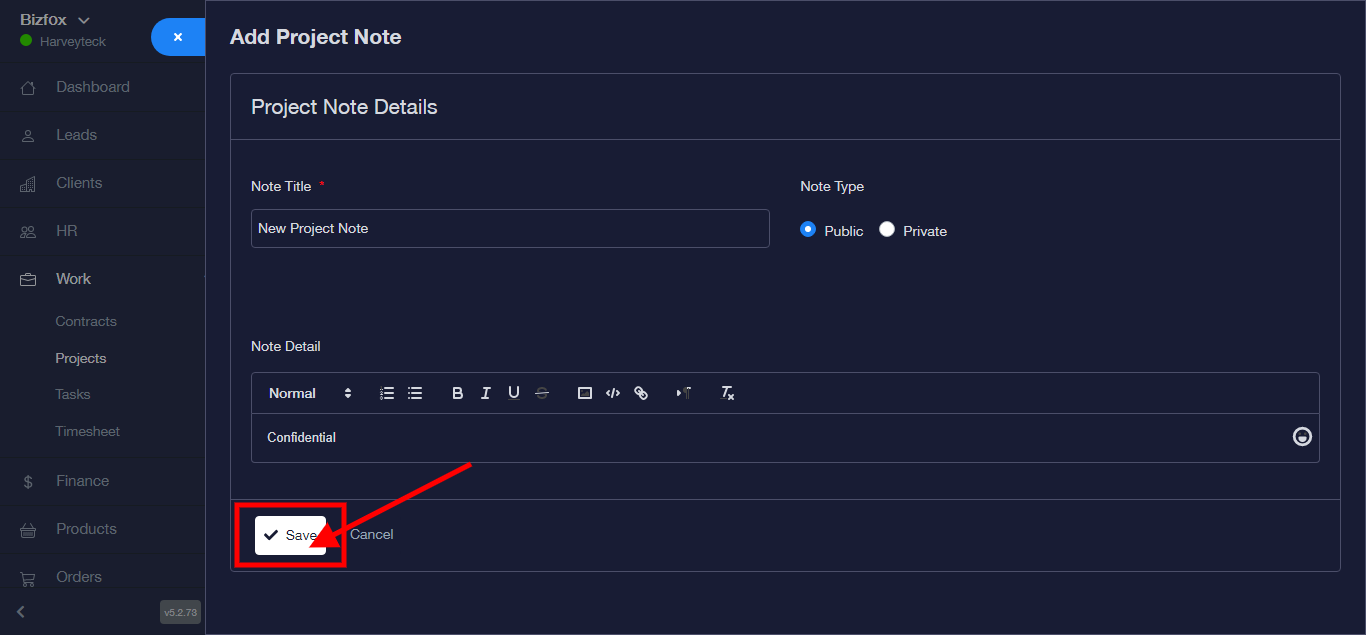
Step 8: Click “Save” to save note
Note successfully added.

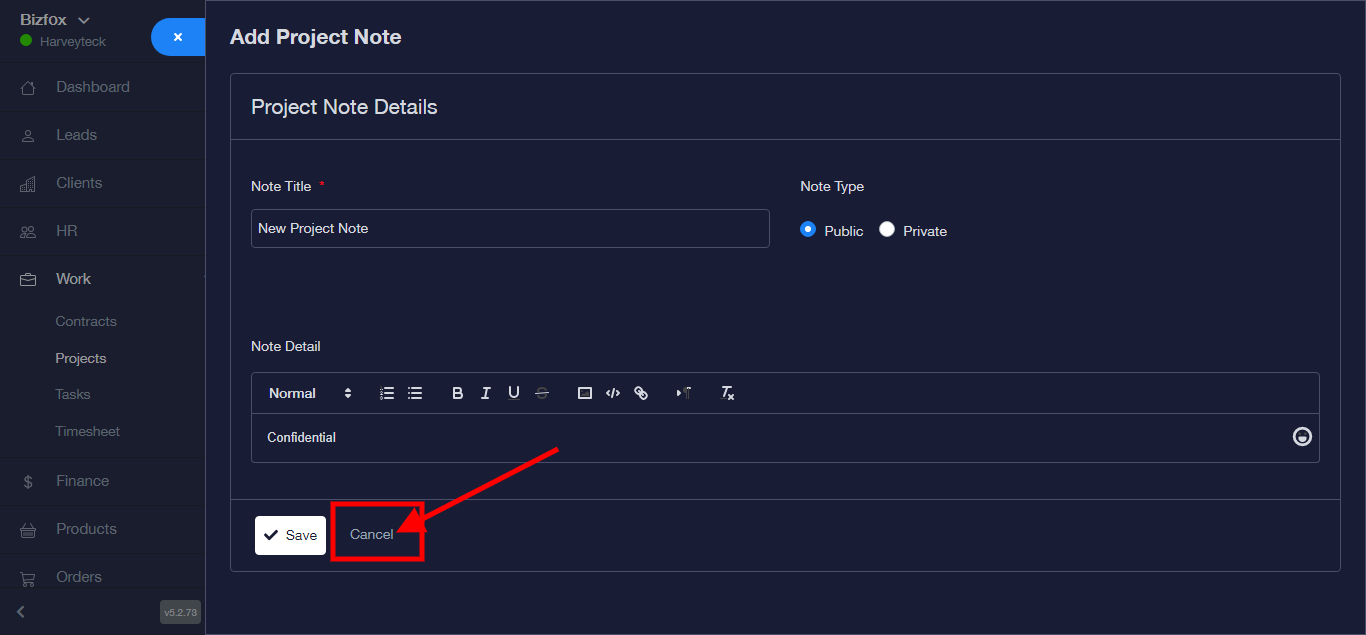
N/B: Click on “Cancel” to dis-continue the process if need be.